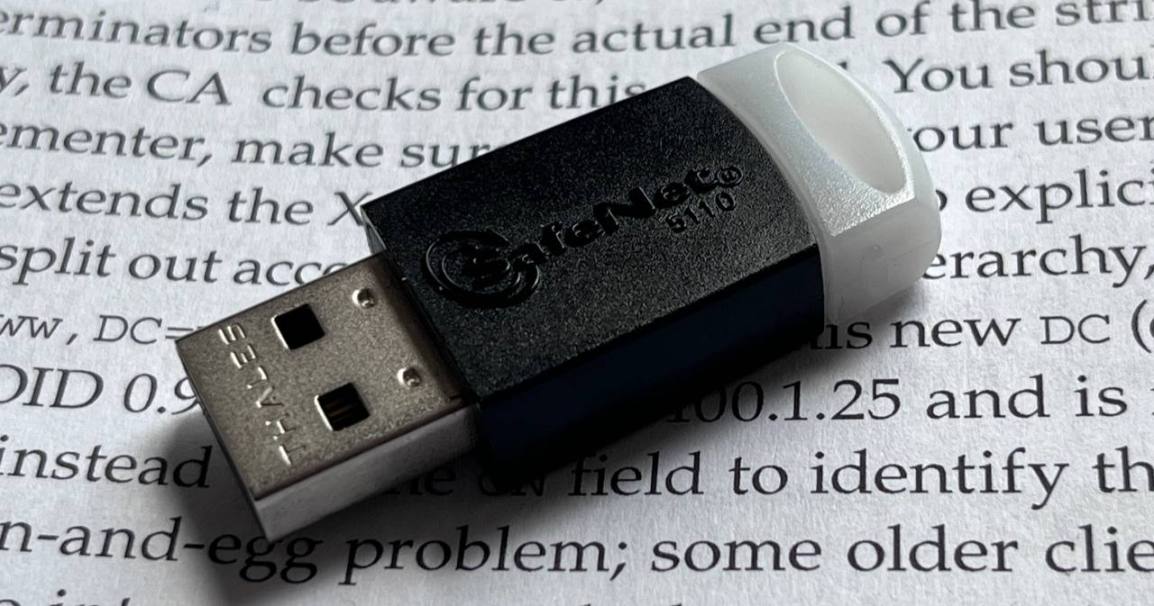
Code signing is a great way to detect if an exe or dll has had been modified by someone other than the person that created it. Some systems give slightly higher trust to code that has been signed. I’ve finally gotten my own code signing certificate after a frustrating experience with a software security system generated a security event after I created helloworld.exe to test a compiler (among other issues). The security software tends to be less agressive when there is an atestment for the source of the executable. When
Summary
- The code signing certificate is stored on a physical secure element.
- Physical access to the token is needed to sign code. Treat it as any device that contains secure informatio.
- Individuals probably want an OV code signing certificate. Larger corporations probably want an EV certificate.
- Code signed with this certificate becomes tied to the ID of the signing organization.
My Selected Certificate Issuer
I selected “Sectigo” as my certificate issuer. Part of the reason for my choice was that when I checked other issuers, I found that they were actually resellers for other issues. The reseller prices were understandably a bit higher than going direcly to an issuer.
Types of Code Signing Certificates
There are two types of code signing certificates. Both certificates are associated with some level of verification. The lower level verification certificates are cheaper and require that less information be verified (This is what I purchase). For this certificate, verification of the name of the person or entity that is requesting the certificate is verified. The ID of the person making the request is verified along with ensuring they are authorized to act on behalf of the entity. There are also phone number and email verification. For, the most difficult part of the verification was the phone number verification. The certificate issuer tries to verify the phone number against public records. But if the phone number isn’t on some public record, they will accept a letter from one’s accountant or lawyer that ties this information to the other factors. I used a legal professional for phone verification.
Extended verification looks at additional factors such as an entity’s DUNs number and demand deposit account. If you don’t have these or are not familiar with what they are, you probably don’t want to go this route. For developers of lower-level applications such as system drivers will want this level of trust though. Windows adds a lot of friction to installing certain types of drivers that are not
Once I completed verification, the key shipped out pretty darn fast. I completed my verification around 12:30pm on one day, and the certificate was delivered to my house by 12:00 the next day.
Physical Token
Part of the security of modern code signing certificates is that they are shipped on a physical device. This is a requirement that Microsoft imposes for security reasons. If the certificate isn’t saved on a drive where someone can get to it, then it can’t be compromised. To get the key, someone would need to steal the physical device.
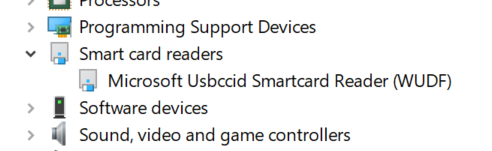
At first glance, one might confuse this token with a USB storage drive. It’s not. Once I connected it to my computer, it became apparent what my security token is. It is a smart card with a USB interface. I’ve made a couple of post about SmartCards (AKA JavaCards). Among other capabilities, JavaCards are able to store and security certificates and perform encryption and decryption without making the encryption keys themselves visible. They implement anti-tampering logic. Experimenting or attempting to circumvent the security can result in the device being permanently disabled. The token is protected with a couple of passwords. There is an administrator password and a user password. The user password for my token was made available to me via e-mail when the token was shipped. The user password can be changed. The administrative password is never made available to the end user. When connected to the computer, the device manager as a “Smart card reader.”
For Signtool to communicate with the token, an additional software item is necessary. For the token that I am using, this is the “SafeNet Authentication Client.” The download URL for the client was provided from my issuer in the same e-mail in which they shared the password. After installing the software, one of the first actions I took was to change the user password on the token from the random string of characters that had been assigned to it to something I can remember. The user password is necessary every time code is signed.
Signing and Timestamping the Code
For a DLL or an EXE that you wish to sign, you will use signtool.exe The two commands that you might want to remember for it are how to sign code, time stamp code, and verify signing.
Signing code
For signing code, you will invoke the executable with the sign argument. You’ll need to indicate that the SHA256 algorithm is being used (/fd SHA256). Optionally, you might want to communicate to the tool that it can automatically select the most appropriate certificate for signing (/a).
signtool sign /fd SHA256 /a .\helloworld.exe
After the code is signed, you will want to timestamp the code. The timestamp command requires a URL to a time server.
signtool timestamp /tr http://timestamp.digicert.com /td SHA256 .\helloworld.exe
If you want to view the information on a signed executable, within the Windows Explorer the information shows when you right-click on it and select “Properties.” A “Digital Signatures” tab will be present and show the name of the signner and the timestamp.

Posts may contain products with affiliate links. When you make purchases using these links, we receive a small commission at no extra cost to you. Thank you for your support.
Mastodon: @j2inet@masto.ai
Instagram: @j2inet
Facebook: @j2inet
YouTube: @j2inet
Telegram: j2inet
Twitter: @j2inet



 j2i.net