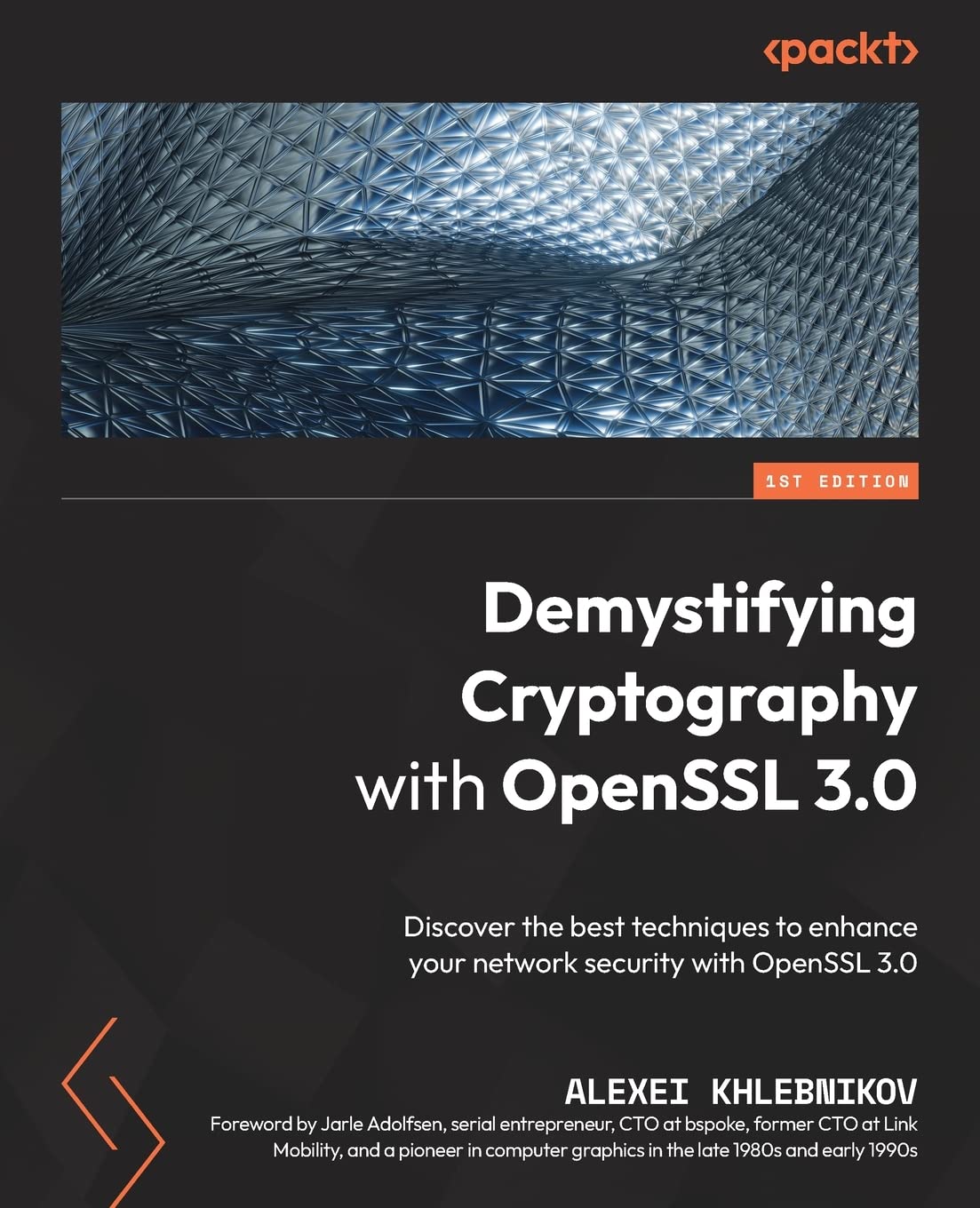
Compiling OpenSSL for JavaCard on Windows with Visual Studio

I needed to compile OpenSSL on Windows in preparation for some JavaCard work. While OpenSSL can be compiled with a range of compilers, I wanted to specifically use Visual Studio because that is the compiler that is generally available on my machines. In addition to Visual Studio, I also needed a build of perl installed and available in the system path. After cloning OpenSSL and navigating to the root of the repository, the next step is generally to configure the build. For the JavaCard tools, a 32-bit version of OpenSSL is needed. I ran into some problems initially with part of the build process targeting 64-bit architecture. To prevent this from happening, some environment variables can be set to ensure the 32-bit version of the tools is used. Visual Studio provides a batch file for setting these environment variables that we can use. Below is the path at which I found this batch file. For you, it may vary depending on the edition of Visual Studio that you have.

C:\Program Files\Microsoft Visual Studio\2022\Community\VC\Auxiliary\Build\vcvars32.bat

Open a command terminal and run this batch file. Then you can start the build process. To configure the build process for 32-bit Windows with the options needed for the JavaCard environment, use the following command from the repository root.

perl Configure VC-WIN32 no-asm no-threads enable-weak-ssl-ciphers

If you wanted to make a general build, you could omit most everything after VC-WIN32. For a 64-bit build, use `VC-WIN64A.

Now for the long part. After this next command, if you were planning on making coffee or having a quick bite to eat, a good time is about to present itself. From the root of the repository, run the following command.

nmake

If you come back and find that the build process has terminated with a complaint about mixing 32-bit and 64-bit code, then that means that the system is using the 65-bit version of the tools. This will happen if you forgot to run the batch file that I mentioned earlier. If you would like to run the unit tests for OpenSSL, use the following command.

nmake test

This process also takes a significant amount of time. When it completes, the last step is to install OpenSSL. This command will likely fail unless you open an instance of the Visual Studio command prompt with Administrative priviledges.

nmake install

This command will place OpenSSL within c:\Program Files\OpenSSL. The executables themselves are in c:\Program Files\OpenSSL\bin.


Posts may contain products with affiliate links. When you make purchases using these links, we receive a small commission at no extra cost to you. Thank you for your support.

Mastodon: @j2inet@masto.ai
Instagram: @j2inet
Facebook: @j2inet
YouTube: @j2inet
Telegram: j2inet
Twitter: @j2inet

Hardware for Java Card Development

I’ve got a series of posts on JavaCard development. There is some hardware that is needed if you want to deploy your JavaCard programs to physical hardware. The cards that I’m using are both chip cards and dual-interface cards (meaning that they both have the chip and can communicate over NFC). They also have magnetic strips on the back. If you want to try the same hardware, this is a listing of what I’ve got. Note that the links in the following are affiliate links. If you purchase through these links, I earn a small commission that goes towards supportin gthis site and my activities.

Blank Java Cards

Java 3 Dual Interface Cards

These are the cards on which I’ll be running my programs.

The JR150 cards are dual interface cards. They can interact both through the chip and wirelessly, making them accessible to Android phones. These cards use the smaller 6-contact version of the chip interface and a printable in card printers. The two that I received came with their keys on a sticker enclosed in the device. They key values were the same as what was listed on the Amazon Listing as example keys. I’m reposting here, should you get these cards and the if the same key applies. The cards come with at least 99 KB of storage and supports RSA encryption of up to 4096 bits.

CDKenc: 90379AЗE7116D455E55F9398736A01CA
CDKmac: 473F36161A7F7F60CC3A766EA4BE5247
CDKkek: D3749ED4FF42FD58B39EEB562B017CD9

Java 2 Chip Interface Cards

These cards *only* have the chip interface and are suitable for Java Card 2 applications. It has 40 kilobytes of storage and supports RSA encryption up to 2048 bits.

Card Readers

Contactless Only Card Reader

This inexpensive card reader/writer has a wireless-only interface. On Windows, no driver installation is needed. The operating system immediately recognizes it and makes it available to your programs.

Contac + Contactless Reader

This card reader cost a bit more than the wireless-only, but is able to read either type of card. Though it will be listed as two card readers by Windows, only one mode can be active at a time. It will either read a contactless card or a contact card, but not both at the same time. Like the previously mentioned card reader, the drives built into windows already works with this device.

Magnetic Reader/Writers

Text data can be encoded on the magnetic strips on the card. Note that the text data uses an encoding that does not make all ASCII characters available. The encoding for english letters doesn’t distinguish between upper and lower case letters. Card readers tend to return letters in upper case lettering.

Reader/Writer

If you want to also write information to the magnetic strip on the back of the card, you will want a card writer. Though, don’t put anything confidential on the magnetic card. Those contents tend to be stored in plain text and would easily be lifted by someone else.

Magnetic Reader

This magnetic reader has no capability for writing to a strip. To the computer, it appears as a keyboard. Swiping a card through it will result in the computer receiving keystrokes that correlate to the data on the card. You’ll need to parse the data out. I’ve written about the data encoding in another post that you can find here.

Card Skins

I checked out card printers, and even the cheapest among them is too expensive for handling a small volume of cards. So that my cards were not bear white, I decorated them using “card skins.” These are marketed as decorations for payment cards. I did add a few of these to a couple of payment cards too. At this point in time, the only information on the front of a card is a name and the name of a bank. Most of the relevant information is on the back of the card. If you get one, you’ll need to know if you are planning to place the skin on a card with the smaller 6-contact chip or the larger 8-contact. There exists an American Express with a 10-contact chip. I’ve not seen it in person and don’t know it’s size. If you have a 10-contact card, be aware that these skins might not fit. These are the cards that appear in my videos or my posts.


Posts may contain products with affiliate links. When you make purchases using these links, we receive a small commission at no extra cost to you. Thank you for your support.

Mastodon: @j2inet@masto.ai
Instagram: @j2inet
Facebook: @j2inet
YouTube: @j2inet
Telegram: j2inet
Twitter: @j2inet