Breaking a String by Visual Width in JavaScript

Breaking a string by character count is trivially easy in JavaScript. I needed to break a string based on the visual width though. There are challenges here from each character in a string having a unique width depending on the caracter, font weight, font size, and other settings. I needed to do this for a project. While I’m not proud of the solution, it works, and is something born out of working with what I have. In some other environments, there are functions for information on font metrics that would be assistive. But these are not present in JavaScript (though the Canvas APIs have something that comes close, they don’t help here because they can’t take CSS into account).

The solution that I used took a string abd broke it into words. Each word was added to an element one at a time. I wrapped each word in a <span/> tag. The offsetWidth and offsetHeight on the span elements indicate how much space it is take up. I also had to wrap spaces in <span/> tags. Each time I added a word or space to a parent element, I measured the width to see if I had exceeded some maximum tolerate width. If that width hasn’t been exceeded, I keep going. If it has, I remove the last word that was added and grab all the other words and save them. They are all the words I could fit on that line. The word I removed from the string is then used to start a new string. The process repeats.

A parent element is needed for this process so that the string can inherit display settings during measurement. This could be a zero opacity parent element or something positioned offstring to ensure that it doesn’t get displayed. Though in my testing, this process happens fast such that the string is never displayed while being processed.

I don’t like adding things to the DOM for the sake of just getting a measurement. Some part of me has concerns about side effects of adding and removing items from the DOM, such as exacerbating the effects of some bug that might be present or increasing the frequency of garbage collection cycles. But right now, this is the best solution that I see.

function BreakAtWidth(text,parentElement, maxWidth) {
    if(maxWidth == null) {
        maxWidth = 80;
    }
    if(typeof parentElement == 'string') {
        parentElement = document.getElementById(parentElement);
    }
    var tempChild = document.createElement('span');
    tempChild.style.opacity = 0.0;
    parentElement.append(tempChild);
    var textParts = text.split(' ');
    var elementParts =[]; 
    var elementPartsCombinedString = '';
    var brokenParts = [];
    textParts.forEach(element => {
        elementParts.push(`<span>${element}</span>`);
        elementParts.push(`<span> </span/>`)
    });

    for(var i=0;i<elementParts.length;++i) {
        elementPartsCombinedString += elementParts[i];
        tempChild.innerHTML = elementPartsCombinedString;
        const width = tempChild.offsetWidth;
        if(width >= maxWidth) {
            var resultString = elementPartsCombinedString.substring(0, elementPartsCombinedString.length - elementParts[i].length);
            if(resultString == '') {
                brokenParts.push(elementPartsCombinedString);
                elementPartsCombinedString = '';
            }
            else {
                brokenParts.push(resultString);
                elementPartsCombinedString = elementParts[i];
            }
        }
    }
    if(elementPartsCombinedString != '') {
        brokenParts.push(elementPartsCombinedString);
    }
    
    var cleanStringList = [];
    brokenParts.forEach(part=> {
    cleanStringList.push(part.replaceAll('<span>','').replace('span/>',''));
    }) ;
    tempChild.remove();
    return cleanStringList;
}

Posts may contain products with affiliate links. When you make purchases using these links, we receive a small commission at no extra cost to you. Thank you for your support.

Mastodon: @j2inet@masto.ai
Instagram: @j2inet
Facebook: @j2inet
YouTube: @j2inet
Telegram: j2inet
Twitter: @j2inet

Tesla Super Charging More Open to Other Vehicles

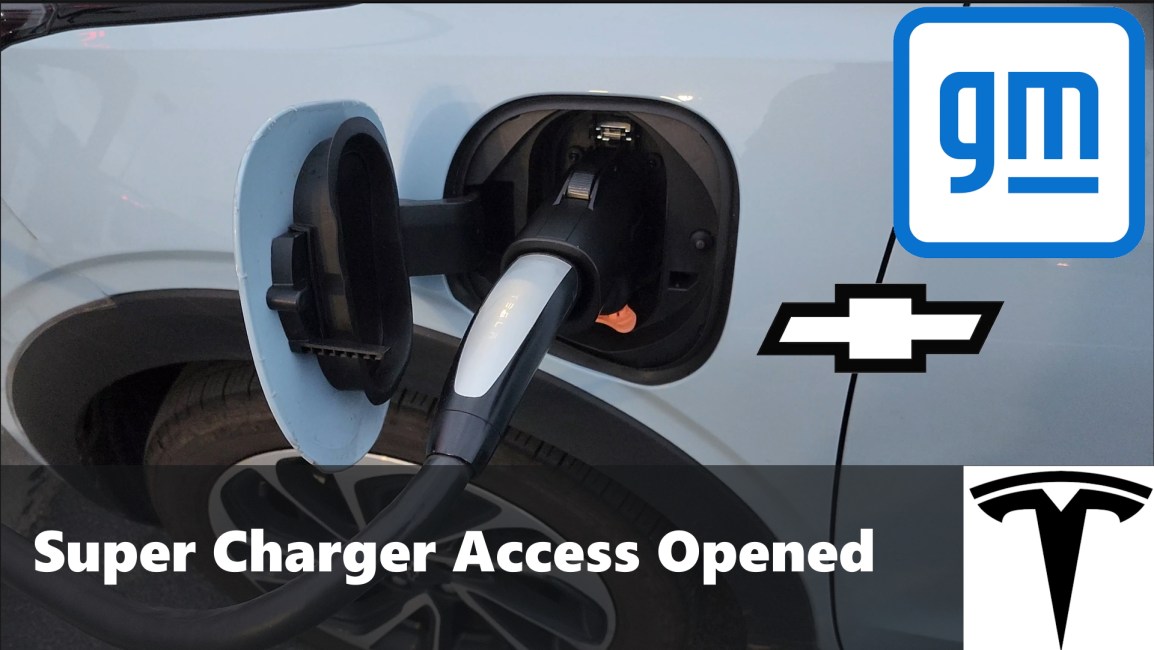
I woke up this morning to a listing that was on the Chevrolet website for a Tesla Super Charger adapter that looks a lot like the Lectron Vortex. I wish I had taken a screenshot, because the page is no longer there. But seeing it was all that was necessary to motivate me to try something out. I drove to a Super Charger on the way to work to see if I could charge my Bolt EUV on it. Until now, the only vehicles that could use Tesla Super Chargers were the Tesla vehicles themselves along with vehicles from Rivian and Ford. Just before the original expected announcement for GM vehicles, Elon Musk fired the entire Super Charger team. That may have affected the rollout.

I have a couple of Super Charger adapters, including the Lectron Vortex. That’s the one that I tried out at the Super Charger. A word of warning though, the first time I used this adapter, the retention string was a bit strong and I had a hard time removing it. I almost abandoned it! But since that first experience, I’ve not had any further problems. If you find your adapter stuck, I have a post about removing it.

After connecting the adapter and the charger to my car, I opened the Tesla app, selected my charger, and that was it, the car was charging. My car already had plenty of charge. I was only testing to make sure that current would flow. I don’t have much to say about how long it took. I will comment on the cable length. The Tesla cables are short! Teslas all have their adapters on the driver’s side rear tail light. The cables are just long enough to reach the tail light. My port is on the side of the car right in front of the driver’s door. To charge, it is necessary to double-park. The Tesla website instructs people to park this way to make the cable reach. Newer chargers have longer cables.

Key to using a super charger is having an adapter. They’ve tended to be in short supply. The Tesla website states one should only use OEM adapters. To date, the only OEM adapter are the one’s made by Tesla for Ford, which feel to be in a perpetual back order state. I used the Lectron Vortex. It has an appearance that looked identical to what was on the Chevy site (minus branding). These are available on Amazon (affiliate link) or directly from Lectron.


Posts may contain products with affiliate links. When you make purchases using these links, we receive a small commission at no extra cost to you. Thank you for your support.

Mastodon: @j2inet@masto.ai
Instagram: @j2inet
Facebook: @j2inet
YouTube: @j2inet
Telegram: j2inet
Twitter: @j2inet

Using SSH with Git Hub

With GitHub being the most popular git based repository (but not the only one) I write this for GitHub. But the procedure is pretty much the same on other git repositories, with the differences being in the web interfaces. If you haven’t already, consider using SSH keys for accessing your git repositories. They provide a more secure authentication method than using passwords. Each of your computers can have a different key. If the keys were somehow compromised, you could revoke the key for that compromised computer without affecting the other computers.

To use get with SSH keys, you need a public/private key pair. To create a keypair, use the following command. Make sure that you use your own email address.

ssh-keygen -t ed25519 -C "user@domain.com"

After typing this command in, you’ll be asked to enter a key phrase for the key. This of this as the password. If you forget it, there is no way to recover it. The output from this command looks similar to the following.

Generating public/private ed25519 key pair.
Enter file in which to save the key (C:\Users\ThisUser/.ssh/id_ed25519):
Enter passphrase (empty for no passphrase):
Enter same passphrase again:
Your identification has been saved in C:\Users\ThisUser/.ssh/id_ed25519.
Your public key has been saved in C:\Users\ThisUser/.ssh/id_ed25519.pub.
The key fingerprint is:
SHA256:9aglYQliSNTdn6AkDDAlchq+uC3lb43lg4yNgE8TG2s user@domain.com
The key's randomart image is:
+--[ED25519 256]--+
|=====...         |
|o...o.o.o.       |
|.. . = .+o..     |
|. +   .. ooo     |
|o===    X o .    |
|o==   .+++       |
|o=o= *  *        |
| .+.* +          |
|   ..  .         |
+----[SHA256]-----+

This creates two files named id_ed25519 and id_ed25519.pub. The file that ends with .pub is the public key and is shared with any entity that needs to authenticate you. The file without an extension is the private key. That is not to be shares. Open the .pub file and cop it’s contents to your clipboard. You are going to need it in a moment.

Login to github.com and go to your account settings. To get there, click on your profile icon in the upper-right corner, select settings. From the menus on the left, select SSH and GPG Keys. Here, your SSH public keys will be listed (if you have any). Select the option New SSH Key. You’ll need to enter a name for the key (here, I entered the name of the computer that the key is associated with) , select a Key Type (Choose Authentication Key), and paste the key into the text box. Select Add SSH Key to save the key. The view will refresh and show your new key in the list.

To use the key, after you’ve selected a git repository, in the clone option for the repository is the option to use an SSH key.

A git repository showing the SSH URL.
The SSH cloning option for a repository.

To clone, just use that URL as a parameter to the clone command.

git clone git@github.com:j2inet/CppAppBase.git

You’ll be prompted for the paraphrase. The cloning experience feels the same way as it does when using a password. If you didn’t set a paraphrase for your key, then you won’t be prompted for a password.

PS C:\shares\projects> git clone git@github.com:j2inet/CppAppBase.git
Cloning into 'CppAppBase'...
Enter passphrase for key '/c/Users/User/.ssh/id_ed25519':
remote: Enumerating objects: 594, done.
remote: Counting objects: 100% (100/100), done.
remote: Compressing objects: 100% (70/70), done.
remote: Total 594 (delta 40), reused 75 (delta 25), pack-reused 494 (from 1)
Receiving objects: 100% (594/594), 82.72 MiB | 3.43 MiB/s, done.
Resolving deltas: 100% (281/281), done.
PS C:\shares\projects>

Posts may contain products with affiliate links. When you make purchases using these links, we receive a small commission at no extra cost to you. Thank you for your support.

Mastodon: @j2inet@masto.ai
Instagram: @j2inet
Facebook: @j2inet
YouTube: @j2inet
Telegram: j2inet
Twitter: @j2inet