Earlier today Microsoft announced its plans for adjusting to the world economy. The news story I read stated that mid-PC sales were down while server software was up. I can’t help but associate that with what a Sony exec called “A race to the bottom” in which consumer and OEMs begin to target building the cheaper computer instead of the higher performing computer. With the increasing emphasis being placed on Cloud Computing and Web Services and it all supports a prediction that software was going to move from the individual PCs back to the servers. We can find evidence of this now. Previously if you wanted to work on a word document you needed a computer with sufficient space and a reasonably powered processor. You would then need to purchase and install Microsoft Word and you could edit documents from your siloed computer. While you can still do this today you also have the option of using an online service to essentially do the same thing. You can use a low powered computer with any of a variety of operating systems as long as that computer has a supported browser. The power of the individual computer matters a little less and connectivity matters a whole lot more. as applications begin to target modern terminals.
It’s possibly that my view of the future is slightly exaggerated but I doubt it is completely wrong. That being said my plans for adjusting to what I think to be the needs of the future are to accelerate my learning path for Microsoft Azure Services Platoform and Live Services. I’ve been experimenting with Live Services for some time now and have found them to be useful in quickly putting together useful applications. An Azure application runs across several 64-bit Windows 2008 servers. Installation of patches is handled for you, failover is taken care of, and so are several other maintenance tasks allowing development of highly available, secure, and redundant applications with more ease. Effective use of the platform is going to require a different way of thinking than developing the traditional application so I plan to get started tonight with the intent of having information to teach and share within the next week.
From the BlogEngine Archives
Posts may contain products with affiliate links. When you make purchases using these links, we receive a small commission at no extra cost to you. Thank you for your support.
I was reading through Mike Francis’s blog and saw a rather useful offer from Microsoft for free eBooks on LINQ, ASP.NET Ajax, and Silverlight 2.0. If you are interested all you have to do is register and you can download the eBooks. I’ll be teaching a Silverlight class in a little over a month so I hope to review the Silverlight book fairly soon so that I can consider recommending it to the students.
From the BlogEngine Archives
Posts may contain products with affiliate links. When you make purchases using these links, we receive a small commission at no extra cost to you. Thank you for your support.
I’m glad Mike Hall posted on this. There is a free book available to those wanting to learn C#. This is especially convinient for me because I was going to write a series of “Getting Started” articles on Windows Mobile development and I really see the task of learning the C# (or vb.net) language as being separate from learning how to target Windows Mobile devices. I’ll be referencing this book in one of my next articles.
From the BlogEngine Archives
Posts may contain products with affiliate links. When you make purchases using these links, we receive a small commission at no extra cost to you. Thank you for your support.
As promised I uploaded the wrapper for the Skyhook Wireless SDK for Windows Mobile to the Skyhook Wireless discussion group. I tried the wrapper out with the 3.0 SDK and it works fine. It exposes all the SDK functionality with the exception of the WPS_tune_location function (I have no idea what that function does). So I am done with my interaction with the Skyhook Wireless SDK for now.
If you program in C# or VB.Net and want to use the SDK then you can get the code from the files area of the Skyhook Wireless discussion group.
From the Blog Engine Archives
Posts may contain products with affiliate links. When you make purchases using these links, we receive a small commission at no extra cost to you. Thank you for your support.
I was reading through WMPowerUser yesterday and happened upon an article on Augment Reality on Windows Mobile. The article shows some videos from the Christian Dopler Laboratory in which a mobile device is being used to track photographs and business cards and project 3D elements on them. Very cool! Best of all there is code available for the computer vision library that they used. Follow the link for the code and videos.
From the BlogEngine Archives
Posts may contain products with affiliate links. When you make purchases using these links, we receive a small commission at no extra cost to you. Thank you for your support.
Beyond having mentioned the Windows Mobile Power Toys once in refering to the “24 Hours of Windows Mobile” webcast I’ve not actually spoken about it. But given the level of popularity I’ve decided to write an article covering it along with the EQATEC Profiler and the EQATEC Tracer. All of these are free tools. I wrote my outline for the article last night and am now working on the example code. This will be something usable by both those that use Visual Studio and those that develop for Windows Mobile without Visual Studio.
From the Blog Engine Archives
Posts may contain products with affiliate links. When you make purchases using these links, we receive a small commission at no extra cost to you. Thank you for your support.
It’s time to roll up my sleeves to get my hands dirty with some native code. I’ve got two ideas for applications of facial recognition, one for the desktop and the other for Windows Mobile. I’ll need to take some time to plan these out, but these are my ideas…
Automatic Profiles
There was a time when my family members would use my computer and change my settings (Wall paper, resolution, sound scheme, and so on) and it would annoy me to no end. When Microsoft released Windows XP the problem was solved. We had a much better implementation of user profiles that didn’t require any one to remember their user name and didn’t leave any one locked out if the previous user had forgotten to log out. Many computers come with web cams, so why not use them to extend upon this concept. Why cant the computer recognize who is sitting in front of it and act accordingly automatically changing profiles.
Where do I know that person from?
I encounter a lot of people that I don’t remember (I have a bad memory for faces). Wouldn’t it be nice if I could point my camera phone at them and instantly get a reference to their name and face book profile? All the technology and processing needed to do this exists today. Some one just needs to pull it all together.
Posts may contain products with affiliate links. When you make purchases using these links, we receive a small commission at no extra cost to you. Thank you for your support.
I am finally no longer on a project that I really disliked. I had been on the project for 5 months with my role being to configure the software to meet the user’s needs. A huge task in this seemingly simple task was a lot of data entry; that could be entry of a user’s account information or population of a mirid of other tables and values requireed by the application. The main problem was not so much in the volume of data that the system required but in the manner in which the system was designed to take the data. The system had a very poor user interface. On example of where the interface failed was in the task of creating a user account. After entering a user’s name and moving to the next field I was immediatly prompted to save or discard that change. Saving the change resulted in the user editor closing and I had to reopen it, find the user I was modifying, and change the next property and answer that prompt again. I had to be able to convey the level of inefficiency of this interface to others on my team otherwise any slowness in completing a task could be percieved as being from an inadequacy on my part.
To state “The interface in this system is bad, I don’t like it” may not be well received. The statement sounds subjective and can be evaluated as nothing more than some one complaining. To sufficiently communicate the state of the interface I needed to show that it was poor objectivly. But a problem with user interface design is that much of it is performed subjectivly without much evaluation of the objective attributes of the interface. I believe that part of this could be from people simply not knowing that there are objective evaluations for a User Interface. There’s several methods of evaluating user interface efficiency. I won’t bother to name them here, rather I will refer you to the book “The Humane Interface” written by Jef Raskin (the developer of he Macintosh interface, and the 31st employee of Apple Computer). Raskin covers both interface metrics and his philosiphy when it comes to designing and comparing user interfaces.
Being armed with this knowledge I was able to express with hard numbers the inefficiency of the user interface in this product and point out where the designers went wrong and show how it could have been improved. While the developers of this product did not make the suggested improvements during my time on the project I was able to properly set expectations for completion. That’s very important to me since meeting expectations is onf of the performance metrics by which I am measured.
From the BlogEngine Archives
Posts may contain products with affiliate links. When you make purchases using these links, we receive a small commission at no extra cost to you. Thank you for your support.
Gavin Jacke is a Director of Engineering for Microsoft Research. One of his inventions is the High Capacity Color Barcode. Microsoft’s applied this technology to a new Windows Mobile product called “Tag.” In short a Tag is a color barcode that you can place on a product or in an ad, and some one with the client application on their phone can aim it at your tag to get referred to a website with more information, receive a vCard, or be connected to a phone number. Pretty cool!
From the BlogEngine Archives
Posts may contain products with affiliate links. When you make purchases using these links, we receive a small commission at no extra cost to you. Thank you for your support.
I was creatting a proxy to make use of the OpenCellID web services. There is no WSDL available for the service so I decided to create a web services solution that had the same interface as the OpenCellID proxy and then use the WSDL that it generated as a starting point for a proper WSDL file (which for me was much less effort then creating the WSDL from nothing). After creating the initial WSDL I tried to use the WSDL command line tool to create the proxy. I specified HttpGet protocol and to my surprise I received an empty class file. I tried again specifying SOAP as the protocol and it worked! Why the difference in behaviour? After attempting to solve this for a while without success I decided to post a question on the MSDN forums and quickly received an answer.
As it turns out by default HttpGet (and HttpPost) protocol are disabled for web .Net web services. To enable them you must add them as approved protocols in the web.config file. After adding the appropriate section things worked like a charm.
Posts may contain products with affiliate links. When you make purchases using these links, we receive a small commission at no extra cost to you. Thank you for your support.
Google Goggles was just made available through the Android application store. I decided to play with it last night using a few of the objects that I had laying in the house and I have to say that it’s pretty cool.
From the BlogEngine Archives
Posts may contain products with affiliate links. When you make purchases using these links, we receive a small commission at no extra cost to you. Thank you for your support.
According to WMPowerUser and IStartedSometing.com there may be a Windows Mobile store coming to WM7 devices. If you are a developer now would be the time to begin writing programs for such a store. If it comes into existence, then you’ll have apps ready to be first to market. If not, then you can still sell them through other online sites.
When I press the power button on my Windows Mobile phone do the programs stop running?
These are all questions will all be answered by the end of this blog post. Thanks to the availability of inexpensive electronics such as digital video and audio recorders we can show that falling tress make noises and that the lights in the fridge do go out. Figuring out what happens when the power button is pressed on Windows Mobile was a little more difficult.
My first attempt at answering this question was based on programs that changed what they were displaying over their execute cycles. If the Windows Mobile device suspends when I press the power button then after pressing the button, waiting a few seconds, and pressing it again the program’s display should show the same thing that it did before I pressed the button. If the device continues to run when I press the power button then after the test I should see something that is noticably different. I ran my test and concluded that the processor continued to run after the power button was pressed. As it turned out my initial conclusion was wrong.
After performing much more research on the matter I found that my conclusion contradicticted other material I found such as the “Power to the Programmers” post on the Windows Mobile Team Blog. I performed my tests again and increased the amount of time that I left the device in its alleged suspended state. After successive test I achieved enlightenment. Pressing the power button on a Windows Mobile Professional device powers down the display and some other hardware, but the processor continues to run. After a certain amount of time has passed unless a program has indicated a desire to do otherwise the device’s processor will halt until something wakes it up. When the device is in this state it’s not off; the programs are still in memory. Windows Mobile Standard devices are always on, there’s no questioning that.
In a forthcoming post I’ll cover the details of power control on Windows Mobile devices.
So the only question that leaves open is whether or not Schrodinger’s cat is alive. I will leave that question unanswerd and hope for the best for his cat.
I submitted an article to codeproject.com a little over a month ago about automatically starting an application base on an event or a schedule. I posted the content of the article here. To get the source code visit http://www.codeproject.com/script/Articles/Article.aspx?aid=27917
Introduction
Figuring out how to make an application automatically start up had long been a mystery to me. The information was scattered and a bit of research was needed to collect all of. During my research I placed all of my notes in a various documents and have decided to organize them into a single document and share with all. The information presented here was tested on Windows Mobile 5 and Windows Mobile 6 devices but can also be applied to several versions of Windows CE (The OS from which Windows Mobile is derived).
It’s possible to achieve similar functionality by making your own executable that watches system changes through the SystemState class and responding accordingly, but that would cause your program to have a larger footprint.
About the Code
The first methods of automatically starting a program are centered in what I will call configuration tasks; making shortcuts, registry entries, or placing files in specific locations. For these methods I do not provide code examples. Later within this article I discuss methods of automatically launching applications that are setup through code. For these methods I include example code within the article and full source attached to the article.
The code examples rely on some Win32 functions that are called through P/Invoke. Both code examples refer to a project named Win32 which contains the references to these functions. Additionally Win32 also contain a structure and an enumeration needed to properly pass information to the WinAPI functions. To run the code examples you will need a Windows Mobile device (or emulator) and Visual Studio 2008.
Remember that on Windows Mobile devices you should prevent more than one instance of your program from existing in memory (if a second instance is started it should notify the first instance and then immediatly terminate).
What is meant be “auto-start?”
When I use the phrase auto-start I use it to refer to the launching of any program based on an event (other than the user clicking on the program’s icon). A program can be automatically started in one of four ways.
A program on a memory card runs as soon as the card is inserted
A program is scheduled to start at a predetermined time
A program is launched in response to a system change
A program launches at device power up
AutoRun from a Memory Card
The user inserting a memory card can cause an application to launch in one of two ways. The memory card could have a program on it that launches upon insertion of the Windows Mobile device could start a program that is already present in its main storage in response to the memory card being inserted. The later would be implemented by registering an application to start on a system change (discussed later).
When a memory card is inserted into a Windows Mobile / Windows CE device the OS automatically looks in a certain folder for a program named Autorun.exe. If that program is found then it is immediately run. The folder in which the OS looks is going to depend on what type of processor that the device has. For an overwhelming majority of Windows Mobile devices that folder will be “/2577”. Here is a table of the possible folder names for other Windows CE devices.
Processor
Folder Name
ARM 720
1824
Arm 820
2080
ARM 920
2336
ARM 7TDMI
70001
Hitachi SH3
10003
Hitachi SH3E
10004
Hitachi SH4
10005
Motorola 821
821
SH3
103
SH4
104
Strongarm
2577
f you already have an application on a memory card that you wanted to autorun.exe but you did not want to rename the executable or place it in this folder then you can always make a second executable whose purpose is to launch your first executable.
Startup Shortcut
A shortcut can be made to an application that you wish to startup automatically and placed in \Windows\StartUp. Use this method if you have a single executable that needs to be started that has no dependencies on other executables. The format of shortcuts on windows mobile devices is simple. It will always be in the form of 00#”<\program Files\path>” where 00 is replaced with the number of characters that appear after the ‘#’ sign, the ‘#’ is a delimiter, and then the complete path to the executable. The following is an example of a shortcut to Windows Media Player.
23#“\windows\wmplayer.exe”
You don’t have to manually create the shortcut though. There is a native API call SHCreateShortcut that will create a shortcut for you. The first argument is the full path to the shortcut to be created and the second arguement is the full path to the file to which the shortcut points.
Starting an Application at Bootup
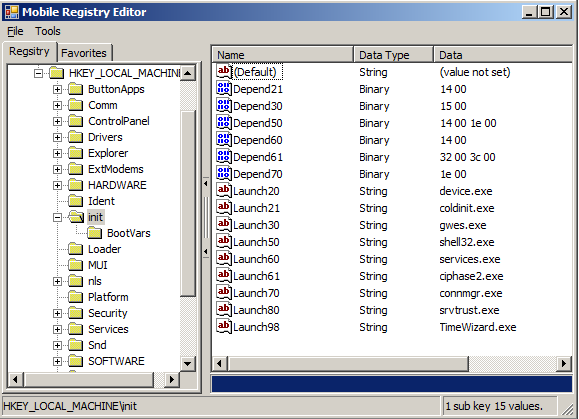
For Windows Mobile devices the location for autostart entries is HKEY_LOCAL_MACHINE\Init. Unlike the startup entries on a desktop machine (which only require the path to the executable to start) the entries for Windows Mobile devices are a little more structured. There are two keys associated with an application that needs to start up automatically, a LaunchXX key and an optional DependXX key. The XX would be replaced with a number. This number is also called the sequence number The value of LaunchXX is a string value (REG_SZ) that contains the path to the executable to be started. The DependXX key is used to specify on what applications that the current application has dependencies (and thus in what order the applications must be launched). The DependXX key contains a list of word (2 bytes) values that contain the sequence number values of the required applications.
The following screenshot is of the registry on my Windows Mobile 5 phone. Launch21 refers to an application named “coldinit.” If we look at Depend21 we see that “coldinit.exe” has a dependency on an application identified by 0x14 (20 decimal). So “coldinit.exe” must be launched after the app identified in Launch20, “Device.exe.”
Applications launched using this method must notify the application of successful startup by calling the SignalStarted(DWORD) function. This function is a native call. For C programs the header to this function is defined in Winbase.h and in the library Coredll.lib. Developers using managed code will need to P/Invoke this method. The functions only argument is the sequence number of the executable. The sequence number is passed to the application as its only command argument. Note that the sequence number is the only argument that the application will be able to receive through the command line arguments. Any other information that must be passed to the application should be passed through configuration files or registry keys.
Starting a Program at a Specified Time
The Windows CE / Windows Mobile OS contains functionality for automatically starting a program at a specified time. The functionality is available through a call to CeRunApAtTime from the CoreDLL library. As mentioned by Jim Wilson in many of his “How Do I” video post on MSDN, this function expects the start time to be specified in the WinAPI SystemTime structure instead of the DateTime structure (CeRunAppAtTime is an unmanaged function called using the platform invoke functionality). Converting a time from a DateTime to a SystemTime is not difficult; there are already WinAPI functions that do this for you. To make calling this function easier I have placed the following code in my Win32Helper class. I’ve also provided an overloaded function to allow the time to be passed as an offset from the current time with a TimeSpan object.
Where applicationEvent is the full path to the application to start and startTime is the time at which the application should be executed. There’s also an overloaded version of the method that accepts a TimeSpan object instead of a DateTime if you wanted to specify the start time relative to the current time.
If an application were attempting to schedule itself to be restarted at a later time it will need to be able to pass it’s complete path. I used reflection to find that path.
Module[] m = this.GetType().Assembly.GetModules(); target = m[0].FullyQualifiedName;
Running the Program because of a System Change
There are a number of system changes that can be used to trigger the execution of a program. The WinAPI function CeRunAppAtEvent is used to associate a program with an event. Once associated that program will be launched every single time that the event occurs! So you must also remember to disassociate the program with the event when you no longer want it to automatically start.
I have created the enumeration in the Win32 class named WhichEvent that contains the ID numbers for the events that can be used to trigger program execution.
When a program is started because of a change in system state a single argument is passed to the program to indicate the state change that triggered the programs execution. (I don’t discuss the details of how to do that here). For a complete list of the possible arguments see the example cod in AutoStartArgumentString.cs.
Enumeration Element
Description
NOTIFICATION_EVENT_NONE
Used to clear all events associated with a program
NOTIFICATION_EVENT_TIME_CHANGE
NOTIFICATION_EVENT_SYNC_END
ActiveSync synchronization has completed on the device
NOTIFICATION_EVENT_ON_AC_POWER
The unit’s charger is connected
NOTIFICATION_EVENT_OFF_AC_POWER
The unit’s charger is disconnected
NOTIFICATION_EVENT_NET_CONNECT
The device is connected to a network
NOTIFICATION_EVENT_NET_DISCONNECT
The device is disconnected from a network
NOTIFICATION_EVENT_DEVICE_CHANGE
A memory card or other device was inserted or removed
NOTIFICATION_EVENT_IR_DISCOVERED
The device has detected another infrared device
NOTIFICATION_EVENT_RS232_DETECTED
The device has been connected to an RS232 device
NOTIFICATION_EVENT_RESTORE_END
A full restore of the device has completed
NOTIFICATION_EVENT_WAKEUP
The device has come out of a suspended state
NOTIFICATION_EVENT_TZ_CHANGE
The time zone of the device has changed
NOTIFICATION_EVENT_MACHINE_NAME_CHANGE
The name of the device has changed
I have created a class simple named Core for declaring platform invoked methods from the CoreDLL.dll library and declared the CeRunApAtEvent function within it. The following schedules the the windows calculator to start when the device comes out of the suspended state.
After that call the windows calculator will start every single time that the device is woken up. To prevent the calculator from starting up a second call is necessary.
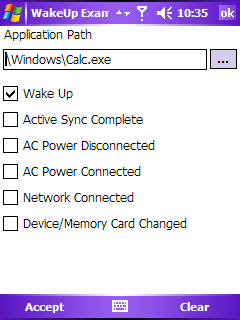
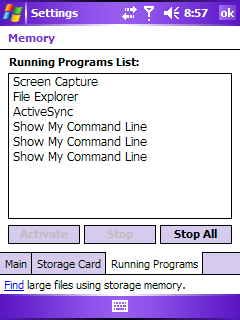
Included with this article is an example application that can be used to cause an application to launch for various events. Originally this program would only register a program to start upon wakeup. But I’ve extended the program so that it can also start programs in response to other events. Note that by changing the value in the call to CERunAppAtEvent that you can use the program cause an executable to launch for bcause of some other event (such as a memory card being inserted or ActiveSync completing its synchronization).
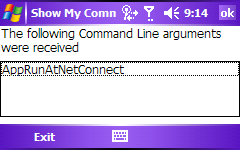
When a program is autostarted a string is passed to it through the command line indicating the event that started it. I’ve included a program named ShowCommandLine with the source code that does nothing more than display the command line arguments that it received. From the screen shot below you can see the command line argument that was received when the program was started upon connecting to a network connection.
Preventing Multiple Instances
Normally the .Net framework will take care of ensuring that multiple instances of your program are not running. This doesn’t always work for programs that are started because of a system event. Several system events can be fired in rapid succession or the same event can be fired twice (for some odd reason the wakeup event is usually fired twice). The first time I tried scheduling the ShowCommandLine program to start on wakeup and another event I ended up with several instances of it running.
To get around this I create an event object (using P/Invoke) before loading the form. If several instances of the program are started in rapid succession then the creation of the event will fail, and we can use this failure to know that the this is not the first instance of the program and immediatly unload it.
static void Main() {
    IntPtr eventHandle = IntPtr.Zero;
    const string ApplicationEventName = "ShowCommandLineEvent";
    //We will use this as our handle to
    //to ensure only one instance of the
    //program is started
    try     {
         //Try to create the event.  If the creation fails then it is
         //because another instance of this application is already
         //running. If another instance exists then this instance
         //should immediatly terminate.
         eventHandle = CoreDLL.CreateEvent(IntPtr.Zero, true, false, ApplicationEventName);
         int lastError = Marshal.GetLastWin32Error();
         //MessageBox.Show(String.Format("event handle {0}",eventHandle));
         if (0 == lastError)         {
             Application.Run(new Form1());
         }
     }
     finally     {
         //When the application is no longer running it should release the event
         if (eventHandle != IntPtr.Zero)
             CoreDLL.CloseHandle(eventHandle);
     }
 }
When multiple instances of a program are created in this manner you may want to send a notification to the first instance of the program so that it can respond to the event.
What’s Next?
This article is largly the result of research I am doing in preperation for software solution that I plan to design. In the next part of my research I will develop a solution for making the phone respond to other events not exposed directly through the the CeRunAppAtEvent function.
History
19 July 2008 – Initial Publication
31 July 2008 – Added reference to SHCreateShortcut (Thanks Zoomesh!)

 j2i.net