Compiling V8 on Windows (version 13.7.9)

I had an idea for an application that would be using some native code, but also needed to be customizable through changing JavaScript. v8 was the first choice for a JavaScript engine to integrate. It is the most popular JavaScript engine. Having modified Chromium before, (V8 is part of the Chromium source code) I thought this would be more of the same procedures that I had followed before. That’s not the case. The last time I worked with this code, it was with Microsoft Visual C/C++. But back in September 2024 the V8 group followed Chromium’s lead and removed support for MSVC. The change makes sense, they wanted to reduce the various compiler nuances and hacks that they had to account for when updating the source code. The old procedure I used was not going to work. I had to figure out how to build V8 again.

Appreciation for the V8 Team

I want to take a moment to thank the V8 team for their effort. I’ve not interacted with them directly myself. But from reading in the Google Group for V8, I’ve seen that they’ve been responsive to questions that others have asked, and I’ve found their responses helpful. If/when I do interact with them directly I want to remember to express my appreciation. If you interact with them, I encourage doing the same.

Why doesn’t Google Just Distribute a Precompiled Version

The first time I used V8, I questioned why Google didn’t just make a precompiled version available. After working in it myself, I can better appreciate why one might not want to do that. There are a log of variations in build options. It simply just isn’t practical.

The Build Script

Because the build procedure is expected to change over time, I’ve made the rare decision to call out the V8 version that I’m working with in the title of this post. This procedure might not work with earlier or later versions of V8. Consider what version of v8 that you wish to build. The more significant the difference in that version number and what I’ve posted here (13.7.9) the higher the chance of this document being less applicable.

As I did with the AWS C++ SDK and the Clang compiler, I wanted to script the compilation process and add the script to my developer setup scripts. The script is in a batch file. While I would have preferred to use PowerShell, the build process from Google uses batch files. Yes, you can call a batch file from PowerShell. But there are differences in how batch files execute from PowerShell vs the command prompt.

Installing the Required Visual Studio Components

If you are building the V8 source code, you probably already have Visual Studio 17 20222 installed with C++ support. You’ll want to add support for the Clang compiler and additional tools. While you could start the Visual Studio installer and select the required components, in my script I’ve included a command to invoke the installer with those components selected. You’ll have to give it permission to run. If you want to invoke this command yourself to handle putting the components in place, here it is.

pushd "C:\Program Files (x86)\Microsoft Visual Studio\Installer\"
vs_installer.exe install --productid Microsoft.VisualStudio.Product.Community --ChannelId VisualStudio.17.Release --add Microsoft.VisualStudio.Workload.NativeDesktop  --add Microsoft.VisualStudio.Component.VC.ATLMFC  --add Microsoft.VisualStudio.Component.VC.Tools.ARM64 --add Microsoft.VisualStudio.Component.VC.MFC.ARM64 --add Microsoft.VisualStudio.Component.Windows10SDK.20348  --add Microsoft.VisualStudio.Component.VC.Llvm.Clang --add Microsoft.VisualStudio.Component.VC.Llvm.ClangToolset --add Microsoft.VisualStudio.ComponentGroup.NativeDesktop.Llvm.Clang	 --includeRecommended
popd

Depot Tools

In addition to the source code, Google makes available a collection of tools and utilities that are used in building V8 and Chromium known as “Depot Tools.” These tools contain a collection of executables, shell scripts, and batch files that help abstract away the differences in operating systems, bringing the rules and procedures to be closer together.

Customizing my Script

For the script that I’ve provided, there are a few variables in it that you probably want to modify. The drive on which the code will be downloaded, the folders into which the code and depot tools will be placed, and the path to a temp folder are all specified in the batch file. I’ve selected paths that result in c:\shares\projects\google being the parent folder of all of these, with the v8 source code being placed in c:\shares\projects\google\v8. If you don’t like paths, update the values that are assigned to drive, ProjectRoot, TempFolder, and DepotFolder.

Running the Script

The Happy Path

If all goes well, a developer opens their Visual Studio Developer Command Prompt, invokes the script, and is presented with the Visual Studio Installer UI a few moments later. The user would OK/Next through the isntaller. After that, the Windows SDK isntaller should present and the user does the same thing. The user could then walk away and when they come back, they should have compiled V8 libraries for debug and release modes for x64 and ARMS64.

A walkthrough of what happens

The script I provided must be run from a Visual Studio Developer command prompt. Administrative level priviledges is not needed for the script, but it will be requested during the application of the Visual Studio changes. Because elevated processes don’t run as a child process of the build script, the script has no way of knowing when the isntallation completes. It will pause when the Visual Studio Installer is invoked and won’t continue until the user presses a key in the command window. Once the script continues, it will download the Windows SDK and invoke the installer. Next, it clones Depot Tools folder from Google. After cloning Depot Tools, the application gclient needs to be invoked at least once. Thsi script will invoke it.

With gclient initialized, it is now invoked to download the V8 source code and checkout a specific version. Then the builds get kicked off. The arguments for the builds could be passed as command line argumens, or they could be placed in a file named args.gn. I’ve placed configuration files for the 4 build variations with this build script.

V8 Hello World

Just as I did with the AWS C++ SDK script, I’ve got a “Hello World” program that doesn’t do anything significant. It’s purpose is to stand as a target for validating that the SDK successfully compiled and that we can link to it. The Hello World source is frp, pme pf the programs that Google provides. I’ve placed it in a Visual Studio project. If you are using same settings that I used in my build script, you will be able to compile this program without making any modifications. Nevertheless, I’ll explain what I had to do.

// v8monolithlinktest.cpp : This file contains the 'main' function. Program execution begins and ends there.
//
#include <libplatform/libplatform.h>
#include <v8-context.h>
#include <v8-initialization.h>
#include <v8-isolate.h>
#include <v8-local-handle.h>
#include <v8-primitive.h>
#include <v8-script.h>

int main(int argc, char** argv)
{
	v8::V8::InitializeExternalStartupData(argv[0]);
	std::unique_ptr<v8::Platform> platform = v8::platform::NewSingleThreadedDefaultPlatform();
	v8::V8::InitializePlatform(platform.get());
	v8::V8::Initialize();
	v8::Isolate::CreateParams create_params;
	v8::V8::Dispose();
	v8::V8::DisposePlatform();
	delete create_params.array_buffer_allocator;
	return 0;
}

I made a new C++ Console program in Visual Studio. The program needs to know the folder that has the LIB file and header files. The settings for binding to the C/C++ runtime must also be consistent between the LIB and out program. I will only cover configuring the program for debug mode. Configuring for release will involve different values for a few of the settings.

Right-click on the project and select “Properties.” Navigate to the options C++ -> Command Line on the left On the text box on the right labeled Additional Options enter the argument /Zc:__cplusplus (that command contains 2 underscores). This is necessary because, for compatibility reasons, Visual Studio will report as using an older version of C++. The V8 source code has macros within it that will intentionally cause the compilation to fail if the compiler doesn’t report as having C++ 20 or newer. Now, go to the setting C++ -> Language -> C++ Language Standard. Change it to C++ 20. Go to C++ -> General -> Additional Include Directories. In the drop-down on the right side, select “Edit.” Add a new path. If you’ve used the default settings, the new path will be c:\shares\projects\google\v8\include. Finally, go to C++ -> Linker -> General. For “Additional Library Directories” select the dropdown to click on the “Edit” option. Enter the path c:\shares\projects\google\v8\out\x64.debug.

With those settings applied, if you compile now the compilation will fail. Let’s examine the errors that come abck and why.

Unresolved External Symbols

You might get Unresolved External symbol errors for all of the V8 related functions. Here is some of the error output.

v8monolithlinktest.obj : error LNK2019: unresolved external symbol “class std::unique_ptr> __cdecl v8::platform::NewSingleThreadedDefaultPlatform(enum v8::platform::IdleTaskSupport,enum v8::platform::InProcessStackDumping,class std::unique_ptr>)” (?NewSingleThreadedDefaultPlatform@platform@v8@@YA?AV?$unique_ptr@VPlatform@v8@@U?$default_delete@VPlatform@v8@@@std@@@std@@W4IdleTaskSupport@12@W4InProcessStackDumping@12@V?$unique_ptr@VTracingController@v8@@U?$default_delete@VTracingController@v8@@@std@@@4@@Z) referenced in function main
1>v8monolithlinktest.obj : error LNK2019: unresolved external symbol “public: __cdecl v8::Isolate::CreateParams::CreateParams(void)” (??0CreateParams@Isolate@v8@@QEAA@XZ) referenced in function main

These are because you’ve not linked to the the necessary V8 library. This can be resolved through the project settings or through the source code. I’m going to resolve it through the source code with preprocessor directives. The #pragma comment() preprocessor maco is used to link to LIB files. Let’s link to v8_monolith.lib by placing this somewhere in the cpp files.

#pragma comment(lib, "v8_monolith.lib")

If you compile again, you’ll still get an unresolved externals error. This one isn’t about a V8 function, though.

1>v8_monolith.lib(time.obj) : error LNK2019: unresolved external symbol __imp_timeGetTime referenced in function "class base::A0xE7D68EDC::TimeTicks __cdecl v8::base::`anonymous namespace'::RolloverProtectedNow(void)" (?RolloverProtectedNow@?A0xE7D68EDC@base@v8@@YA?AVTimeTicks@12@XZ)
1>v8_monolith.lib(platform-win32.obj) : error LNK2001: unresolved external symbol __imp_timeGetTime
1>C:\Users\Joel\source\repos\v8monolithlinktest\x64\Debug\v8monolithlinktest.exe : fatal error LNK1120: 1 unresolved externals

The code can’t find the library that contains the function used to get the time. Linking to WinMM will take care of that. We another an other #pragma comment() preprocessor directive.

#pragma comment(lib, "WinMM.lib")

Here’s another compiler error that will be repeated several hundred times.

1>libcpmtd0.lib(xstol.obj) : error LNK2038: mismatch detected for '_ITERATOR_DEBUG_LEVEL': value '0' doesn't match value '2' in v8monolithlinktest.obj

The possible range for _ITERATOR_DEBUG_LEVEL is from 0 to 2 (inclusive). This error is stating that the V8 LIB has this constant defined to 0 while in our code, it is defaulting to 2. We need to #define it in our code before any of the standard libraries are included. It is easiest to do this at the top of the code. I make the following the first line in my source code.

#define _ITERATOR_DEBUG_LEVEL 0

The code will now compile. But when you run it, there are a few failures that you will encounter. I’ll just list the errors here. The code terminates when it encounters one of these errors. You would only be able to observe one for each run. The next error would be encountered after you’ve addressed the previous one. These failures are from the code checking to ensure that your runtime settings are compatible with the compile time settings. Some settings can only be set at compile time. If the V8 code and your code have diffeerent expectations, there’s no way to resolve the conflic. Thus the code fails to force the developer to resolve the issue.

Embedder-vs-V8 build configuration mismatch. On embedder side pointer compression is DISABLED while on V8 side it's ENABLED.

Embedder-vs-V8 build configuration mismatch. On embedder side V8_ENABLE_CHECKS is DISABLED while on V8 side it's ENABLED.

These are also resolved by #define directives before the relevant includes. These values must be also be consistent with values that were used when compiling the V8 library. The lines that resolve these errors follow.

#define V8_COMPRESS_POINTERS
#define V8_ENABLE_CHECKS true

I’ve mentioned a few times values for options within the V8 library. Those values come from the arguments that were passed when V8 was built. Let’s take a look at one of the args.gn files that contains these arguments.

dcheck_always_on = false
is_clang = true
is_component_build = false
is_debug = true
symbol_level=2
target_cpu = "x64"
treat_warnings_as_errors = false
use_custom_libcxx = false
# use_glib = true
# v8_enable_gdbjit = false
v8_enable_i18n_support = true
v8_enable_pointer_compression = true
v8_enable_sandbox = false
v8_enable_test_features = false
v8_monolithic = true
v8_static_library = true
v8_target_cpu="x64"
v8_use_external_startup_data = false
# cc_wrapper="sccache"

I won’t explain everythin within these settings, but there are a few items to call out.

  • v8_monolith – this option causes all of the functionality to be compiled into a single lib.
  • use_custom_libxx – when true, the code will use a custom C++ library from google. When false, the code will use a standard library. Always set this to false.
  • is_debug – set to true for debug builds, and false for release builds
  • v8_static_library – When true, the output contains libs to be statically linked to a program. When false, dlls are produced that must be distributed with the program.

Many of these settings have significant or interesting impacts. The details of what each one doesn’t isn’t discussed here. I’m assuming that most people that are reading this are just getting started with V8. The details of each of these build options might not be at the top of your list if you are just getting started. For some of these settings, Google has full page documents on what the settings do. The two most important settings are the v8_monolith and the is_debug setting. v8_monolith will package all of the functionality for v8 in a single large lib. The one I just compiled is about 2 gigabytes. If this option isn’t used, then the developer must makes sure that all of the necessary DLLs for the program are collected and deployed with their program.

Enabling is_debug (especially with a symbol level of 2) let’s you step into the v8 code. Even if you trust that the v8 code works fine, it is convinient to be able to step into v8.

Distributing the Outputs

After you’ve made a build and are happy with it, you want to distribute it to either other developers or archive it for yourself. Since this example makes the monolithic build, the only files that are needed are a single lib file (though very large) and the header files. You can find the V8 libs in in v8\out\x64.release\v8_monolith.lib and v8\out\x64.debug\v8_monolith.lib. Note that these files have the same name and are aonly separated by their folder. When you archive the lib, you may want to archive the args.gn file that was used to make it. It can serve as documentation for a developer using the lib. You also need the include folder from v8\includes. That’s all that you need. Because I might want to have more than one version of the V8 binaries on my computer, I’ve also ensured that the version number is also part of the file path.

Finding Resources

I looked around to try to find a good book on the V8 system, and I can’t find any. It makes sense why there are no such books. It is a rapidly evolving system. The best place I think you will find for support is the V8 Google Groups. Don’t just go there when you need help, it may be good to randomly read just to pick up information you might not have otherwise. There is also v8.dev for getting a great surface level explanation of the system. Note that some of the code in the examples on their site are a bit out-of-date. I tried a few and found that some minor adjustments are needed for some code exables to work.


Posts may contain products with affiliate links. When you make purchases using these links, we receive a small commission at no extra cost to you. Thank you for your support.

Mastodon: @j2inet@masto.ai
Instagram: @j2inet
Facebook: @j2inet
YouTube: @j2inet
Telegram: j2inet
Bluesky: @j2i.net

React: The Comprehensive Guide

Setting another Application to Be Always On Top

When creating an application, if we want our own application to be the topmost window, many UI APIs have a call or setting that we can alter to ensure that is how our window displays. For a client, we were asked to make a third-party application that always appeared on top of other windows. Contacting the application vendor, we found that there was no way to do this within the range of settings that we have access to. Nor was there likely to be a method available on our timelines. This isn’t a serious problem though; we can use some Win32 APIs to alter the window settings ourselves.

This is something that is only to be done as a last resort. Manipulating the internal settings of another application can come with risks. When doing something like this, it should be done with a significant amount of testing. To accomplish this task, we only need to get a handle of the window that we wish to affect and call SetWindowPos with the argument HWND_TOPMOST. That’s the easy part. The less obvious part is how does get their hands on the handle of another window. The FindWindows API can be used to get the handle of a Window based either on the window title or the window class name. For the Notepad application on Windows 10, the name of the window class is simply Notepad. We could also get access to a Notepad window if we use the text string that shows up in its title bar. For flexibility, put this functionality into an application or have it use FindWindow up to 2 times so that I can attempt to find the window by the class name or the title. The value to be used here is passed as a command line parameter. In C++, we end up with an application that has the following source code. The application calls these Windows API in a loop. This allows it to have an effect if the target application hasn’t presented a window or if the application closes and reopens.

// AlwaysOnTop.cpp : This file contains the 'main' function. Program execution begins and ends there.
//
#include <iostream>
#include <Windows.h>

void ShowInstructions()
{
    std::wcout << L"Usage:\rn"
        L"AlwaysOnTop.exe[window - name]\r\n"
        L"[window - name] should be either the\r\n"
        L"window or the name of the window class. " << std::endl;
}

int wmain(int argc, wchar_t** argv)
{
    HWND windowHandle = nullptr;
    std::wstring windowName ;
    if (argc < 2) {
        ShowInstructions();
        return -1;
    }

    windowName = std::wstring(argv[1]);

    while (true)
    {
        windowHandle = NULL;
        while (windowHandle == NULL)
        {
            windowHandle = FindWindow(windowName.c_str(), nullptr);
            if (windowHandle == nullptr)
            {
                windowHandle = FindWindow(nullptr, windowName.c_str());
            }
            if (windowHandle == nullptr)
            {
                Sleep(3500);
            }
        }
        std::wcout << "Window handle found for " <<windowName << " }. \r\nSetting to top most window";
        while (true) {

            SetWindowPos(windowHandle, HWND_TOPMOST, 0, 0, 0, 0, SWP_NOMOVE | SWP_NOSIZE);
            SetForegroundWindow(windowHandle);
            Sleep(7500);
        }
    }
}


I’ve found that native executables tend to set off alarms for a security application that we use. The security application isn’t as sensitive to .Net executables. I have the source code in .Net also. It calls the same Windows APIs in the same order.

using System.Runtime.InteropServices;

namespace AlwaysOnTop.Net
{
    internal class Program
    {
        [DllImport("user32.dll", SetLastError = true)]
        private static extern IntPtr FindWindow(string lpClassName, string lpWindowName);

        [DllImport("user32.dll", SetLastError = true)]
        private static extern bool SetWindowPos(IntPtr hWnd, IntPtr hWndInsertAfter, int X, int Y, int cx, int cy, uint uFlags);


        [DllImport("user32.dll")]
        static extern IntPtr SetFocus(IntPtr hWnd);

        [DllImport("User32.dll")]
        static extern int SetForegroundWindow(IntPtr hWnd);

        // Constants for nCmdShow
        const int SW_HIDE = 0;
        const int SW_SHOW = 5;
        const uint SWP_NOSIZE = 0x0001;
        const uint SWP_NOZORDER = 0x0004;
        const uint SWP_NOMOVE = 0x002;
        const int HWND_TOPMOST = -1;
        static readonly IntPtr HWND_TOP = IntPtr.Zero;


        static void ShowInstructions()
        {
            Console.WriteLine(
@"Usage:

AlwaysOnTop.Net.exe [window-name]

[window-name] should be either the 
window name or window class.
"
            );
        }

        static void Main(string[] args)
        {
            if(args.Length < 1)
            {
                ShowInstructions();
                return;
            }            
            string windowName = args[0];


            IntPtr windowHandle = IntPtr.Zero;

            while(true)
            {
                while (windowHandle == IntPtr.Zero)
                {
                    windowHandle = FindWindow(windowName, null);
                    if (windowHandle == IntPtr.Zero)
                    {
                        windowHandle = FindWindow(null, windowName);
                    }
                    if(windowHandle == null)
                    {
                        Thread.Sleep(3500);
                    }
                }
                Console.WriteLine($"Window handle found for {windowName}. \r\nSetting to top most window");
                while(true){

                    SetWindowPos(windowHandle,  HWND_TOPMOST, 0, 0, 0, 0, SWP_NOMOVE | SWP_NOSIZE);
                    SetForegroundWindow(windowHandle);
                    Thread.Sleep(7500);
                }
            }
        }
    }
}

For applications where the class of the top-most window is not known, what do we do? I threw together one other application to get that information. With this other application, I would start the application whose information I want to acquire, then run my command line utility, saving the CSV text that it outputs. The name of the application is ListAllWindows.exe (descriptive!). The Win32 function EnumWindows enumerates all top-level windows and passes a handle to them to a callback function. In the callback, I save the window handle. With a window handle, I can call GetWindowClass() function to get the class name as a WCHAR array. This gets packaged as a std::wstring (those are safer).

// ListAllWindows.cpp : This file contains the 'main' function. Program execution begins and ends there.
//
#include <iostream>
#include <Windows.h>
#include <vector>
#include <algorithm>
#include <tlhelp32.h>
#include <psapi.h>
#include <iomanip>
#include <sstream>


struct HANDLECloser
{
    void operator()(HANDLE handle) const
    {
        if (handle != INVALID_HANDLE_VALUE && handle != 0)
        {
            CloseHandle(handle);
        }
    }
};


struct WindowInformation {
    HWND handle;
    std::wstring className;
    std::wstring processName;
};

std::vector<WindowInformation> windowList;

BOOL CALLBACK WindowFound(HWND hWnd, LPARAM lParam)
{
    windowList.push_back(WindowInformation{hWnd, L"",L""});
    return TRUE;
}

int wmain()
{    
    EnumWindows(WindowFound, 0);
    std::wcout << "Number of top level Windows found :" << windowList.size() << std::endl << std::endl;

    std::for_each(windowList.begin(), windowList.end(), [](WindowInformation& info) 
    {
            std::vector<WCHAR> buffer(1024);
            size_t stringLength;
            DWORD processID = 0;
            if (SUCCEEDED(stringLength=GetClassName(info.handle, buffer.data(), buffer.size())))
            {
                info.className = std::wstring(buffer.data(), stringLength);
            }

            DWORD threadID = GetWindowThreadProcessId(info.handle, &processID);
            if (threadID != 0)
            {
                auto processHandleTemp = OpenProcess(PROCESS_ALL_ACCESS, TRUE, processID);
                if (processHandleTemp != 0)
                {

                    auto processHandle = std::unique_ptr<void, HANDLECloser>(processHandleTemp);


                    std::vector<WCHAR> processName(1024);
                    auto processNameLength = GetModuleFileNameEx(processHandle.get(), NULL, processName.data(), processName.size());
                    info.processName = std::wstring(processName.data(), processNameLength);
                }
                else
                {
                    auto lastError = GetLastError();
                    std::wcerr << "Get Process failed " << lastError << std::endl;
                    info.processName = L"unknown";
                }                
            }
    });


    std::wcout <<  "Window Handle, Class Name, Process Executable" << std::endl;
    std::for_each(windowList.begin(), windowList.end(), [](WindowInformation& info)
        {
            std::wcout << info.handle << L", " << info.className << L", " << info.processName << std::endl;
        }
    );

    return 0;
}

Sample output from this program follows. I’ve not provided the full output since that would be more than 800 windows.

Number of top level Windows found :868
0000000000030072, .NET-BroadcastEventWindow.21af1a5.0, C:\Program Files\WindowsApps\Microsoft.YourPhone_1.25022.70.0_x64__8wekyb3d8bbwe\PhoneExperienceHost.exe
00000000000716DA, PersonalizationThemeChangeListener, C:\Windows\ImmersiveControlPanel\SystemSettings.exe
00000000008514E4, Windows.UI.Core.CoreWindow, C:\Windows\ImmersiveControlPanel\SystemSettings.exe
0000000000950E12, WorkerW, C:\Windows\ImmersiveControlPanel\SystemSettings.exe
00000000003E16C2, ApplicationFrameWindow, C:\Windows\System32\ApplicationFrameHost.exe
00000000001B1660, ComboLBox, C:\Windows\System32\mstsc.exe
000000000065157E, TscShellContainerClass, C:\Windows\System32\mstsc.exe
00000000006014C4, WorkerW, C:\Windows\explorer.exe
00000000001E0D7E, WindowsForms10.Window.20808.app.0.224edbf_r3_ad1, C:\Program Files\paint.net\paintdotnet.exe
0000000000190E8A, WindowsForms10.tooltips_class32.app.0.224edbf_r3_ad1, C:\Program Files\paint.net\paintdotnet.exe
00000000000D10A0, WindowsForms10.Window.0.app.0.224edbf_r3_ad1, C:\Program Files\paint.net\paintdotnet.exe
0000000000061732, WindowsForms10.Window.20808.app.0.224edbf_r3_ad1, C:\Program Files\paint.net\paintdotnet.exe
00000000000C1778, WindowsForms10.tooltips_class32.app.0.224edbf_r3_ad1, C:\Program Files\paint.net\paintdotnet.exe
000000000027125C, WindowsForms10.Window.20808.app.0.224edbf_r3_ad1, C:\Program Files\paint.net\paintdotnet.exe
00000000002516D2, WindowsForms10.tooltips_class32.app.0.224edbf_r3_ad1, C:\Program Files\paint.net\paintdotnet.exe

In the second column of this CSV, the names of the Window classes show along with the path to the executable that they belong to. Oftentimes, an application may have more than one top-level window. Figuring out which don’t to use comes down to experimentation. Be prepared to start the program several times.


Posts may contain products with affiliate links. When you make purchases using these links, we receive a small commission at no extra cost to you. Thank you for your support.

Mastodon: @j2inet@masto.ai
Instagram: @j2inet
Facebook: @j2inet
YouTube: @j2inet
Telegram: j2inet
Bluesky: @j2i.net

Compiling and Linking to the AWS C++ SDK

Recently I was trying to work with the AWS C++ SDK. But I encountered problems with linking the .LIBs from the SDK to my project. Amazon provides instructions on compiling the SDK for various environments. I’m specifically am doing so on Windows with Visual Studio. The compilation process can take more than an hour. As I do with all such time-consuming developer setups, I’ve scripted the process. In this case, I’ve scripted the process as a batch file that is meant to be invoked from a Visual Studio 2022 developer prompt with administrative privileges. You can find a copy of the batch file here: https://github.com/j2inet/DevSetup/tree/main/aws-cpp

Compiling: An Easy Step, but a Long Wait

Should you try to run it yourself, there are 4 variables for paths that you may want to alter.

set CloneDrive=c:
set CloneFolder=%CloneDrive%\shares\projects\amazon
set InstallDrive=c:
set InstallFolder=%InstallDrive%\shares\projects\amazon\aws-cpp-sdk-lib

The version of this script that is checked in targets the C: drive. But on the actual machines I’m using, the drives where I have things are the B: drive and the D: drive. The AWS source code for the SDK will be cloned to the CloneFolder. It is then compiled, and the various DLLs, LIBs, and header files will be copied to subdirectories in the InstallFolder. Run the script, then find something else to do. This is going to take a while to run.

The Difference between Static Linking and Dynamic Linking

Projects that use the Shared option also need for the dependent DLLs to be include. Those that use the Static have the functionality included in the same binary. With the Shared version of a project, you’ll need to make sure that you include all of the DLLs on which a project is dependent. If there is a bug fix to functionality in any of the DLLs, you could update only the affected DLLs. For the Static projects you don’t need to worry about ensuring that you’ve copied all of the dependent DLLs. The needed binary code is baked into your EXE. But if there is a bug fix for any of the AWS libraries, you need to redeploy your entire application.

Even if Deploying with Static Linking, Debug with Dynamic Linking

Figuring out this information was a bit of a pain. I couldn’t locate documentation in the AWS C++ SDK that let me know which libraries had dependencies on which other libraries to know what to link to. With dynamic linking, if I miss a library on which there is a dependency, I get an error message stating what is missing. I find this useful and informative. It is more productive to debug with dynamic linking to get access to this information. The alternative, debugging with staticly linked libraries, results in earlier but less informative error messages at compile time. You’ll get a list of which functions and other objects are missing from the linked libraries. But those error messages do not let you know what LIB is needed to get these.

While Amazon provides information on how to only compile a few dependencies, saving compilation time by not compiling libraries you don’t need, I thought it better to compile everything possibly needed up front. While this can take more than an hour, since no attention is needed while the process is running, it takes very little of one’s own time. After compilation of the SDK, the folder c:\shares\projects\amazon\aws-cpp-sdk-lib has 4 folders. These folders contain the DLLs, LIBs, and headers for release and debug mode for static and dynamic linking.

Screenshot of the 4 compiled AWS SDK folders

Hello AWS with Dynamic Linking

After running this script (and waiting an hour or more), this is where the real challenge begins! Let’s start with a minimalistic AWS C++ project. This is the complete source code. When this program is successfully run, it does about nothing. This is a program that exist not to do something, but to fail or succeed at compiling.

#include <iostream>
#include <aws/core/Aws.h>

#pragma comment(lib, "aws-cpp-sdk-core.lib")

int main()
{
    Aws::SDKOptions options;
    options.loggingOptions.logLevel = Aws::Utils::Logging::LogLevel::Info;
    Aws::InitAPI(options);

    Aws::ShutdownAPI(options);
}

If you make a new C++ Console project in Visual Studio and immediately try to compile this, it will fail. Some additional information is needed. Visual Studio needs to know from where to find the #include headers and the LIB referenced in the source code. Right-click on the project, select Properties, and change the following settings.

C/C++ โ†’ General โ†’ Additional Include Directories

Click on the setting and select “Edit.” Click on the “New Folder” button and enter the path to the Include files. If you’ve left the default values in the script, this will be c:\shares\projects\amazon\aws-cpp-sdk-lib\DebugShared\include. I’m going to assume you are using default values from this point forward. If you are not, be sure to adjust any path that I state.

Linker โ†’ General โ†’ Additional Library Directories

Click on the Edit button on this setting. In the window that opens, click on the New Folder button. Enter the path c:\shares\projects\amazon\aws-cpp-sdk-lib\DebugShared\bin.

Compile the program now. It should succeed at being compiled. However, if you run the program, it will likely fail. The program is unable to find the DLL that it needs to run. There are a couple ways to address this. You could change the system search path to include the folder where the DLLs are saved. But since release mode and debug mode use different DLLs, I don’t want to do this. Getting back errors on which specific DLLs are missing proved to be useful to me. For now I will copy the needed DLL, aws-cpp-sdk-core.dll, from the path c:\shares\projects\amazon\aws-cpp-sdk-lib\DebugShared\bin to the x64 output folder. Upon running again, you’ll find out that another dll is needed. Rather than let you discover all the DLLs that are needed, I’ll list them here.

  • aws-c-auth.dll
  • aws-c-cal.dll
  • aws-c-common.dll
  • aws-c-compression.dll
  • aws-c-event-stream.dll
  • aws-checksums.dll
  • aws-c-http.dll
  • aws-c-io.dll
  • aws-c-mqtt.dll
  • aws-cpp-sdk-core.dll
  • aws-crt-cpp.dll
  • aws-c-s3.dll
  • aws-c-sdkutils.dll

If you copy those DLLs to the output folder and run the project, it will now run. In the above, the project is linking to the Shared (dynamic) version of the libraries. Let’s change it to use the Static.

Hello AWS with Static Linking

Right-click on the project and open it’s properties again. Under Linker -> General -> Additional Include Directories, change the value that you entered to c:\shares\projects\amazon\aws-cpp-sdk-lib\DebugStatic\lib. Under C/C++ โ†’ General โ†’ Additional Include Directories, change the value entered to B:\shares\projects\amazon\aws-cpp-sdk-lib\DebugStatic\include.

Clean the project and recompile it. It is important that you clean the project. If you don’t, it could continue to run the old version (we haven’t actually changed the source code). When you compile the project now, you will get a lot of linker errors. To resolve these, there are several LIB files that you need to link to. I prefer to link to LIB files in source code. One could also do this through the project settings. The project settings method is preferrable when you want to have multiple build definitions. You could setup your project settings to debug using dynamic links to the DLLs and staticly link for release. If you want to link to the libs, right-click on the project, and select “Properties.” Go to Linker โ†’ Input โ†’ Additional Dependencies. In this setting you can place the name of the LIBs to which you want to link. Note that in the upper-left corner of the window is a drop-down for Configuration. Here, you could select whether the change you are making applies to the Release builds or Debug builds. Though it is beyond the scope of the discussion here, note that the “Configuration Manager” opens an interface where someone can make additional build variations.

Back to the source code. When we did a dynamically linked build, we got error messages about DLLs that needed to be available. For the static build, there are LIB files that correlate to each one of those DLLs. A line with #pragma comment(lib, "lib-name.lib") for each lib that we need to link to. If you make those lines for each of the DLLs that I listed above and compile again, there will be less unresolved external errors. You could work your way through the error list to discover each of the LIBs that is missing. Or, you could just take my word and copy from the following.

#pragma comment(lib, "aws-cpp-sdk-core.lib")
#pragma comment(lib, "aws-c-auth.lib")
#pragma comment(lib, "aws-c-cal.lib")
#pragma comment(lib, "aws-c-common.lib")
#pragma comment(lib, "aws-c-compression.lib")
#pragma comment(lib, "aws-c-event-stream.lib")
#pragma comment(lib, "aws-checksums.lib")
#pragma comment(lib, "aws-c-http.lib")
#pragma comment(lib, "aws-c-io.lib")
#pragma comment(lib, "aws-c-mqtt.lib")
#pragma comment(lib, "aws-cpp-sdk-core.lib")
#pragma comment(lib, "aws-crt-cpp.lib")
#pragma comment(lib, "aws-c-s3.lib")
#pragma comment(lib, "aws-c-sdkutils.lib")

#pragma comment(lib, "aws-c-s3.lib")
#pragma comment(lib, "aws-c-common.lib")
#pragma comment(lib, "aws-crt-cpp.lib")
#pragma comment(lib, "aws-cpp-sdk-s3.lib")
#pragma comment(lib, "aws-cpp-sdk-s3-encryption.lib")
#pragma comment(lib, "aws-cpp-sdk-s3-crt.lib")
#pragma comment(lib, "aws-cpp-sdk-transfer.lib")

With these added, you should now be able to compile and run the program.

I Can Compile! Now What

There is an actual program that I want to share. But the process of compiling the SDK was involved enough (and takes long enough) such that I thought it was worthy of its own post. I have also found that there are some others that have struggled to compile the SDK and have encountered challenges in figuring out how to link. This post also serves to help them out. The next time I mention the AWS C++ SDK, it will likely be to show an application for storing information on various systems to S3.


Posts may contain products with affiliate links. When you make purchases using these links, we receive a small commission at no extra cost to you. Thank you for your support.

Mastodon: @j2inet@masto.ai
Instagram: @j2inet
Facebook: @j2inet
YouTube: @j2inet
Telegram: j2inet
Bluesky: @j2i.net

Setting Up for Pi Pico Development (2025)

In a previous post, I mentioned that I was re-introducing myself to development for the Pi Pico. The Pico is a microcontroller, often compared to an Arduino, that can be programmed from a Linux, Mac, or Windows machine. The Pico is based on the RP2040 chip. This is an ARM based Cortex-M0 dual core processor, generally running between 125 and 133 MHz. It has 264 KB of SRAM, 2 MB of flash memory, 26 general purpose IO pins, some of which support additional functionality. The other functionality overlaid on these pins includes

  • 2 UART pins
  • 2 SPI controllers
  • 2 I2C controllers
  • 16 PWM channels

There are several development boards that use the RP2040. Collectively, I generically refer to all of these as Pico. It is a bit easier to say then “RP2040 based board.”

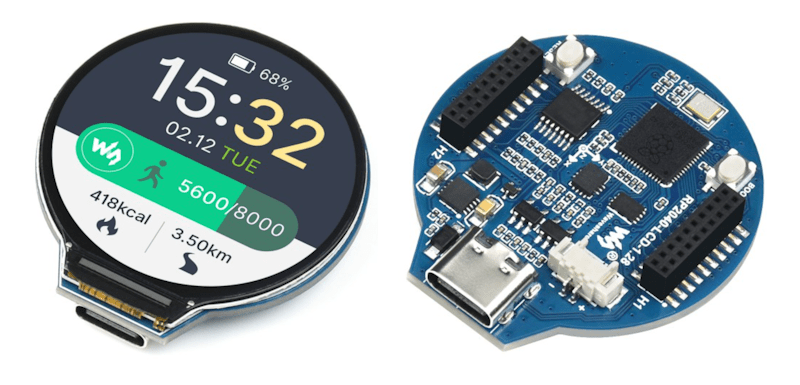
A smaller RP2040 based board by WaveShare

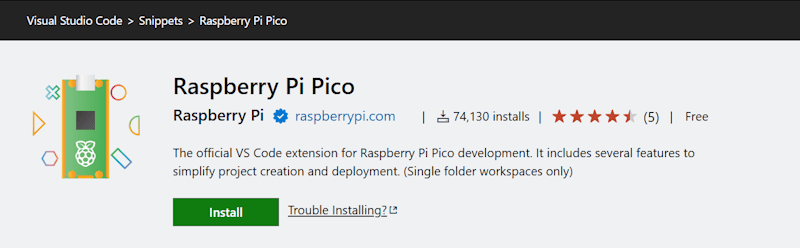
I already had a few machines setup for development for the Raspberry Pi Pico. While that procedure still works, as do those development machines, I was recently reintroducing myself to Pico development. I started with a clean installation and went to the currently published instructions for setup. The more recent instructions are a lot easier to follow; there are less dependencies on manually setting paths and downloading files. The easier process is made possible through a Visual Studio Code plugin. This extension, which is still labeled as a zero version at the time that I am making this post (0.17.3) adds project generation and sample code along with scripts and automations for common tasks. To get started, just Install the Raspberry Pi Pico Visual Studio Code Extension. Once it is installed, you’ll have a new icon on the left pane of VS Code for Pico related tasks.

The first time you do anything with this icon, expect it to be slow. It installs the other build tools that it needs on-demand. I prefer to use the C++ build tools. Most of what I write here will be focused on that. I’ll start with creating a new C++ project. Double-clicking on “New C/C++ Project” from the Pico tools panel gets the process started.

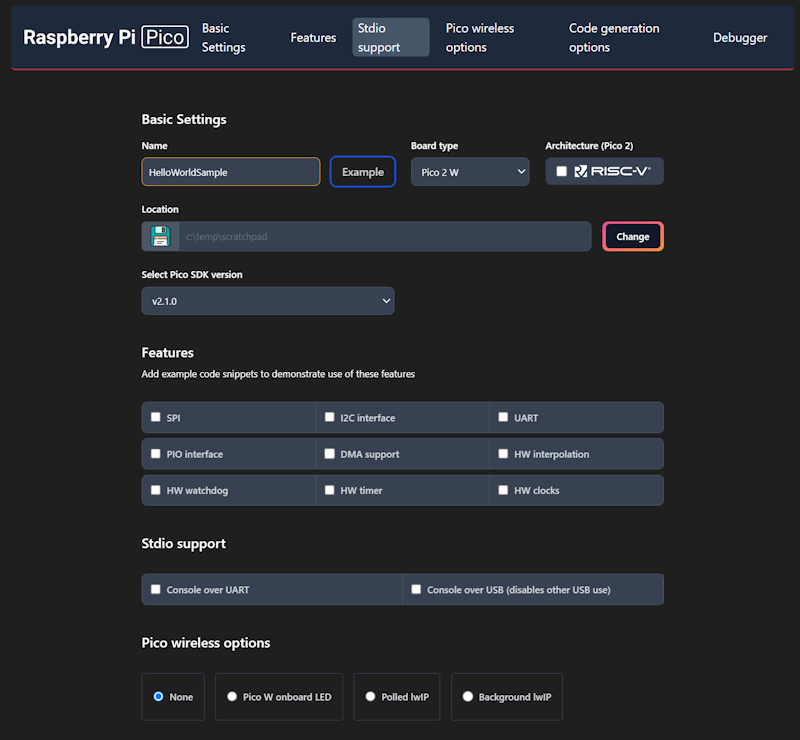
This will only be a “Hello World” program. We will have the Pico print a message to a serial port in a loop. The new project window lets us specify our target hardware, including which hardware features that we plan to use. Selecting a feature will result in the build file for the project linking to necessary libraries for that feature and adding a small code sample that access that feature. Select a folder in which the project folder will be created, enter a project name, and check the box labeled “Console over USB.” After selecting these options, click on the “Create” button.

This is the part that takes a while the first time. A notification will show in VS Code stating that it is installing the SDK and generating the project. The wait is only a few minutes. While this is executing, it is a good time to grab a cup of coffee.

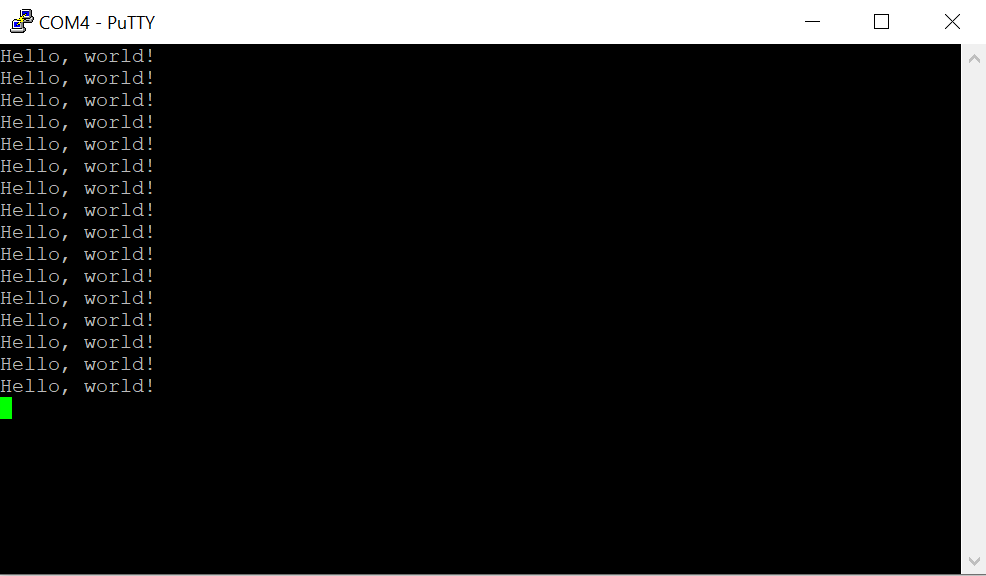
When you get back, you’ll see VS Code welcome you with a new project. The default new project prints “Hello, world!\n” in a loop with a 1 second delay. Grab your USB cable and a Pico. We can immediately start running this program to see if the build chain works. On the Pico, there’s a button. Connect your USB cable to your computer, then connect the Pico, making sure you are holding down this button as you connect it. The Pico will show up on your computer as a writable drive. After you’ve done this, take note of which serial ports show up on your computer. In my case, I’m using Windows, which shows that Com1 is the only serial port. In VS Code, you now have several tasks for your project that you can execute. Double-click on Run Project (USB). The code will compile, deploy to the Pico, and the Pico will reboot and start running the code.

Check to see what serial ports exist on your computer now. For me, there is a new port named Com4. Using PuTTY, I open Com4 at a baud rate of 115,200. The printed text starts to show there.

Using the USB UART for output is generally convenient, but at time you may want to use the USB for other features. The USB output is enabled or disabled in part through a couple of lines in the CMakeList.txt file.

pico_enable_stdio_uart(HelloWorldSample 0)
pico_enable_stdio_usb(HelloWorldSample 1)

The 1 and 0 can be interpreted as meaning enable and disable. Swap these values and run the project again by disconnecting the Pico, reattach while pressing the button, and then selecting the Run Project (USB) option from VS Code. When you run the code this time, the output is being transmitted over GPIO pins 0 and 1. But how do we read this?

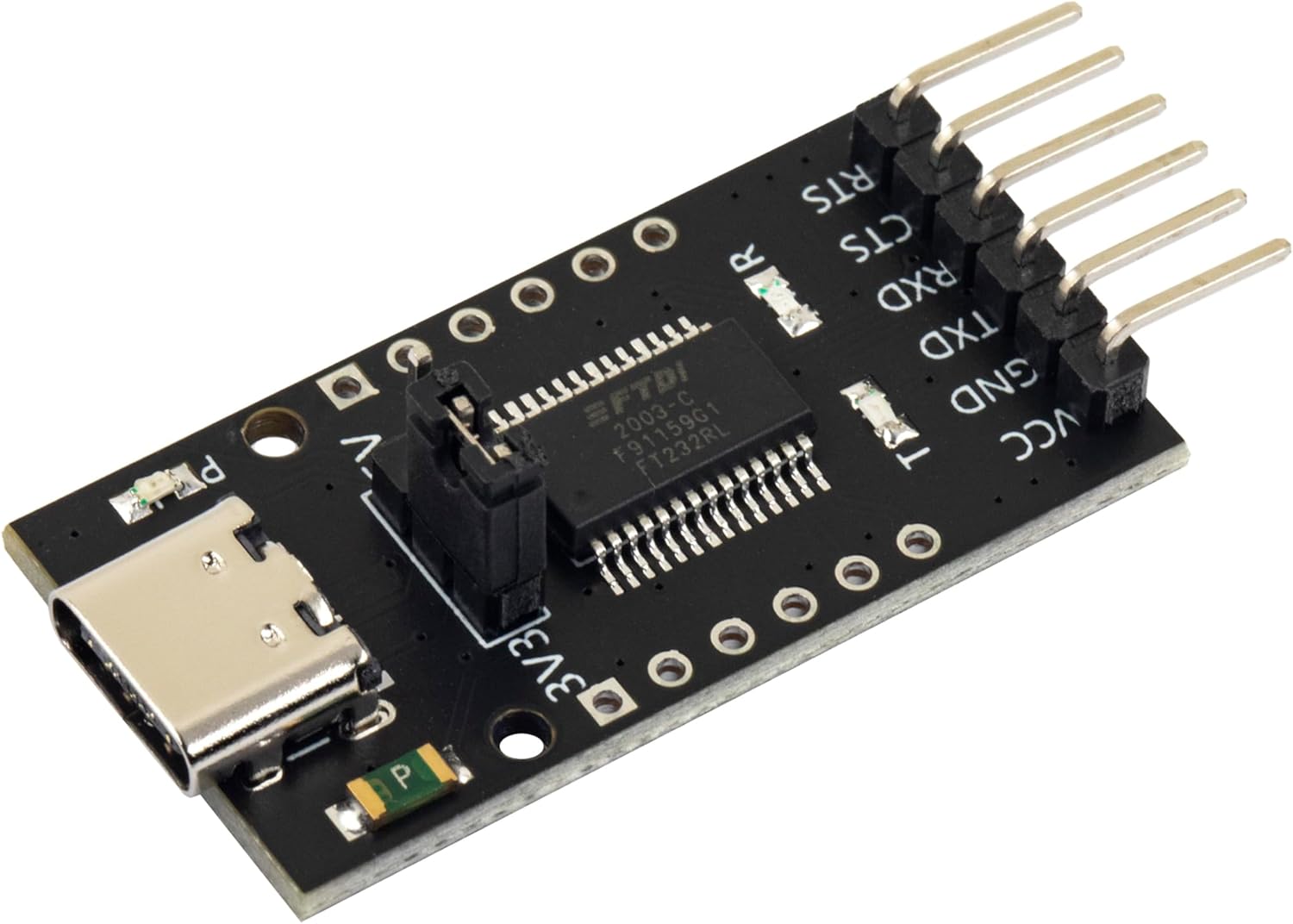
FTDI USB

FTDI is the name of an integrated circuit manufacturer. For microcontroller interfacing, you might often see people refer to “FTDI USB” cables. These are USB devices that have 3 or 4 pins for connecting to other serial devices. These are generally cheaply available. The pins that we care about will be labeled GND (Ground), TX (Transmit), and RX (Receive). The transmit pin on one end of a serial exchange connects to the receive end on the other, and vice versa. On the Pico, the default pins used for uart0 (the name of our serial port) are GP0 for TX and GP1 for RX. When connecting an FTDI device, connect the FTDI’s RX to the Pico’s TX on GPO, then the FTDI’s TX to the Pico’s RX (on GP1), and finally the FTDI’s ground to the Pico’s ground.

GPIO – Setting a Pin

Many, Pico’s have a LED attached to one of the pins that is immediately available for test programs. While many do, not all do. On the Pi Pico and Pi Pico 2, GPIO 25 is connected to a LED. On the Pi Pico W, the LED is connected to the WiFi radio and not the RP2040 directly. For uniformity, I’ll drive an external LED. I’ve taken a LED and have it connected in series with a resistor. 220ฮฉ should be a sufficient value for the resistor. I’m connecting the longer wire of the LED to GP5 and the shorter pin to ground.

In the code, the pin number is assigned to a #define. This is common, as it makes the code more flexible for others that may be using a different pin assignment. Before we can start writing to the pin, we need to gall an initialize function for the pin number named gpio_init(). After the initialization, we need to set the pin to be either in input or output mode. Since we are going to be controlling a LED, this needs to be output mode. This is done with a call to gpio_set_dir() (meaning “set direction”) passing the pin number as the first argument, and the direct (GPIO_IN or GPIO_OUT) as the second argument. For writing, we use GPIO_OUT. With the pin set to output, we can drive the pin to a high or low state by calling gpio_put(). The pin number is passed in the first argument, and a value indicating whether it should be in a high or low state in the second argument. A zero value is considered low, while a non-zero value is considered high. To make it apparent that the LED is being driven by our control of the pin (and not that we just happened to wire the LED to a pin that is always high) we will turn the light on and off once per second. In a loop, we will turn the light on, wait half a second, turn the light off, and wait again.

#include <stdio.h>
#include "pico/stdlib.h"

#define LED_PIN 5
int main()
{
    stdio_init_all();
    gpio_init(LED_PIN);
    gpio_set_dir(LED_PIN, GPIO_OUT);

    while (true) {
        gpio_put(LED_PIN, 1);   
        sleep_ms(500);
        gpio_put(LED_PIN, 0);
        sleep_ms(500);
    }
}

When we run the code now, we should see the light blink.

Up Next: Programmable IO – The Processor within the Processor

While the GPIO system can be manipulated by the main processor core, there are also smaller processors on the silicon that exist just for controlling the GPIO. These processors have a much smaller reduced set but are great for writing deterministic code that controls the pins. This system of sub-processors and the pins that they control are known as “Programmable IO.” They are programmed using assembler. There’s much to say about PIO. In the next post that I make on the Pico, I’ll walk you through an introduction to the PIO system.


Posts may contain products with affiliate links. When you make purchases using these links, we receive a small commission at no extra cost to you. Thank you for your support.

Mastodon: @j2inet@masto.ai
Instagram: @j2inet
Facebook: @j2inet
YouTube: @j2inet
Telegram: j2inet
Bluesky: @j2i.net

Rediscovering Pi Pico Programming with an IR Detector

I’ve used a Pi Pico before. But it has been a while, and I decided to jump back into it in furtherance of some other project I want to do. I’m specifically using a Pico W on a Freenove breakout board. The nice thing about this board is that all the GPIOs have status LEDs that lets you monitor the state of each GPIO visually. For those that might have immediate concern, the LEDs are connected to the GPIO via hex inverters instead of directly. This minimizes the interaction that they may have with devices that you connect to them.

Blinking the Light

About the first program that one might try with any micro controller is to blink a light. I accomplished that part without issue. But for those that are newer to this, I’ll cover in detail. Though I won’t cover the steps of setting up the SDK.

I’ve made a folder for my project. Since I plan to evolve this project to work with an infrared detector, I called my project folder irdetect. I’ve made two files in this folder.

  • CMakeList.txt – the build configuration file for the project
  • main.cpp – the source code for the project

For the CMakeList.txt file, I’ve specified that I’m using the C++ 23 standard. This configuration also informs the make process that main.cpp is the source file, and that the target executable name will be irdetect.

cmake_minimum_required(VERSION 3.13)

include(pico_sdk_import.cmake)

project(test_project C CXX ASM)
set(CMAKE_C_STANDARD 11)
set(CMAKE_CXX_STANDARD 23) #Latest C__ Standard available
pico_sdk_init()

add_executable(irdetect
   main.cpp
)

pico_enable_stdio_usb(irdetect 1)
pico_enable_stdio_uart(irdetect 1)
pico_add_extra_outputs(irdetect)

The initial source code for blinking a LED is alternating the state of a random GPIO pin. Since I’m using a breakout board with LEDs for all the pins, I am not restricted to one pin. For the pin I selected, it is necessary to call gpio_init() for the pin, and then set its direction to output through gpio_set_dir(). If you don’t do this, then attempts to write to the pen will fail (speaking from experience!).

#include <stdio.h>
#include "pico/stdlib.h"
#include "hardware/gpio.h"
#include "pico/binary_info.h"
#include "pico/cyw43_arch.h"


const uint LED_DELAY_MS = 250; //quarter second
#ifdef PICO_DEFAULT_LED_PIN
const uint LED_PIN = PICO_DEFAULT_LED_PIN;
#else
const uint LED_PIN = 15;
#endif


// Initialize the GPIO for the LED
void pico_led_init(void) {
	gpio_init(LED_PIN);
	gpio_set_dir(LED_PIN, GPIO_OUT);
}

// Turn the LED on or off
void pico_set_led(bool led_on) {
	gpio_put(LED_PIN, led_on);
}

int main()
{
	stdio_init_all();
	pico_led_init();

	while(true)
	{
		pico_set_led(true);
		sleep_ms(LED_DELAY_MS);
		pico_set_led(false);
		sleep_ms(LED_DELAY_MS);
	}
	return 0;
}

To compile this, I made a subfolder named build inside of my project folder. I’m using a Pico W. When I compile the code, I specify the Pico board that I’m using.

cd build
cmake .. -DPICO_BOARD=pico_w
make

Some output flies by on the screen, after which build files have been deposited into the folder. the one of interest is irdetect.u2f. I need to flash the Pico with this. The process is extremely easy. Hold down the reset button on the Pico while connecting it to the Pi. It will show up as a mass storage device. Copying the file to the device will cause it to flash and then reboot. The device is automatically mounted to the file system. In my case, this is to the path /media/j2inet/RPI-RP2

cp irdetect.u2f /media/j2inet/RPI-RP2

I tried this out, and the light blinks. I’m glad output works, but now to try input.

Reading From a Pin

I want the program to now start off blinking a light until it detects an input. When it does, I want it to switch to a different mode where the output reflects the input. In the updated source I initialize an addition pin and use gpio_set_dir to set the pin as an input pin. I set an additional pin to output as a convenience. I need a positive line to drive the input high. I could use the voltage pin with a resistor, but I found it more convenient to set another GPIO to high and use it as my positive source for now.

#include <stdio.h>
#include "pico/stdlib.h"
#include "hardware/gpio.h"
#include "pico/binary_info.h"
#include "pico/cyw43_arch.h"


const uint LED_DELAY_MS = 50;
#ifdef PICO_DEFAULT_LED_PIN
const uint LED_PIN = PICO_DEFAULT_LED_PIN;
#else
const uint LED_PIN = 15;
#endif
const uint IR_READ_PIN = 14;
const uint IR_DETECTOR_ENABLE_PIN = 13;


// Initialize the GPIO for the LED
void pico_led_init(void) {
        gpio_init(LED_PIN);
        gpio_set_dir(LED_PIN, GPIO_OUT);

        gpio_init(IR_READ_PIN);
        gpio_set_dir(IR_READ_PIN, GPIO_IN);

        gpio_init(IR_DETECTOR_ENABLE_PIN);
        gpio_set_dir(IR_DETECTOR_ENABLE_PIN, GPIO_OUT);
}

// Turn the LED on or off
void pico_set_led(bool led_on) {
        gpio_put(LED_PIN, led_on);
}

int main()
{
        stdio_init_all();
        pico_led_init();
        bool irDetected = false;
        gpio_put(IR_DETECTOR_ENABLE_PIN, true);
        while(!irDetected)
        {
                irDetected = gpio_get(IR_READ_PIN);
                pico_set_led(true);
                sleep_ms(LED_DELAY_MS);
                pico_set_led(false);
                sleep_ms(LED_DELAY_MS);
        }

        while(true)
        {
                bool p = gpio_get(IR_READ_PIN);
                gpio_put(LED_PIN, p);
                sleep_us(10);
        }
        return 0;
}

When I run this program and manually set the pin to high with a resistor tied to an input, it works fine. My results were not the same when I tried using an IR detector.

Adding an IR Detector

I have two IR detectors. One is an infrared photoresistor diode. This component has a high resistance until it is struck with infrared light. When it is, it becomes low resistance. Placing that component in the circuit, I see the output pin go from low to high when I illuminate the diode with an IR flashlight or aim a remote control at it. Cool.

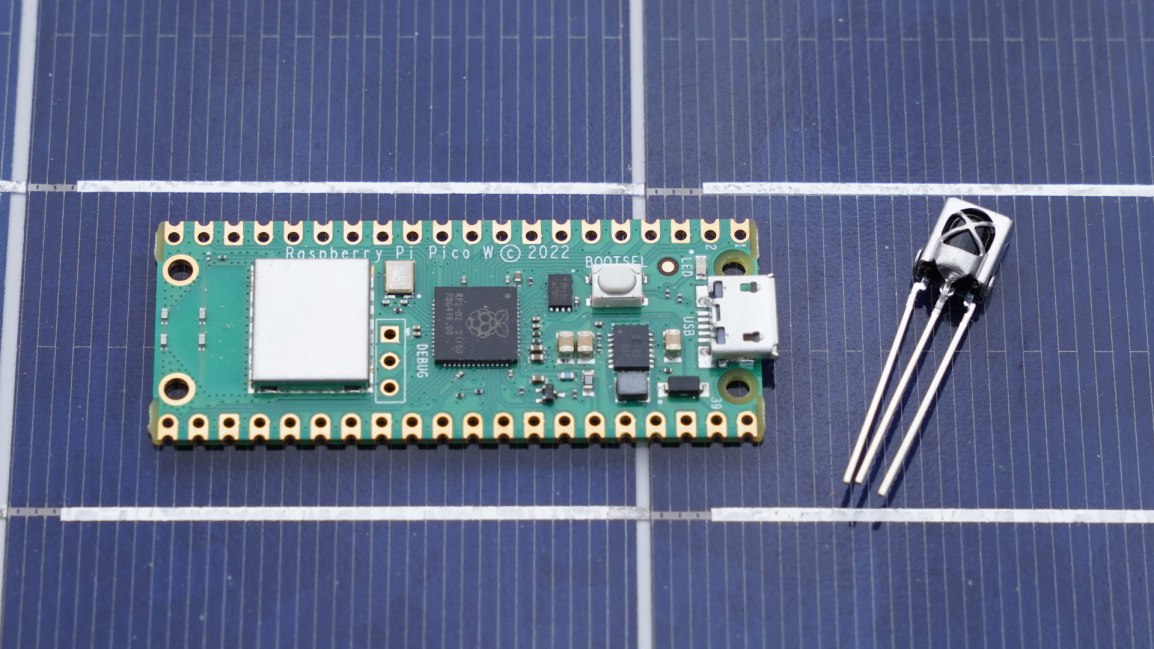
I tried again with a VS138B. This is a three pin IC. Two of the pins supply it with power. The third pin is an output pin. This IC has a IR detector, but instead of detecting the presence of IR light, it detects the presence of a pulsating IR signal provided that the pulsing is within a certain frequency band. The IC is primarily for detecting signals sent on a 38KHz carrier. I connected this to my Pico and tried it out. The result was no response. I can’t find my logic probe, but I have an osciloscope. Attaching it to the output pin, I detected no signal. What gives?

This is where I searched on the Internet to find the likely problem and solutions. I found other people with similar circuits and problems, but no solutions. I then remembered reading something else about the internal pull-up resistors in Arduinos. I grabbed a resistor and connected my input pin to a pin with a high signal and tried again. It worked! The VS138B signals by pulling the output pin to a low voltage. I went to Bluesky and posted about my experience.

https://bsky.app/profile/j2i.net/post/3lgar7brqfs2n

Someone quickly pointed out to me that there are pull-up resistors in the Pi Pico. I just must turn them on with a function call.

those can be activated at runtime:gpio_pull_up (PIN_NUMBER);This works even for the I2C interface.

Abraxolotlpsylaxis (@abraxolotlpsylaxis.bsky.social) 2025-01-21T12:18:18.964Z

I updated my code, and it works! When I attach the detector to the scope, I also see the signal now.

Now that I can read, the next step is to start decoding a remote signal. Note that there are already libraries for doing this. I won’t be using one (yet) since my primary interest here is diving a bit further into the Pico. But I do encourage the use of a third-party library if you are aiming to just get something working with as little effort as possible.

Code Repository

While you could copy the code from above, if you want to grab the code for this, it is on GitHub at the URL https://github.com/j2inet/irdetect/. Note that with time, the code might transition to something that no longer resembles what was mentioned in this post.


Posts may contain products with affiliate links. When you make purchases using these links, we receive a small commission at no extra cost to you. Thank you for your support.

Mastodon: @j2inet@masto.ai
Instagram: @j2inet
Facebook: @j2inet
YouTube: @j2inet
Telegram: j2inet
Bluesky: @j2i.net

Recompiling the V8 JavaScript Engine on Windows

Note Added 2025 March 10 – These instructions no longer work. Google has dropped support for using MSVC. It is still possible to build on Windows using Clang. But this presents new challenges, such as linking CLang binaries to MSVC binaries. More information on this change can be found in a Google Group discussion here.

Note Added 2024 September 3 – I tried to follow my own instructions on a whim today and found that some parts of the instructions don’t work. I made my way through them with adjustments to get to success.

I decided to compile the Google V8 JavaScript engine. Why? So that I could include it in another program. Google doesn’t distribute the binaries for V8, but they do make the source code available. Compiling it is, in my opinion, a bit complex. This isn’t a criticism. There are a lot of options for how V8 can be built. Rather than making available the permutations of these options for each version of V8, one could just set options themselves and build it for their platform of interest.

But Isn’t There Already Documentation on How to Do This?

There does exists documentation from Google on compiling Chrome. But there are variations from those instructions and what must actually be done. I found myself searching the Internet for a number of other issues that I encountered and made notes on what I had to do to get around compilation problems. The documentation comes close to what’s needed, but isn’t without error and deviation.

Setting Up Your Environment

Before touching the v8 source code, ensure that you have installed Microsoft Visual Studio. I am using Microsoft Visual Studio 2022 Community Edition. There are some additional components that must be installed. In an attempt to make this setup process as scriptable as possible, I’ve have a batch file that will have the Visual Studio Installer add the necessary components. If a component is already installed, no action is taken. Though the Google V8 instructions also offer a command to type to accomplish the same thing, this is where I encountered my first variation from their instructions. Their instructions assume that the name of the Visual Studio Installer command to be setup.exe (it probably was on a previous version of Visual Studio) where my installer is named vs_installer.exe. There were also additional parameters that I had to pass, possibly because I have more than one version of Visual Studio installed (Community Edition 2022, Preview Community Edition 2022, and a 2019 version).

pushd C:\Program Files (x86)\Microsoft Visual Studio\Installer\

vs_installer.exe install --productid Microsoft.VisualStudio.Product.Community --ChannelId VisualStudio.17.Release --add Microsoft.VisualStudio.Workload.NativeDesktop  --add Microsoft.VisualStudio.Component.VC.ATLMFC  --add Microsoft.VisualStudio.Component.VC.Tools.ARM64 --add Microsoft.VisualStudio.Component.VC.MFC.ARM64 --add Microsoft.VisualStudio.Component.Windows10SDK.20348 --includeRecommended

popd

You may need to make adjustments if your installer is located in a different path.

While those components are installing, let’s get the code downloaded and put int place. I did the download and unpacking from powershell. All of the commands that follow were stored in a power shell script. Scripting the process makes it more repeatable and is easier to document (since the scripts are also a record of what was done). You do not have to use the same file paths that I do. But if you change them, you will need to make adjustments to the instructions when one of these paths is used.

I generally avoid placing folders directly in the root. The one exception to that being a folder I make called c:\shares. There’s a structure that I conform to when placing this folder on Windows machines. For this structure, Google’s code will be placed in subdirectories of c:\shares\projects\google. In the following script you’ll see that path used.

$depot_tools_source = "https://storage.googleapis.com/chrome-infra/depot_tools.zip"
$depot_tools_download_folder= "C:\shares\projects\google\temp\"
$depot_tools_download_path = $depot_tools_download_folder + "depot_tools.zip"
$depot_tools_path = "c:\shares\projects\google\depot_tools\"
$chromium_checkout_path = "c:\shares\projects\google\chromium"
$v8_checkout_path = "c:\shares\projects\google\"

mkdir $depot_tools_download_folder
mkdir $depot_tools_path
mkdir $chromium_checkout_path
mkdir $v8_checkout_path

pushd "C:\Program Files (x86)\Microsoft Visual Studio\Installer\"
.\vs_installer.exe install --productID Microsoft.VisualStudio.Product.Community --ChannelId VisualStudio.17.Release --add Microsoft.VisualStudio.Workload.NativeDesktop  --add Microsoft.VisualStudio.Component.VC.ATLMFC  --add Microsoft.VisualStudio.Component.VC.Tools.ARM64 --add Microsoft.VisualStudio.Component.VC.MFC.ARM64 --add Microsoft.VisualStudio.Component.Windows10SDK.20348 --includeRecommended
popd

Invoke-WebRequest -Uri $depot_tools_source -OutFile $depot_tools_download_path
Expand-Archive -LiteralPath $depot_tools_download_path -DestinationPath $depot_tools_path

After this script completes running, Visual Studio should have the necessary components and the V8/Chrome development tools are downloaded and in place.

There are some environment variables on which the build process is dependent. These variables could be set within batch files, could be set to be part of the environment for an instance of the command terminal, or set at the system level. I chose to set them at the system level. This was not my first approach. I set them at more local levels initially. But several times when I needed to open a new command terminal, I forgot to apply them, and just found it easier to set them globally.

ENVIRONMENT VARIABLEVALUE
DEPOT_TOOLS_WIN_TOOLCHAIN0
vs2022_installC:\Program Files\Microsoft Visual Studio\2022\Community
PATHc:\shares\projects\google\depot_tools\;%PATH%
Environment Variables that must be set

From here on, we will be using the command prompt, and not PowerShell. This is because some of the commands that are part of Google’s tools are batch files that only run properly in the command prompt.

From the command terminal, run the command gclient. This will initialize the Google Tools. Next, navigate to the folder in which you want the v8 code to download. For me, this will be c:\shares\projects\google. The download process will automatically make a subfolder named v8. Run the following command.

fetch --nohistory v8

This command can take a while to complete. After it completes you will have a new directory named v8 that contains the source code. Navigate to that directory.

cd v8

The online documentation that I see from Google for v8 is for version 9. I wanted to compiled version 12.0.174.

git checkout 12.0.174

Update 2025 March 7

Reviewing the instructions now, I find that the above command fails. It may be necessary to fetch the labels for the versions with the following commands to get version 13.6.9.

git fetch --tags
git checkout 13.6.9

Today I am trying to only rebuild v8 for Windows. Eventually I’ll rebuild it for ARM64 also. Run the following commands. It will make the build directories and configurations for different targets.

python3 .\tools\dev\v8gen.py x64.release
python3 .\tools\dev\v8gen.py x64.debug
python3 .\tools\dev\v8gen.py arm64.release
python3 .\tools\dev\v8gen.py arm64.debug

The build arguments for each environment are in a file named args.gn. Let’s update the configuration for the x64 debug build. To open the build configuration, type the following.

notepad out.gn\x64.debug\args.gn

This will open the configuration in notepad. Replace the contents with the following.

is_debug = true
target_cpu = "x64"
v8_enable_backtrace = true
v8_enable_slow_dchecks = true
v8_optimized_debug = false
v8_monolithic = true
v8_use_external_startup_data = false
is_component_build = false
is_clang = false

Chances are the only difference between the above and the initial version of the file are from the line v8_monolithic onwards. Save the file. You are ready to start your build. To kick off the build, use the following command.

ninja -C out.gn\x64.debug v8_monolith

Update 2024 September 3 – Compiling this now, I’m encountering a different error. It appears the compilier I’m using takes issues with some of the nested #if directives in the source code. There was in in src/execution/frames.h around line 1274 that was problematic. It involved a line concerning enabling V8 Drumbrake. Nope, I don’t know what that is. This was for a call to DCHECK, which is not used in production builds. I just removed it. I encountered similar errors in src/diagnostics/objects-debug.cc, src\wasm\wasm-objects.cc,

This will also take a while to run, but this will fail. There is a third party component that will fail concerning a line in a file named fmtable.cpp. You’ll have to alter a function to fix the problem. Open the file in the path .\v8\third_party\icu\source\i18n\fmtable.cpp. Around line 59, you will find the following code.

static inline UBool objectEquals(const UObject* a, const UObject* b) {
     // LATER: return *a == *b
     return *((const Measure*)a) == ((const Measure*)b);
}

You’ll need to change it so that it contains the following.

static inline UBool objectEquals(const UObject* a, const UObject* b) {
     // LATER: return *a == *b
     return *((const Measure*)a) == *b;
}

Save the file, and run the build command again. While that’s running, go find something else to do. Have a meal, fly a kite, read a book. You’ve got time. When you return, the build should have been successful.

Hello World

Now, let’s make a hellow world program. Google already has a v8 hellow would example that we can use to see that our build was successful. We will use it for now, as I’ve not discussed anything about the v8 object library yet. Open Microsoft Visual Studio and create a new C++ Console application. Replace te code in the cpp file that it provides with Google’s code.

// Copyright 2015 the V8 project authors. All rights reserved.
// Use of this source code is governed by a BSD-style license that can be
// found in the LICENSE file.

#include <stdio.h>
#include <stdlib.h>
#include <string.h>

#include "libplatform/libplatform.h"
#include "v8-context.h"
#include "v8-initialization.h"
#include "v8-isolate.h"
#include "v8-local-handle.h"
#include "v8-primitive.h"
#include "v8-script.h"

int main(int argc, char* argv[]) {
    // Initialize V8.
    v8::V8::InitializeICUDefaultLocation(argv[0]);
    v8::V8::InitializeExternalStartupData(argv[0]);
    std::unique_ptr<v8::Platform> platform = v8::platform::NewDefaultPlatform();
    v8::V8::InitializePlatform(platform.get());
    v8::V8::Initialize();

    // Create a new Isolate and make it the current one.
    v8::Isolate::CreateParams create_params;
    create_params.array_buffer_allocator =
        v8::ArrayBuffer::Allocator::NewDefaultAllocator();
    v8::Isolate* isolate = v8::Isolate::New(create_params);
    {
        v8::Isolate::Scope isolate_scope(isolate);

        // Create a stack-allocated handle scope.
        v8::HandleScope handle_scope(isolate);

        // Create a new context.
        v8::Local<v8::Context> context = v8::Context::New(isolate);

        // Enter the context for compiling and running the hello world script.
        v8::Context::Scope context_scope(context);

        {
            // Create a string containing the JavaScript source code.
            v8::Local<v8::String> source =
                v8::String::NewFromUtf8Literal(isolate, "'Hello' + ', World!'");

            // Compile the source code.
            v8::Local<v8::Script> script =
                v8::Script::Compile(context, source).ToLocalChecked();

            // Run the script to get the result.
            v8::Local<v8::Value> result = script->Run(context).ToLocalChecked();

            // Convert the result to an UTF8 string and print it.
            v8::String::Utf8Value utf8(isolate, result);
            printf("%s\n", *utf8);
        }

        {
            // Use the JavaScript API to generate a WebAssembly module.
            //
            // |bytes| contains the binary format for the following module:
            //
            //     (func (export "add") (param i32 i32) (result i32)
            //       get_local 0
            //       get_local 1
            //       i32.add)
            //
            const char csource[] = R"(
        let bytes = new Uint8Array([
          0x00, 0x61, 0x73, 0x6d, 0x01, 0x00, 0x00, 0x00, 0x01, 0x07, 0x01,
          0x60, 0x02, 0x7f, 0x7f, 0x01, 0x7f, 0x03, 0x02, 0x01, 0x00, 0x07,
          0x07, 0x01, 0x03, 0x61, 0x64, 0x64, 0x00, 0x00, 0x0a, 0x09, 0x01,
          0x07, 0x00, 0x20, 0x00, 0x20, 0x01, 0x6a, 0x0b
        ]);
        let module = new WebAssembly.Module(bytes);
        let instance = new WebAssembly.Instance(module);
        instance.exports.add(3, 4);
      )";

            // Create a string containing the JavaScript source code.
            v8::Local<v8::String> source =
                v8::String::NewFromUtf8Literal(isolate, csource);

            // Compile the source code.
            v8::Local<v8::Script> script =
                v8::Script::Compile(context, source).ToLocalChecked();

            // Run the script to get the result.
            v8::Local<v8::Value> result = script->Run(context).ToLocalChecked();

            // Convert the result to a uint32 and print it.
            uint32_t number = result->Uint32Value(context).ToChecked();
            printf("3 + 4 = %u\n", number);
        }
    }

    // Dispose the isolate and tear down V8.
    isolate->Dispose();
    v8::V8::Dispose();
    v8::V8::DisposePlatform();
    delete create_params.array_buffer_allocator;
    return 0;
}

If you try to build this now, it will fail. You need to do some configuration. Here is a quick list of the configuration changes. If you don’t understand what to do with these, that’s find. I’ll will walk you through applying them.

VC++ Directories : 
	Include : v8\include
	Library Directories<Debug>: v8\out.gn\x64.debug\obj
	Library Directories<Release>: v8\out.gn\x64.release\obj

C/C++
	Code Generation
		Runtime Library <Debug>: /MTd
		Runtime Library <Release> /Mt
	Preprocessors
		V8_ENABLE_SANDBOX;V8_COMPRESS_POINTERS;_ITERATOR_DEBUG_LEVEL=0;
		
Linker
	Input
		Additional Dependencies: v8_monolith.lib;dbghelp.lib;Winmm.lib;

Right-click on the project file and select “Properties.” From the pane on the left, select VC++ Directories. In the drop-down on the top, select All Configurations. On the right there is a field named Include. Select it, and add the full path to your v8\include directory. For me, this will be c:\shares\projects\google\v8\include. If you build in a different path, it will be different for you. After adding the value, select Apply. You will generally want to press Apply after each field that you’ve changed.

Change the Configuration drop-down at the top to Debug. In the Library Directories entry, add the full path to your v8\out.gn\x64.debug\obj folder and click Apple. Change the Configuration dropdown to Release and in Library Directories add the full path to your v8\out\gn\x64.release\obj folder.

From the pane on the left, expand C/C++ and select Code Generation. On the right, set the Debug value for Runtime Library to /MTd and set the Release value for the field to /Mt.

Change the Configurations option to All and set add the following values to Preprocessors

V8_ENABLE_SANDBOX;V8_COMPRESS_POINTERS;_ITERATOR_DEBUG_LEVEL=0;

Keep the Configurations option on ALL. Expand Linker and select Input. For Additional Dependencies enter v8_monolith.lib;dbghelp.lib;Winmm.lib;

With that entered, press Okay. You should now be able to run the program. It will pass some values to the JavaScript engine to execute and print out the values.

What’s Next

My next set of objectives is to demonstrate how to project a C++ object into JavaScript. I also want to start thinning out the size of these files. On a machine that is using the v8 binaries, the entire build tools are not needed. At the end of the above process the b8 folder has 12 gigs of files. If you copy out only the build files and headers needed for other projects, the file size is reduced to 3 gigs. Further reductions could occur through changing some of the compilation options.


Mastodon: @j2inet@masto.ai
Instagram: @j2inet
Facebook: @j2inet
YouTube: @j2inet
Telegram: j2inet
Twitter: @j2inet