Recursively Deleting Directory in Win32 (C++)

If you need to delete a directory in Windows, the function RemoveDirectory is useful if the directory is empty. If the folder is not empty, you don’t need to implement recursive logic. The shell API function SHFileOperation is likely the function that you want to use. To use this function include the header <shellapi.h>. The SHFileOperation can perform various file operations, but the one we are most interested in is deletion. For those of you looking for something quick to copy-and-paste, here is the code.

void EmptyFolder(std::wstring path, HWND hWnd = NULL)
{
	std::vector<WCHAR> doubleTerminated(path.size() + 2);
	wcscpy_s(doubleTerminated.data(), doubleTerminated.size(), path.c_str());
	doubleTerminated[doubleTerminated.size() - 1] = L'\0';
	doubleTerminated[doubleTerminated.size() - 2] = L'\0';

	std::wstring progressTitle = L"Cleaning Folder";
	SHFILEOPSTRUCT options = { 0 };
	options.hwnd = hWnd;
	options.wFunc = FO_DELETE;
	options.pFrom = doubleTerminated.data();
	options.fFlags = FOF_NOCONFIRMATION | FOF_NOERRORUI | FOF_SILENT;
	options.lpszProgressTitle = progressTitle.c_str();
	DWORD result = SHFileOperation(&options);
}

Explanation

Other code that you may encounter might use pointer data types to perform this same task. I tend minimize managing memory myself. Instead of using pointers to characters as strings, I used types from the standard library. std::wstring and std::vector<WCHAR> are used instead. When pointers to data types are needed, std::wstring::c_str() and std::vector<WCHAR>::data() can be used to supply them. The function I provide here accepts the full path to the folder to be deleted as a std::wstring. That path is copied to the std::vector<WCHAR>. In addition to the text data being copied, two nulls are copied to the end of the data. This is a requirement of the SHFileOperation function for our purpose. Appending a L'\0\0' to the end of the std::wstring does not result in those null characters being present when we use std::wstring::c_str() to get a WCHAR pointer to the data.

A SHFILEOPSTRUCT structure must be populated with the parameters needed for the operation that we would like to perform. Setting it to { 0 } at initialization will set all of the fields in the structure to zero. This is great for structures where zero or null values are what one wants to set as the default values. The fields that we do populate are

  • hwnd – The handle to the owner window. This can be set to NULL.
  • wFunc – Set to a value for the operation that we want to perform. FO_DELETE is the value to use for deletion.
  • pFrom – Set to the double – null terminated string containing the path to the folder to be delete
  • lpszProgressTitle – Set to a title to show in a UI window that shows the progress of the operation
  • fFlags – flags for various operations. The operations selected here include
    • FOF_NOCONFIRMATION – don’t ask the user for confirmation
    • FOF_NOERRORUI – don’t show an error UI if the operation fails
    • FOF_SILENT – don’t show the UI.

In testing this, my results have generally been success or 0x7c (for invalid name). The invalid name return value was encountered when a directory had already been deleted (in which case the value passed really was not a valid identifier for a directory!).


Posts may contain products with affiliate links. When you make purchases using these links, we receive a small commission at no extra cost to you. Thank you for your support.

Mastodon: @j2inet@masto.ai
Instagram: @j2inet
Facebook: @j2inet
YouTube: @j2inet
Telegram: j2inet
Bluesky: @j2i.net

Transition Drivers to New Windows Installation

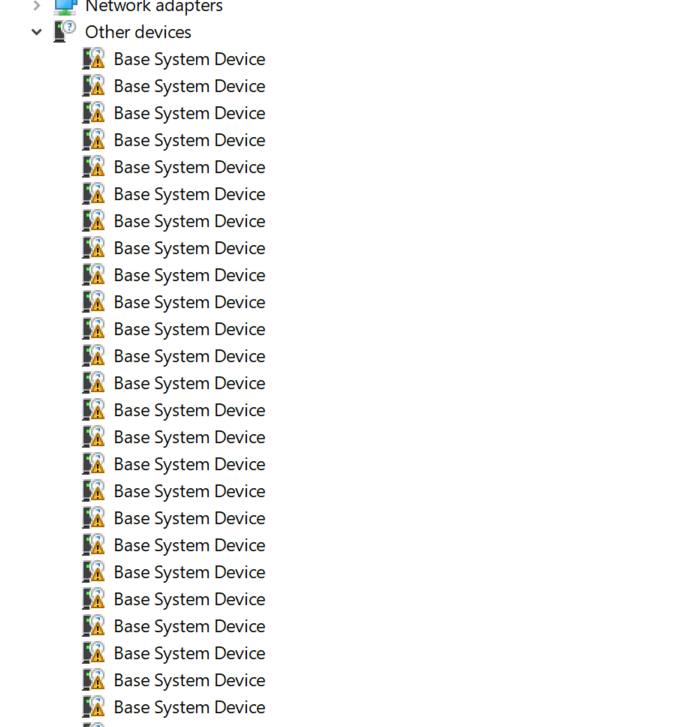
Over the Thanks Giving holiday, I took advantage of the extended time off from work and projects to reinstall Windows on newer, larger drives. When reinstalling Windows finding all of the drivers has traditionally been a pain point for me. This time around someone gave me a bit of information that made handling the drives much easier. After performing the installation, I didn’t have sound. I checked the device manager and found there were a lot of devices that were not recognized.

I initially started with trying to figure out what these devices were. Opening the properties of a device and viewing the hardware ID gives a hint. There are two hexadecimal numbers for a vendor ID and a device ID. Most of the vendor IDs I saw were 8086, which is the vendor ID for Intel (a reference to the 80×86 family of processors).

A lot of these warnings were for features related to the Xeon processor in the computer, some sound drivers, and a few other things. While I was able to find drivers for these online, I could not get them to install.

I was able to find drivers on the manufacturers’ sites for many items, but I ran into problems getting the drivers to install. While speaking of this challenge, someone asked me if I still had access to three specific folders from before I had installed Windows. All of these folders are child folders of c:\Windows\System32. The folder names are drivers, DriverState, and DriverStore. I did have access to these files; this was a hard drive swap. I went back to the device manager, selected an unrecognized device, and selected the option to update the driver. When prompted for a driver location, I pointed to these folders and let the process search. SUCCESS! The driver was found! I continued this process for the other devices.

This was a lot of devices, but it moved me in the direction of success. Some time later, all of the devices except one had their drivers installed. the remaining device, an Inten device with the ID 0x2F9C, remains unidentified. My carry away from this is that if I reinstall Windows on another computer, these folders should be included in the data that is backed up before performing the Installation.


Posts may contain products with affiliate links. When you make purchases using these links, we receive a small commission at no extra cost to you. Thank you for your support.

Mastodon: @j2inet@masto.ai
Instagram: @j2inet
Facebook: j2inet
YouTube: j2inet
Telegram: j2inet
Twitter: @j2inet

Epic Games and Administrative Access

I tend to be suspicious of applications that request administrative access to perform a function that I don’t think requires admin access. For the computers that my family use that I manage, I don’t give them administrative access. This has saved me from many headaches since it limits the amount of damage that can be done if they are a bit too trusting with items from the Internet; when they receive the admin prompt, they alert me and I can make a judgement on whether or not it is something that may be harmful.

The Epic Games application is another matter. Unlike Steam Games, which installs games in the user’s application folder, Epic Games installs games in the system Program Files folder. Every time there is an update to a game or an attempt to install another game an Administrative prompt is produced. This was particularly annoying when there were a few releases of Fortnite (or patches for it) over a relatively short period of time. I finally did something about these annoyances this weekend.

When the Epic Game installer is asking for administrative access, it is doing so because it is trying to access the Program Files folder. There are two ways to make these prompts unnecessary. But they both amount to the same thing; have the installer use a folder that the user has access to. For one method, you can simply have the installer use some alternative folder when it is originally installed. Make a folder somewhere on your drive, ensure that non-admin users have access to it, and have the installer work from there. The other method is to modify the permissions on the existing Epic game folder or sub-folder. Granting permission to user that plays the game no the Epic game folder will allow them to install anything from the Epic store without an Admin prompt. If you don’t want to grant the user this ability, but want them to be able to update existing games, then the permission can be granted on each sub-folder for each game instead.

To grant the permissions for the user to install any game, open the file Explorer to c:\Program Files\. Look for the Epic Games folder. If you right-click on the folder and select “properties” a window opens. Under the “Security” tab of this window you will see some users listed. Click on “Edit.” Then click on “Add.” Type the user name that will have permission to install games and click on Okay. When you click on the user’s name in the list, the permissions that the user has are listed. Check the boxes laveled “Modify”, “Read&Execute”, and “Write.” The user will now be able to install any Epic game.

If you only wanted the user to be able to update games that were already installed, you will see folders for each game inside of the Epic Games folder. Instead of performing the above procedure on the Epic Games folder, perform it on the subfolders for the specific games that you are targeting.


Follow me on

Twitter: @j2inet
Instagram: @j2inet
Facebook: j2inet
YouTube: j2inet

Future of Microsoft Edge

Faster Updates, Cross Platform, 4 Channels

Edge


Microsoft had made an announcement some time ago stating that they were adopting Chromium as the foundation of the Edge browser. They are making more information available about their plans. A computer will be able to have up to 4 Edge. In addition to the general release version there will be a beta , development, and canary channel where canary is the most experimental channel.

Microsoft is going to make a web view control available. This is a feature I wish had been available a couple of years ago. I worked on a project in which it was necessary to insert a Chromium based web view and that required making modifications to the Chromium source. Compiling Chromium can take hours!

Microsoft Edge is the only browser that has achieved a 100% score in accessibility evaluation. Microsoft is planning to make contributions to Chromium which should help improve the scores of Chromium based browsers across the board.  One example of a change coming from Microsoft is a media query for detecting when a user has turned on high contrast in either their computer or browser. The web developer can choose to change the appearance of a page accordingly.

Windows Biometric sign in is also going to be available to web sites (see navigator.credentials.get). This allows for a more secure way of logging in that doesn’t require a password. Edge also has a hardware backed feature named “Play Ready” that allows for secure playback of premium media.

The user agent-string for Edge Chromium will be Edg (that’s not a type, there is no E on the end). Note that the non-chromium version of edge uses the user token Edge instead. But it is recommended that instead of using the user agent string for enabling or disabling functionality in a web page it is better to use feature detection; new features are being added to browsers all the time and relying on the user agent alone can lead to a page not using a feature that was actually available within a browser.  Edge gets supports for module import and much better much better speech synthesis.

Obtaining the Connection String for a Provisioned Windows IOT Device

Playing with the code that I was using to get data from my car and stream it to the cloud I did something that I knew was a no-no; I hard coded the connection string in the code. There’s a number of reasons to not do this*; it’s less secure as someone can potentially extract the connection string and use it for unauthorized access and if the connection string ever needs to change then code needs to be recompiled and redeployed.

When a Windows IOT device is provisioned there is a connection string that is managed by the device; your application can take advantage of this and need not worry about the details of how it is stored. To make use of this there are a few libraries that you need to add to your UWP project. These include the followings.

  • Microsoft.Azure.Devices
  • Microsoft.Azure.Devices.Client
  • Microsoft.Devices.Tpm

With the classes in these libraries you can obtain the ID of the device and then use that ID to request an Azure DeviceClient class that is initialized with the connection string that the device is managing.

Here’s the code to do this.

DeviceClient _deviceClient;

void InitClient()
{            
    TpmDevice tpm = new TpmDevice(0);
    string hostName = tpm.GetHostName();
    string deviceId = tpm.GetDeviceId();
    string sasToken = tpm.GetSASToken();            
    var client = DeviceClient.Create(
        hostName, 
        AuthenticationMethodFactory.CreateAuthenticationWithToken(deviceId, sasToken),
        TransportType.Mqtt
    );
}

WCF Guidance for Windows Mobile on Codeplex

I was looking for a Windows Mobile specific WCF reference since I knew that the Compact Framework doesn’t support all of the same WCF profiles that the desktop framework does. I was searching for a webcast that was done on the topic when I stumbled upon a document that had the information I was seeking on the CodePlex. You can see the document for yourself here. The document was created by Michele Bustamante aka That Indigo Girl.

The document contains a lot of good information and is written for the developer that has no experience with the compact framework or WCF. Only experience with the .Net framework is required. It will walk one through the steps of setting up their development environment for mobile development.

By the way, I did find a listing of the limitations for which I was looking.

FeatureSupport
StreamingNot Supported. Contract can use Stream parameters but they will not be buffered or streamed.
SessionsTransport sessions not supported. Service contract can use SessionMode.Allowed. Service should use InstanceContextMode.PerCall behaviour.
DuplexServices designed for duplex communications with callback contracts cannot be called by mobile clients. Duplex requires a transport session.
TransactionsService contract cannot require transaction for any service operations.
Data Contracts and Serializable TypesCan freely use. The mobile client will use XmlSerializer types that are wire compatible
Message ContractsCan freely use. If the message contract includes custom headers proxy generation will not work. Mobile client requires additional custom code to work with headers.
Fault ContractsCan include in the service contract. Proxy generation will not include fault contracts so additional custom code for mobile client is required to work with faults.

There are quite a few more limitations to know about for WCF in the Compact Framework. I won’t name all of them here since I think the document does an excellent job of detailing the limitations. At a length of only 72 pages including diagrams its a document that a developer should be able to easily get through.


From the BlogEngine Archives

Posts may contain products with affiliate links. When you make purchases using these links, we receive a small commission at no extra cost to you. Thank you for your support.

Mastodon: @j2inet@masto.ai
Instagram: @j2inet
Facebook: @j2inet
YouTube: @j2inet
Telegram: j2inet
Twitter: @j2inet

Provoking Post

For any mobile operating system that you can name you can find some one that will point out what they feel to be a flaw in the operating System.  Mike  Calligaro of the Windows Embedded team knows this all to well.  If you read through the reader responses to many of his post you’ll find a plethora of emotionally charged responses  For some of the responses I get the feeling the reader didn’t actually read the entire post.  For others some readers make pretty good arguments. In either case I decided to collect what I thought to be the most interesting post addressing features of Windows Mobile that many have questioned.

Interesting Post

Quotes from Mike:

In response to “why can’t you fix the damn bugs

As much as I love the job, there are certainly frustrations as well. One of them is that more than half of the code on one of our phones is written by other people (OEMs, ISVs contracted by OEMs, ISVs contracted by Mobile Operators, etc) and any failing in any of that code is usually blamed on us.


From the BlogEngine Archives

Posts may contain products with affiliate links. When you make purchases using these links, we receive a small commission at no extra cost to you. Thank you for your support.

Mastodon: @j2inet@masto.ai
Instagram: @j2inet
Facebook: @j2inet
YouTube: @j2inet
Telegram: j2inet
Twitter: @j2inet

Why Can’t I Create a Smart Device Project?

So you’ve installed Visual Studio and you are ready to create a Smart Device project for your Windows Mobile device.  But when you go to create a new project the Smart Device templates are no where to be found.  Why is that?  Let’s look at the possible causes for this problem. 

Is your Visual Studio Version an Express Edition?

Presently Microsoft doesn’t have a version of Visual Studio Express that can be used to create smart device projects. If you are running an Express Edition of Visual Studio you will need to replace it with a professional version to develop for Windows Mobile. 


From the BlogEngine Archives

Posts may contain products with affiliate links. When you make purchases using these links, we receive a small commission at no extra cost to you. Thank you for your support.

Mastodon: @j2inet@masto.ai
Instagram: @j2inet
Facebook: @j2inet
YouTube: @j2inet
Telegram: j2inet
Twitter: @j2inet

Sneak Peak of Windows Mobile 6.5

Michael Herald of Mobility Today has posted a video of Windows Mobile 6.5 with IE6 running on his HTC Diamond.  It runs incredibly well.  See the Mobility Today site for more details.


From the Blog Engine Archives

Posts may contain products with affiliate links. When you make purchases using these links, we receive a small commission at no extra cost to you. Thank you for your support.

Mastodon: @j2inet@masto.ai
Instagram: @j2inet
Facebook: @j2inet
YouTube: @j2inet
Telegram: j2inet
Twitter: @j2inet

Custom Actions in a Cab Installation

Creating a cab installer for a Windows Mobile program is easy.  After making a cab project you add your files and Visual Studio does everything else for you.  But when you uninstall your application what happens to all of the registry entries and data files that your application has made?  They get left behind unless you erase them yourself. Chances are your program won’t ever receive any notification that it is about to be uninstalled, so your program won’t be able to cleanup after itself.  Instead you will need to create a DLL that contains custom actions.   The installer build into the Windows Mobile device will call your DLL once before installation, once after installation, once before deinstallation, and right after deinstallation.  So how to you make this custom DLL?

The custom DLL will be a Win32 DLL smart device project. The DLL must define four functions, Install_InitInstall_ExitUninstall_Init, and Uninstall_Exit. To cleanup after your program has been uninstalled you will place cleanup code in Uninstall_Exit Here is the code for the custom actions DLL that I wrote. I’ve added code to clean up the registry.  If there are other programs that I’ve written still on the device they will be using the same registry hive to store their keys.  If other programs are found the program will leave behing the \HKCU\Software\J2i.Net key as not to accidentally erase the keys that my other programs use.  If there are no other programs found then J2i.Net will be removed.

BOOL APIENTRY DllMain(HANDLE hModule,
	DWORD ul_reason_for_call,
	LPVOID lpReserved
	)
{
	switch (ul_reason_for_call)
	{
	case DLL_PROCESS_ATTACH:
	case DLL_THREAD_ATTACH:
	case DLL_THREAD_DETACH:
	case DLL_PROCESS_DETACH:
		break;
	}
	return TRUE;
}

void RemoveRegistryKeys();
///////////////////////////////////////////////////////////////
codeINSTALL_INIT Install_Init
(
	HWND hWndParent,
	BOOL fFirstCall,
	BOOL fPreviouslyInstalled,
	LPCSTR pszInstallDir
)
{
	MessageBeep(0);
	return codeINSTALL_INIT_CONTINUE;
}

///////////////////////////////////////////////////////////////
codeINSTALL_EXIT Install_Exit
(
	HWND hWndParent,
	LPCSTR pszInstallDir,
	WORD cFailedDirs,
	WORD cFailedRegKeys,
	WORD cFailedRegVals,
	WORD cFailedShortcuts
)
{
	MessageBeep(0);
	return codeINSTALL_EXIT_DONE;
}

///////////////////////////////////////////////////////////////
codeUNINSTALL_INIT Uninstall_Init
(
	HWND hwndParent,
	LPCSTR pszInstallDir
)
{
	MessageBeep(0);
	return codeUNINSTALL_INIT_CONTINUE;
}

///////////////////////////////////////////////////////////////
codeUNINSTALL_EXIT Uninstall_Exit
(
HWND hwndParent
)
{
RemoveRegistryKeys();
MessageBeep(0);
return codeUNINSTALL_EXIT_DONE;
}
void RemoveRegistryKeys()
{
	HKEY hCompanyKey = NULL;
	HKEY hSoftwareKey = NULL;
	TCHAR buffer[MAX_PATH];
	DWORD bufferSize = MAX_PATH;
	bool canEraseCompanyKey = false;
	//Delete the application key
	RegOpenKeyEx(HKEY_CURRENT_USER, L"Software", 0, 0, &hSoftwareKey);
	if (hSoftwareKey)
	{
		RegOpenKeyEx(hSoftwareKey, L"J2i.Net", 0, 0, &hCompanyKey);
		if (hCompanyKey)
		{
			RegDeleteKey(hCompanyKey, L"MyColourPreferences");
			canEraseCompanyKey = (ERROR_SUCCESS != RegEnumKeyEx(hCompanyKey, 0, buffer, &bufferSize, 0, 0, 0, 0));
			RegCloseKey(hCompanyKey);
			RegCloseKey(hCompanyKey);
			if (canEraseCompanyKey)
				RegDeleteKey(hSoftwareKey, L"J2i.Net");
		}
		if (hSoftwareKey)
			RegCloseKey(hSoftwareKey);
	}
}

To export the four functions the DLL will also need to contain a Module Definition file that exports the four functions. The contents of that file must look like the following.

EXPORTS
Install_Init
Install_Exit
Uninstall_Init
Uninstall_Exit

That’s all that needs to be in the DLL. When you create your installer you will need to add both the primary output of your program and this DLL to the project. The last thing that you need to do is change the CE Setup DLL setting on the CAB project. Select the CAB project from the Solutions Explorer and you will see the CE Setup DLL setting in the property editor. Click on the dropdown to the right of the setting and select Browse. Navigate to the native DLL that you created and your done. All you need to do is compile and build the CAB.

As an example there is a Visual Studio project attached to this entry.  The project contains a program of trivial simplicity.  All that you need to know about that program is that it will save the information you enter to the registry.  Without the custom action when you uninstall this program that information would be left in the registry.   But thanks to the custom action it will be removed.

Innovate on Windows Mobile Code Signing Offer

If you’ve developed a Windows Mobile application and would like to see it listed on the Windows Mobile Application Catalog then it will need to be tested for certification requirements and code signed.  This normally cost up to $800.  But Microsoft is offering a program whereby you can have these services performed for free.  Just visit the Innovation Site  and register.  Remember, make sure that your application adhere’s to certification guidelines before submitting the application. Otherwise you could consume part if the $800 woth of service unnecessarily.


From the BlogEngine Archives

Posts may contain products with affiliate links. When you make purchases using these links, we receive a small commission at no extra cost to you. Thank you for your support.

Mastodon: @j2inet@masto.ai
Instagram: @j2inet
Facebook: @j2inet
YouTube: @j2inet
Telegram: j2inet
Twitter: @j2inet