Timelapse Video with a Web Camera

I’m working on an ongoing project in which I am trying to use a web camera to produce time lapse video. Usually, I’ve used DSLRs for this purpose. But doing so also removes that camera from being available for other needs for up to 20 days. I have a lot of low power PCs that I could repurpose for this need. Since I use many of my computers over SSH or Remote Desktop, I could assign a computer to a project and still have it available for other needs.

There are a couple of approaches that I could use to do this. I initially tried to use Windows Media Foundation APIs. Using those, one can get access to a stream from the camera and write it to a file in the format of their choice. This worked, but I decided to not stay on that path since I sometimes ran into conflicts with the media formats that a source could provide frames in and the format in which I wanted the results saved. This could be fixed by adding some transformations between a source and destination file. But I decided to do something simpler.

I am capturing images from the cameras and saving those images to a drive. The software I prefer to use for editing videos, Davinci Resolve, can import sequences of images as a video without a fuss. As of now I have a minimally viable solution for capturing the photos for a timelapse. If you want to try it out, I have a signed binary available for download.

What about Multiple Cameras?

I thought about some options on what to do if a computer has multiple video sources on it. One of my home desktops is connected to multiple video capture devices (a couple of web cams, an HDMI capture card, and occasionally another device that presents a part of its functionality as a web cam). Rather than deal with the complexities of having a user identify a camera from the command line, I decided to just take photos from all of them. When the program starts, it enumerates the cameras. When the time to take a photo comes, a photo is taken from each camera. The image files incorporate the name of the camera, the date/time from at which the capture session was started, and the image file is appended with a number

The information that I must track on the camera is kept in the following structure.

struct Camera
{
    std::wstring     friendlyName;
    std::wstring     safeName;      // sanitized for filenames
    Microsoft::WRL::ComPtr<IMFSourceReader> reader  = nullptr;
    UINT32           width   = 0;
    UINT32           height  = 0;
    LONG             stride  = 0;   // negative = bottom-up

    Camera() = default;
    Camera(const Camera&) = delete;
    Camera& operator=(const Camera&) = delete;

    ~Camera()
    {
        reader = nullptr;
    }
};

To enumerate the cameras, we must create a properties object that describes the type of device to which we seek access. Media Foundation devices could also be audio-only devices. We don’t want those. We specify that we want a video capable device. The properties object is passed to a call to MFDeviceSources along with a pointer that the function can assign and a numerical field that the call will populate with the number of devices found.

Microsoft::WRL::ComPtr<IMFAttributes> pAttrs = nullptr;
HRESULT hr = MFCreateAttributes(&pAttrs, 1);
if (FAILED(hr)) return cameras;

hr = pAttrs->SetGUID(MF_DEVSOURCE_ATTRIBUTE_SOURCE_TYPE,
                    MF_DEVSOURCE_ATTRIBUTE_SOURCE_TYPE_VIDCAP_GUID);

IMFActivate** ppDevices = nullptr;
UINT32 count = 0;

if (SUCCEEDED(hr))
hr = MFEnumDeviceSources(pAttrs.Get(), &ppDevices, &count);
if (FAILED(hr) || count == 0)
{
    if (ppDevices) CoTaskMemFree(ppDevices);
    return cameras;
}

Once we have an array of cameras, we can examine more information about the cameras, capture frames from them, and perform other operations.

Why C++?

I’m making this using C++ because a C-language gives me direct access to the APIs that I need. I love C#, but I would have to make a lot of declarations to get access to the Win32 APIs. This may be possible to make in NodeJS or Electron, but once again I would need to either go on the hunt to find a library that gives me access to what I need or make my own.It is easier to just use the APIs directly.

Settings/Arguments

There are a couple of arguments that are mandatory for invoking the program. Those are --output and --delay. The --output argument specifies a file path in which the files will be deposited. The --delay argument specifies how many seconds to wait against each image captured. Optionally, a --count argument can be provided to limit the number of frames that are taken. At any point, a user can bring the capture session to an end by pressing CTRL-C.

Capturing the Image

Frames are provided to us through COM pointers. The camera, which is accessed through an object that implements a IMFSourceReader interface, provides access to a function named ReadSample, which returns an object that implement the interface IMFSample. Given a sample, we use ConvertToContinuousBuffer to get the image data.

DWORD    streamIndex = 0, flags = 0;
LONGLONG timestamp   = 0;
Microsoft::WRL::ComPtr<IMFSample> pSample{};

HRESULT hr = cam.reader->ReadSample(
    (DWORD)MF_SOURCE_READER_FIRST_VIDEO_STREAM,
    0, &streamIndex, &flags, &timestamp, &pSample);

if (FAILED(hr) || !pSample)
{
    return false;
}
Microsoft::WRL::ComPtr<IMFMediaBuffer> pBuf = nullptr;
hr = pSample->ConvertToContiguousBuffer(&pBuf);

Before we can read data from the buffer, we need to lock it for reading.

    hr = pBuf->Lock(&data, nullptr, &curLen);

    if (SUCCEEDED(hr))
    {
        UINT32 absStride = static_cast<UINT32>(std::abs(cam.stride));
        bool   bottomUp  = (cam.stride < 0);

        // Normalise to top-down BGRA.
        std::vector<BYTE> topDown(absStride * cam.height);
        for (UINT32 row = 0; row < cam.height; ++row)
        {
            UINT32 srcRow = bottomUp ? (cam.height - 1u - row) : row;
            memcpy(topDown.data() + row * absStride,
                    data           + srcRow * absStride,
                    absStride);
        }
}

Saving the Image

After a Windows Media Foundation capture, I have an array of the pixel data in memory. This must be written to a file. As has been the case for a lot of images processing, I’ve done over the past several months, the Windows Imaging Component (WIC) has been my go-to API solution for converting image data to image files. My image data is in BGRA format (Blue, Green, Red, Alpha at 8-bits per channel). WIC provides functionality through a COM interface.

static HRESULT SaveJpeg(
    const BYTE*        pixels,  // top-down, row-major, BGRA
    UINT32             width,
    UINT32             height,
    UINT32             rowBytes,
    const std::wstring& path)
{
    Microsoft::WRL::ComPtr<IWICImagingFactory>    pFactory    = nullptr;
    Microsoft::WRL::ComPtr<IWICBitmap>            pBitmap     = nullptr;
    Microsoft::WRL::ComPtr<IWICStream>            pStream     = nullptr;
    Microsoft::WRL::ComPtr<IWICBitmapEncoder>     pEncoder    = nullptr;
    Microsoft::WRL::ComPtr<IWICBitmapFrameEncode> pFrame      = nullptr;
    Microsoft::WRL::ComPtr<IPropertyBag2>         pProps      = nullptr;

    HRESULT hr = CoCreateInstance(
        CLSID_WICImagingFactory, nullptr, CLSCTX_INPROC_SERVER,
        IID_PPV_ARGS(&pFactory));

    if (SUCCEEDED(hr))
        hr = pFactory->CreateBitmapFromMemory(
            width, height,
            GUID_WICPixelFormat32bppBGRA,
            rowBytes, rowBytes * height,
            const_cast<BYTE*>(pixels),
            &pBitmap);

    if (SUCCEEDED(hr)) hr = pFactory->CreateStream(&pStream);
    if (SUCCEEDED(hr)) hr = pStream->InitializeFromFilename(path.c_str(), GENERIC_WRITE);
    if (SUCCEEDED(hr)) hr = pFactory->CreateEncoder(GUID_ContainerFormatJpeg, nullptr, &pEncoder);
    if (SUCCEEDED(hr)) hr = pEncoder->Initialize(pStream.Get(), WICBitmapEncoderNoCache);
    if (SUCCEEDED(hr)) hr = pEncoder->CreateNewFrame(&pFrame, &pProps);

    if (SUCCEEDED(hr))
    {
        // Set JPEG quality to 92%.
        PROPBAG2 opt{};
        opt.pstrName = const_cast<LPOLESTR>(L"ImageQuality");
        VARIANT v{};
        v.vt    = VT_R4;
        v.fltVal = 0.92f;
        pProps->Write(1, &opt, &v);

        hr = pFrame->Initialize(pProps.Get());
    }

    if (SUCCEEDED(hr)) hr = pFrame->SetSize(width, height);

    if (SUCCEEDED(hr))
    {
        WICPixelFormatGUID fmt = GUID_WICPixelFormat32bppBGRA;
        hr = pFrame->SetPixelFormat(&fmt);
    }

    if (SUCCEEDED(hr)) hr = pFrame->WriteSource(pBitmap.Get(), nullptr);
    if (SUCCEEDED(hr)) hr = pFrame->Commit();
    if (SUCCEEDED(hr)) hr = pEncoder->Commit();

    return hr;
}

Trying the Application Out

If you want to try the application yourself, you can download it from here. This is a signed executable. Note that this is a work in progress.


Posts may contain products with affiliate links. When you make purchases using these links, we receive a small commission at no extra cost to you. Thank you for your support.

Mastodon: @j2inet@masto.ai
Instagram: @j2inet
Facebook: @j2inet
YouTube: @j2inet
Telegram: j2inet
Bluesky: @j2i.net

Video Streaming with Node and Express

I’ve got a range of media that I’m moving from its original storage to hard drives. Among this media are some DVDs that I’ve collected over time. It took a while, but I managed to convert the collection of movies and TV shows to video files on my hard drive. Now that they are converted, I wanted to build a solution for browsing and playing them. I tried using a drive with DLNA built in, but the DLNA clients I have appear to have been built with a smaller collection of videos in mind. They present an alphabetical list of the video files. Not the way I want to navigate.

I decided to instead make my own solution. To start though, I wanted to make a solution that would stream a file video file. Unlike most HTML resources, which are relatively small, video files can be several gigabytes. Rather than have the web server present the file in its entirety I need for the web server to present the file in chunks. My starting point is a simple NodeJS project that is presenting HTML pages through Express.

const express = require('express');
const fileUpload = require('express-fileupload');
const session = require('express-session');
const bodyParser = require('body-parser');
const createError = require('http-errors');
const path = require('path');
const { uuid } = require('uuidv4');
require('dotenv').config();

var sessionSettings = {
   saveUninitialized: true,
   secret: "sdlkvkdfbjv",
   resave: false,
   cookie: {},
   unset: 'destroy',
   genid: function (req) {
      return uuid();
   }
}

app = express();
app.use(session(sessionSettings));
if (app.get('env') === 'production') {
   app.set('trust proxy', 1);
   sessionSettings.cookie.secure = true;
}
app.use(express.static('public'));
app.use(bodyParser.json());
app.use(fileUpload({
   createPath: true
}));
app.use(function (req, res, next) {
   console.log(req.originalUrl);
   next(createError(404));
});
app.set('views', path.join(__dirname, 'views'));
app.engine('html', require('ejs').renderFile);
app.set('view engine', 'html');

module.exports = app;

With the above application, static content any files that are put in the folder named “public” will be served when requested. In that folder, the stylesheet, JavaScript, HTML, and other static content will be placed. The videos will be in another folder that is not part of the project. The path to this folder is specified by the setting VIDEO_ROOT in the .env file.

For this to stream files, there are two additional routes that I am going to add. One route will return a list of all of the video IDs. The other route will return the video itself.

For this first iteration for video streaming, I’m going to return file names as video IDs. At some point during the development of my solution this may change. But for testing streaming the file name is sufficient. The route handler for the library will get a list of the files and return it in a structure that is marked with a date. The files it returns are filtered to only include those with an .mp4 extension.

const fs = require('fs');
const express = require('express');
require('dotenv').config();

var router = express.Router();

var fileInformation = { 
    lastUpdated: null, 
    fileList: []
}

function isVideoFile(path) { 
    return path.toLowerCase().endsWith('.mp4')||path.toLowerCase().endsWith('.m4v');
}

function updateFileList() { 
    return new Promise((resolve,reject)=> {
        console.log('getting file list');
        console.log([process.env.VIDEO_ROOT])
        fs.readdir(process.env.VIDEO_ROOT, (err, files) => {
            if(err) reject(err);
            else {
                var videoFiles = files.filter(x=>isVideoFile(x));
                fileInformation.fileList = videoFiles;
                fileInformation.lastUpdated = Date.now();
                resolve(fileInformation);
            } 
        });
    });
}

router.get('/',(req,res,next)=> {
    console.log('library')
    updateFileList()
    .then(fileList => {
        res.json(fileList);
    })
    .catch(err => {
        console.error(err);
        res.status(500).json(err)
    });
});

module.exports = router;

The video element in an HTML page will download a video in chunks (if the server supports range headers). The video element sends a request with a header stating the byte range being requested. In the response, the header will also state the byte range that is being sent. Our express application must read the range headers and parse out the range being request. The range header will contain a starting byte offset and may or may not contain an ending byte offset. The value in the content range may look something like the following.

byte=0-270
byte=500-

In the first example, there is a starting and ending byte range. In the second, the request only specifies a starting byte. It is up to the server to decide how many bytes to send. This header is easily parsed with a couple of String.split operations and integer parsing.


function getByteRange(rangeHeader) {
    var byteRangeString = rangeHeader.split('=')[1];
    byteParts = byteRangeString.split('-');
    var range = [];
    range.push(Number.parseInt(byteParts[0]));
    if(byteParts[1].length == 0 ) {
        range.push(null);
    } else {
        range.push(Number.parseInt(byteParts[1]))
    }
    return range;
}

There is the possibility that the second number in the range is not there, or is present but is outside of the range of bytes for the file. To handle this, there’s a default chunk size defined that will be used when the byte range is not specified. But the range is also checked against the file size and clamped to ensure that there is no attempt to read past the end of the file.

const CHUNK_SIZE = 2 ** 18;
//...
var start = range[0];
if(range[1]==null)
    range[1] = Math.min(fileSize, start+CHUNK_SIZE);
var end = range[1] ;
end = Math.min(end, fileSize);

In the response, the header contains a header defining the range of bytes in the response and it’s length. We build out those headers, set them on the response header, and then write the range of bytes. To write out the bytes, a read stream from the video file and piped to the response stream.

const contentLength = end - start + 1;
const headers = { 
    "Content-Range": `bytes ${start}-${end}/${fileSize}`,
    "Accept-Ranges":"bytes",
    "Content-Length": contentLength,
    "Content-Type": getContentType(videoID)
};

console.log('headers', headers);
res.writeHead(206, headers);
const videoStream = fs.createReadStream(videoPath, {start, end});
videoStream.pipe(res);

The server can now serve video files for streaming. For the client side, some HTML and JavaScript is needed. The HTML contains a video element and a <div/> element that will be populated with a list of the videos.

<!DOCTYPE html>
<html>
    <head>
        
        <link rel="stylesheet" href="./style/main.css" />
        <script src="scripts/jquery-3.5.1.min.js"></script>
        <script src="scripts/main.js"></script>
    </head>
    <body>
        <div id="videoBrowser" ></div>
        <video id="videoPlayer" autoplay controls></video>
    </body>
</html>

The JavaScript will request a list of the videos from the /library route. For each video file, it will create a text element containing the name of the video. Clicking on the text will set the src element on the video.

function start() { 
    fetch('/library')
    .then(data=>data.json())
    .then(data=> { 
        console.log(data);
        var elementRoot = $('#videoBrowser');
        data.fileList.forEach(x=>{
            var videoElement = $(`<div>${x}</div>`);
            $(elementRoot).append(videoElement);
            $(videoElement).click(()=>{
                var videoURL = `/video/${x}`;
                console.log(videoURL);
                $('#videoPlayer').attr('src', videoURL );
            })
        });
        
    });
}

$(document).ready(start());

Almost done! The only thing missing is adding these routes to the source of app.js. As it stands now, app.js will only serve static HTML file.

const libraryRouter = require('./routers/libraryRouter');
const videoRouter = require('./routers/videoRouter');
app.use('/library', libraryRouter);
app.use('/video', videoRouter);

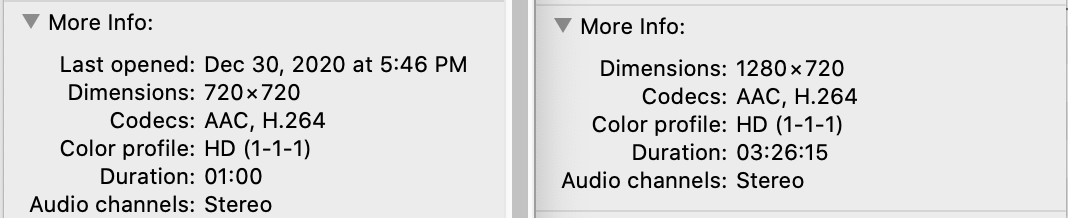
I started the application (npm start) and at first, I thought that the application was not working. The problem was in the encoding of the first MP4 file that I tried. There are a range of different video encoding options that one can use for MP4 files. Looking at the encoding properties of two MP4 files (one file streamed successfully, the other did not) there was no obvious difference at first.

The problem was with metadata stored in the file. A discussion of video encodings is a topic that could be several posts of its own. But the short explanation is that we need to ensure that the metadata is at the begining of the file. We can use ffmpeg to write a new file. Unlike the process of re-encoding a file, for this process the video data is untouched. I used the tool on a movie and it completed within a few seconds.

./ffmpeg  -i Ultraviolet-1.mp4  -c copy -movflags faststart Ultraviolet.mp4

With that change applied, I the videos now stream fine.

If you would like to try this code out, it is available in GitHub at the following URL.

https://github.com/j2inet/VideoStreamNode