Remote Access Hardware (PiKVM)

Remote Desktop tends to work well for me provided that the computer is turned on, booted up, and not locked up. If those conditions are not met, physical interaction is needed. There have been a few times when my computer is hibernating, but I realize I need to access. Today, I’m writing about one of the solutions that I’m using for this. I installed a KVM (Keyboard, Video, Mouse) into my computer. KVMs generally let you use a keyboard, mouse, and display with multiple computers. They are usually connected to a computer over a USB connector and an HDMI cable. But this solution is an IP based solution. Between the user and the target computer is a network connection.

What about Wake-On-LAN

If the problem is only ensuring that a computer is turned on, a sufficient solution may be to enable Wake-On-LAN on the computer. This is a setting that must be enabled through the BIOS/UEFI. Once enabled, a special signal broadcast over your network will result in the computer waking up if it is asleep or turning on when it is turned off. (Find information on building a Wake-On-LAN packet here) Where it doesn’t work is if the computer powered on, but did not boot up, such as when the BIOS is showing a notification and prompting for someone to press a key to continue, or when Windows Update is performing changes (or has failed). A hardware solution is unaffected by these conditions. There are many hardware solutions for KVMs. I decided on PiKVM.

What is PiKVM?

PiKVM is a KVM solution available with different sets of features and capabilities. The most basic PiKVM doesn’t have video capabilities, but interfaces with the power and reset buttons on a computer (PiKVM version 1). With the PiKVM v2 the device is also able to emulate a USB drive to present files to the computer. The next step up, v3, has HDMI video capture for 1920×1080 @ 25fps and has support for a mini-OLED display for showing the IP address. Version 4 supports 1920×1200 @ 60 FPS. There is an OS image for the PI specifically for PiKVM hardware. You can find the images at https://pikvm.org/download/.

About the Geekworm PiKVMs

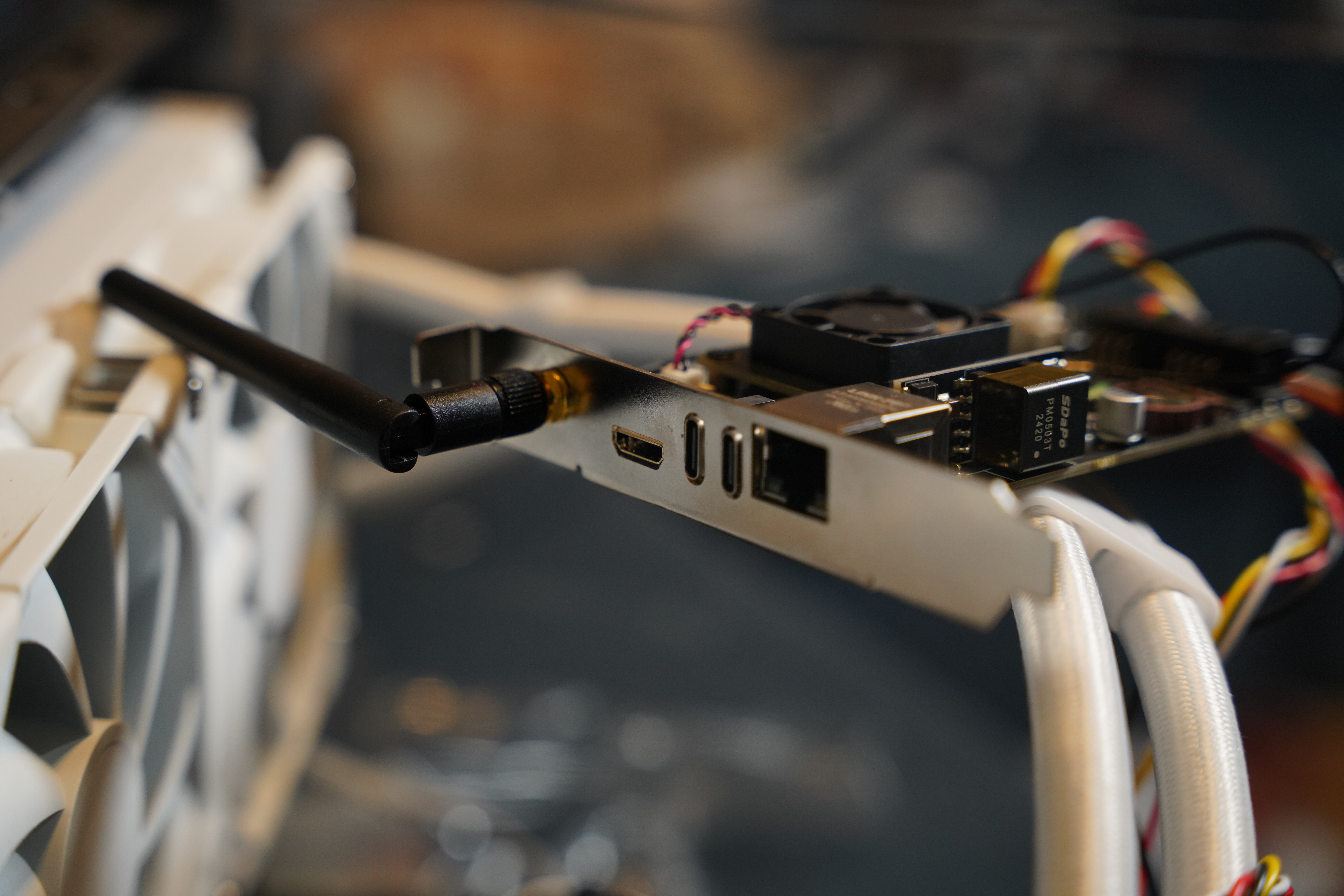
The hardware that I’m using is the Geekworm PiKVM X651 . It is derived from the PiKVM v3. If you read about the general features of the PiKVM3 on pikvm.org, you will find some differences in what is listed there and what Geekworm offers in this model. The Geekworm X651 installs inside the computer. It is secured to one of the PCI covers, though it does not insert into a PCI slot. It also has a space for a WiFi antenna to be put on the card and be external to the PC. The PiKVM v3 hardware described on the website doesn’t install inside the computer, nor does it offer a solution for externalizing the antenna.

Antenna installed on Geekworm X650 PiKVM card

My Hardware Selection

After a bit of debate, I decided on the Geekworm X651. This is the hardware that I purchased.

If you want to make use of the drive-emulation features, you will want a setup that has more access to memory. Consider the following in place of the CM4 with storage.

If you would prefer to use an M.2 drive instead of an SD card, Geekworm also makes the X652.

Comparison with Remote Desktop

I’ve already mentioned the most significant difference between RDP and the PiKVM; The PiKVM provides some level of access even if the computer isn’t turned on or hasn’t booted up. There are differences beyond this. You may find that you want to use both the KVM and RDP in the same system. The PiKVM’s maximum resolution is 1920×1080 (for v3) or 1920×1200 (for v4). I’ve seen RPD work up to 5K in resolution. It may support higher resolutions, but I’ve not used a display that support higher. But I don’t have a display of a higher resolution for confirming. RDP also supports sharing resources such as drives and printers with a remote machine, making it easier to work as though the machine is there with you. I will likely continue to use RDP for general access, but fallback to the PiKVM when I need to wakeup my computer.

Installation and Setup Experience

Anyone that is comfortable with the PiCM4 would be comfortable setting up the Geekworm X651. A PiCM4 must be supplied for it to work. Most of the setup and configuration can be done outside of the computer in which it will be installed. The PiCM4 units are available with or without internal storage memory. For the units without internal memory, one will need a microSD card. It is recommended that the SD card be at least 32 gigs. Part of the card will be used for the OS image. Part of it will be used for providing data to the PC, such as presenting as a bootable drive when reinstalling an OS on the PC. That said, I’m using a Pi with internal memory and a capacity of 16 gigs. I don’t generally recommend this, but it was fine for me. Since I have a Pi with internal memory, to install the OS I had to use an included jumper with the card to short the BOOT jumper and the raspi_boot utility to have the CM4 present to my computer as a USB drive. I then used the Raspberry Pi Image Manager to write the image. For the X651, power will have to be provided via the USB-C port closest to the Ethernet jack or over the POE adapter to write the image. The USB-C port closest to the mini-HDMI input is the data port. Use this port for writing the the OS image. After the image is written, you are ready for setting your password for the device.

Setting the Passwords

You must change the default passwords on the device. Remove the jumper from the boot pins, connect it to your network cable to the device. If your network doesn’t support POE, then connect a power supply to the port next to the ethernet adapter. After the unit boots up, the tiny display will show the IP address (alternatively, use your router to discover the IP address). When you enter the IP address in the browser, you will be confronted with a login page. The default user name and password are admin and admin.

The default username and password

Once you are logged in, you have three options. Select the option to show the terminal.

The three options the KVM presents after logging in.

The default user ID and password here are both root. You’ll want to change that immediately. The device boots mounting the file system in read-only mode. You’ll need to access the super user privileges to remount the files system in read-write mode.

su -
rw

Now, change the password for the root account with the following command.

passwd root

You will be prompted to enter the password twice. Next, you will want to change the password for the web interface.

kvmd-htpasswd set admin

You will once again be prompted to enter the password twice. Once you’ve set the password, remount the file system in read-only. Then reboot.

rw
reboot

The software configuration is complete. You are now ready to install the KVM into your computer.

Installation into the Computer

Before installation, you will want to either consult the manual for your motherboard or examine the motherboard and figure out where various switches are connected. The jumpers that you want to select are as follows.

  • Power
  • Reset
  • Power LED
  • HD LED

For each of these jumpers, you’ll need to disconnect it from the motherboard to connect it to the associated input on the PiKVM. Then connect the associated jumper from the PiKVM to the motherboard. After you’ve connected all of them, you will still be able to operate the power and reset buttons as you did before. You will need to secure the PiKVM in the computer case. Before you do, you may want to test it. Connect the mini-HDMI to HDMI cable to your computers video card and the PiKVM. Ensure it has power either from a USB-C cable or from POE. Connect the PiKVM’s USB-C port closest to the mini-HDMI port to your computer. This connection is necessary for sending keyboard and mouse messages. Wait a few moments for the card to bootup and connect to it via its IP address. You should be able to control your computer over the KVM. Once you’ve confirmed that it works, you are ready to secure the PiKVM in the computer.

Some computers have a slot on the case that doesn’t actually align with any PCI ports. If you have one such slot, consider using it. The PiKVM won’t establish an electrical connection with the computer’s slot anyway. But I advise against having it next to the video card since those can give off a lot of heat. The PiKVM only secures in the case with the screw on the slow cover. Though this is sufficient, I admit that I am not a fan of the card having the ability to wiggle a bit since it is only secured along one edge.

Future Purchase Considerations

I’ve been pleased with the performance of this unit, and am considering purchasing another one. But I’ve got several computers on racks that could use this. Rather than purchase one for each computer, it might make sense to get a unit that can control multiple machiens. The Geekworm X680 controls up to 4 machines. Though I would need to also purchase interfaces for each computer to more seamlessly get access to the power and reset buttons on the motherboard.


Posts may contain products with affiliate links. When you make purchases using these links, we receive a small commission at no extra cost to you. Thank you for your support.

Mastodon: @j2inet@masto.ai
Instagram: @j2inet
Facebook: @j2inet
YouTube: @j2inet
Telegram: j2inet
Bluesky: @j2i.net

Age Verification on Android and iOS, Sideloading for Verified Apps Only

Google is making some changes to Android that make it more restrictive than I’ve previously thought of it. Age verification for apps is coming to Android, and side loading is being restricted to apps that have been “verified” by Google. This is something that is coming to conform to new laws. Apple is also making some changes to conform and published information about it earlier this year. I just received Android’s notification about the change. The full e-mail is appended to the end of this post.

App Verification for Sideloaded Apps

Sideloading is the practice of loading applications onto the device outside of an app store. For Android, this usually involves changing a setting on the phone to allow applications from unknown sources, copying a .apk file to the device, and opening it for the phone to install the app within the .apk. To make an app, someone could download Android Studio, write their code, package their app, and share it with their friends at no cost. Google says that a side-loaded application is 50 times more likely to contain malware. For a developer to distribute their app outside of the Play Store, the developer must register with Google. This is a change from being able to build an app and make the .apk available without interacting with Google. Users who do not load applications outside of the Play Store will not see a difference.

Age Verification

Age verification is attributed to several state laws. The most prominent one referenced is Texas’s Senate Bill 2420. This bill says it regulates the sale of applications to mobile devices. It creates an obligation for app stores to inquire and verify user ages and categorize users into one of a defined set of categories.

  • Age 13 or older but younger than 16
  • At least 16 but younger than 18
  • 18 or older

For each application that a minor downloads, the download will require the consent of the parent. The developers are obligated to come up with age ratings for the applications based on the categories above. The developer must disclose information on the elements of the software that lead to a particular setting being selected. Safety-related features must be enabled in response to the younger age categories. The Texas bill also says that the parent of a minor can make civil damage claims against a developer or app store for failing to meet the requirements.

Expected Impacts

My expectation is that a typical end-user is not likely to notice any change from this bill. At most, there’s the possibility of apps from smaller independent developers that may disappear if it is not eventually updated to conform. From what I’ve seen of the children in my family, they are more inclined to install new apps, especially games. I expect parents to be bugged a lot more about giving permission to install apps. That said, it isn’t unusual for a child to have access to their parents’ phones and sometimes certain passwords. I can’t help but expect that some non-significant portion of children may just use their parents’ phones or passwords to approve themselves.

Different than 1996

These restrictions remind me of another set of restrictions from 29 years ago. In 1996, Congress passed a bipartisan bill, the Communications and Decency Act. A part of that bill required that any website that may have content that isn’t appropriate for children perform age verification and filtering. Most of this bill failed and was enjoined as unconstitutional. The bill’s requirement for age verification would burden lawfully speaking adults and non-commercial interactions. The only portion of that bill that survives as a law today is a law that many simply refer to as Section 230 (47 USC ยง230). ยง230 provides a civil defense from liability for what someone else posted to an interactive computer service. The implementation of the Texas bill and others differs from the 1996 Act in that it targets commercial entities (App stores).

The Email from Google

Whatโ€™s happening

A few U.S. states, currently Texas, Utah, and Louisiana, have recently passed verification laws requiring app stores to verify usersโ€™ ages, obtain parental approval, and provide usersโ€™ age information to developers. These laws also create new obligations for developers who distribute their apps through app stores in these states.

Our plan to support you

While we have user privacy and trust concerns with these new verification laws, Google Play is designing APIs, systems, and tools to help you meet your obligations. The first verification law to take effect is Texasโ€™s SB 2420 on January 1, 2026. Given short implementation timelines, we are sharing details about the Play Age Signals API (beta) and have made the API integration guide available to you.

What this means for you

These laws impose significant new requirements on many apps that may need to provide age appropriate experiences to users in these states. These requirements include ingesting usersโ€™ age ranges and parental approval status for significant changes from app stores and notifying app stores of significant changes. It is important that you review these laws and understand your obligations.

If you have any additional questions, please contact our support team.

Thank you,
Your Google Play team


Posts may contain products with affiliate links. When you make purchases using these links, we receive a small commission at no extra cost to you. Thank you for your support.

Mastodon: @j2inet@masto.ai
Instagram: @j2inet
Facebook: @j2inet
YouTube: @j2inet
Telegram: j2inet
Bluesky: @j2i.net

Running Code in the Pre-Boot Environment

Before your operating system loads, the UEFI (Unified Extensible Firmware Interface) runs. The code in the UEFI is responsible for getting the initial bits of your operating system loaded and then passes control to it for it to load the rest of its components. For the sake of having a better understanding of how things work, this past weekend I decided to write code that would run from the UEFI. Unless you are making system components, this is something that would be impractical to do in the general case. But curious exploration isn’t constrained by practicality. There do exist SDKs for making UEFI programs. Visual Studio also supports the UEFI as a binary target. I’m not using any of the SDKs though. I won’t need them for what I’m doing. To get as far as a “Hello World” I’ll only use Intel Assembler. I wouldn’t suggest that someone that doesn’t already know x86 assembler try this.

Configuring a Visual Studio Project for Assembler

Yes, I’ve not forgotten that I’ve published a video saying that to generally avoid programming in assembler. This isn’t going in any serious code, I don’t have that concern here. From that video, though, I did have instructions on how to create the appropriate type of project in Visual Studio and modify it so that it can compile assembler code.

To use Visual Studio for Assembler development, you will want to create a C++ project. C++ projects support mixing C++ and assembly. We will make a C++ project where 0% of the code is in C++ and 100% is in assembly. In Visual Studio you can create an empty C++ project. Add a new file to the project named main.asm. Right now, VS will not do anything useful with that file. There are two changes that must be made. One is that MASM (Microsoft Assembler) targets must be enabled for the project. The other, MASM must be set as the target for your ASM files. To enable MASM as a target first click on your project in the Solution three, then navigate in Visual Studio to the menu selection “Projects” and then “Build Customizations.” Check the box next to “masm(.targets .props)” and click on “OK.”

To set the target type for main.asm you will need to manually update the project file. right-click on your project in the solution tree and select “Unload project.” Search for “main.asm” in the file. You will find a line that looks like this.

<None Include="main.asm" />

Change the word “None” to “MASM” so that it looks like this.

<MASM Include="main.asm" />

Right-click on the project file and select “Reload project.” Visual Studio able to compile now. But it will try to make a Windows application. That’s not what we want. We want a UEFI application. Visual C++ must be set to target UEFI as the subsystem type. Right-click on the project file and select “Properties.” At the top, change the Configuration setting to “All Configurations.” In the settings tree on the left, navigate to Configuration -> Linker -> System. Change the SubSystem setting to “EFI Application.” Now, select the configuration path Configuration -> Linker -> Advanced. Here, set the “Entry Point” setting to “main”, set “Randomize Base Address” to “No”, and set “Data Execution Prevention” to “No”.

Visual Studio will produce an executable that is the same name as the project but with the EXE extension. That’s not what we want. We want the file name to be BOOTX64.efi. To set that, navigate to the settings path Configuration->Linker->General. Change the Output File setting from $(OutDir)$(TargetName)$(TargetExt) to $(OutDir)BOOTX64.efi. With that, all the configuration steps are complete. Now, we need to write code.

Creating our First Program

This first program will be incredibly simple. It does nothing but loop for some number of cycles and then it terminates. That’s it. Why make a program so simple? Debugging is a little more complex for EFI programs and won’t be covered here. In the absence of a debugger, we will make a program that is as simple as possible while also having effect so that it is known that the program ran. Without relying on any external functionality, the most observable thing that the program can do is take up execution cycles. I do this with the assembler equivalent of

for(auto i=0;i<0x1000000;++i)
{
}

While the program is running, the screen is black. When it finishes running, the UEFI will take over. I can run the program with larger or smaller values in the loop to observe longer or shorter periods of time with a black screen, letting me know that it ran. Here is the source code.

.DATA
; no data
.CODE
main PROC
     MOV RCX, 01000000000H
delay_loop:
	DEC RCX
	JNZ delay_loop
	XOR RAX, RAX
	RET
main ENDP

This code loads a register with a large number. It then loops, decrementing the register value and continuing to do so until that register value has reached zero. When it has, the program sets the RAX register to zero and returns control to the UEFI. The UEFI might check the value of RAX since it is set to a non-zero value if a problem occurred. Compile this and copy the output to a USB key in the folder /EFI/BOOT. It is ready to run!

Running the Program

Usually in Visual Studio, you just press [F5] and your program will compile and run. That’s not an option here. The program must be in a pre-boot environment to run. The easiest way to run the code is either from another computer or from a virtual machine. Attempting to run it on your development machine would mean that you would need to reboot. An emulator or a second machine lets you avoid that. I’m using VM Ware Workstation, which is now available for free from VMWare’s site. ( https://www.vmware.com/products/desktop-hypervisor/workstation-and-fusion ). In any case, you’ll want to ensure that “Secure Boot” is turned off. If Secure Boot is turned on, the computer will refuse to run your code because it isn’t signed with keys that the computer trusts. In VMWare Workstation, right-click on the VM that you plan to use for testing and select “Settings.” In the two tabs at the top of the window that appears, select “Options” and then select “Advanced.” Ensure the firmware type is set to UEFI and that “Secure Boot” is not checked. Click on Okay.

Power-On the Virtual Machine. Once it is powered on, In the “VM” menu select “Removable Devices.” You should see your USB drive. Select it and choose the “Connect Option.” The drive will appear to be unplugged from your computer and connected to the host machine.

Now select the option to reboot the VM.

When the machine reboots, you should see the screen remain black for a bit before the UEFI menu shows. During this period when it is black, the program is looping. If you shut down the VM then the USB drive will become visible to your computer again.

Writing Text

The UEFI has APIs available for reading and writing text, graphics, and more. Let’s try to write text to the screen. We will write “Hello World”, delay, and then return control to the system. This first time that we do that we will be applying knowledge that is known about the system that cannot be inferred from looking at the code alone. When our program starts, two registers already have pointers to a couple of items of information that we need. The RCX register (64-bit general purpose register) has a handle to some Image information. The RDX register has a pointer to the System Table. The system table contains pointers to objects and functions that we will want to use and provides other information about the system. At an offset 0x40 (64) bytes into the system table is a pointer to an object known as ConOut that is used for writing text to the console. At an offset 0x8 bytes from that object’s address is a pointer to the function entry point for the function known as OutputString. We want to call that to display text on the screen. When we call this function, we need to set the RDX register to point to the address of the string that we want to print. After we print, we run our delay and then return control to the UEFI.

.DATA
     szHelloWorld DW 'H','e','l','l','o',' ','W','o','r','l','d','\r','\n', 0
.CODE
main PROC
	SUB RSP, 10H*8	
	MOV RCX, [RDX + 40H] ; Get ConOut function address
	LEA RDX, [szHelloWorld]
	CALL QWORD PTR [RCX + 08H] ;Output String	
	MOV RCX, 01000000000H
delay_loop:
	DEC RCX
	JNZ delay_loop
	ADD RSP, 10H*8	
	XOR RAX, RAX
	RET
main ENDP

END

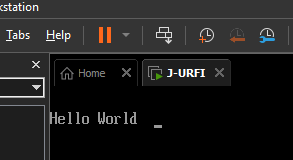
If we run the program now, it shows text

Adding Structures for Reading Objects

Reading data from arbitrary offsets both work and results in horrible readability. The code will be a lot more readable if we read it using structs instead of arbitrary memory offset. There are three structs that we need: EFI_TABLE_HEADER, SYSTEM_TABLE, and TEXT_OUTPUT_INTERFACE.The EFI_TABLE_HEADER here is being used within the SYSTEM_TABLE struct. I could have defined it in line with SYSTEM_TABLE, but it is used by some other UEFI structures. I decided against it. Most of the other entries in the SYSTEM_TABLE are 64-bit pointers (DQ – or double quads, meaning 8 bytes). Though a few members are doubles (DD – or 32-bit numbers).

EFI_TABLE_HEADER STRUCT
  Signature		DQ ?
  Revision		DD ?
  HeaderSize	DD ?
  CRC			DD ?
  Reserved		DD ?
EFI_TABLE_HEADER ENDS

SYSTEM_TABLE STRUCT
	HDR						EFI_TABLE_HEADER <?> ; 00H
	FIRMWARE_VENDOR_PTR		DQ ? ; 18H
	FIRMWARE_REVISION_PTR	DQ ? ; 20H
	CONSOLE_INPUT_HANDLE	DQ ? ; 28H
	ConIn					DQ ? ; 30H
	CONSOLE_OUTPUT_HANDLE	DQ ? ; 28
	ConOut					DQ ? ; 30
	StandardErrorHandle		DQ ? ; 38
	STD_ERR					DQ ? ; 40
	RuntimeServices			DQ ? ; 48
	BootServices			DQ ? ; 50
	NumberOfTableEntries	DD ? ; 58H
	ConfigurationTable		DQ ? ; 60H
SYSTEM_TABLE ENDS

TEXT_OUTPUT_INTERFACE STRUCT
	Reset				DQ	?
	OutputString		DQ	?
	TestString			DQ	?
	QueryMode			DQ	?
	SetMode				DQ	?
	SetAttribute		DQ	?
	ClearScreen			DQ	?
	SetCursorPosition	DQ	?
	EnableCursor		DQ	?
	Mode				DQ	?
TEXT_OUTPUT_INTERFACE ENDS

With these structs defined, there are a few ways we now have access to access structured data. When using a register to access a field of a struct, I can specify the field offset in the MOV operation. The line of code looks like this.

[RDX + SYSTEM_TABLE.ConOut]

Adding that notation to the code, I end up with code that looks like this.

.CODE
main PROC
	SUB RSP, 10H*8	
	MOV RCX, [RDX + SYSTEM_TABLE.ConOut] ; Get ConOut function address
	LEA RDX, [szHelloWorld]
	CALL QWORD PTR [RCX + TEXT_OUTPUT_INTERFACE.OutputString] ;Output String
	
	MOV RCX, 01000000000H
delay_loop:
	DEC RCX
	JNZ delay_loop
	ADD RSP, 10H*8	
	XOR RAX, RAX
	RET
main ENDP

Reading Text

For someone that wants to play with this, it may also be helpful to be able to read text from the keyboard. Just as there is a Console Output object, there is also a Console Input object. I’ll have the code wait in a spin-loop until a key is pressed. Then it will print the key that was pressed, delay a bit, and terminate. The UEFI boot services do offer a function that will wait on system events. A key press counts as a system event. But I will stick with a spin-wait for simplicity.

I’m declaring a new procedure named waitForKey. This procedure uses a system object that implements the TEXT_INPUT_PROTOCOL. The object has the method ReadKeyStroke that communicates either that there is no keystroke available (sets the RAX register to a non-zero value) or that there is a keystroke (sets RAX register to zero) and writes the keyboard scan code and Unicode character to the memory address that it received in the RDX register. My code loops while RAX is set to non-zero.

.DATA
     szKeyRead DW ' '
.CODE
waitForKey PROC
		SUB RSP, 8
	waitForEnter_Retry:
		MOV RCX, [systemTable]
		MOV RCX, [RCX + SYSTEM_TABLE.ConIn]
		MOV RDX, RSP
		CALL QWORD PTR [ECX+TEXT_INPUT_PROTOCOL.ReadKeyStroke]
		CMP EAX, 0
		JNZ waitForEnter_Retry
		MOV AX, WORD PTR [RSP+2]
		MOV WORD PTR [szKeyRead], AX
		ADD RSP, 8
		RET
waitForKey ENDP

I’ll put the code necessary to print a string in a procedure, too. It will be called printString. The address to the zero-terminated string must be passed in the RAX register.

printString PROC
		MOV RCX, [systemTable]
		MOV RCX, [RCX + SYSTEM_TABLE.ConOut]
		MOV RDX, RAX
		CALL QWORD PTR [RCX+TEXT_OUTPUT_INTERFACE.OutputString]
		RET
printString ENDP

The code will now wait on user input before terminating.

Downloading the Code

If you want to try this out, the Visual Studio project and source code are available on GitHub. In that repository there is also a build folder that contains the binary. If you want to try it out, copy it to the path efi/BOOT on a FAT32 formatted USB drive and boot from it.

Other Resources

I used VMWare for a test device. It is available for free download from the VMWare Workstation web site. For development, I used Microsoft Visual Studio 2022. It is available for free from the Microsoft Visual Studio website. Information about the various objects that are available for use in UEFI code can be found on the site UEFI.org,


Posts may contain products with affiliate links. When you make purchases using these links, we receive a small commission at no extra cost to you. Thank you for your support.

Mastodon: @j2inet@masto.ai
Instagram: @j2inet
Facebook: @j2inet
YouTube: @j2inet
Telegram: j2inet
Bluesky: @j2i.net

Junctions, Hard Links, Symbolic Links on the Windows File System

On windows, the command line tool mklink is used to create symbolic links, junctions, and hard links. But what are those? I’ll first mention a couple of scenarios where they may be helpful. Let’s say that you have a content-driven system. You have multiple versions of your content sets on the file system. Each complete set is in its own folder. The software itself uses the content in a folder named current. When your content syncing applicate gets done downloading a new content set, there are several ways to make it available to the software that is using it. The method I want to focus on is having a virtual folder named current that is actually a pointer to the real folder. A variation of this need is having different versions of an SDK installed. To change from one SDK to another, there could be multiple environment variables that must be updated to point from one SDK version to another. This can be simplified by having a folder that is actually a pointer to the directory that must be used.

Switching from abstract to actual for a moment, I’ve got a couple of versions of the Java Card SDK installed. I just installed the latest version, but I want to keep the previous version around for a while. I’ve got a javacard folder as the root folder of all of the other software used for Java Card development. In it, there are junctions named tools and simulator to point to the Java Card folders for the command line tools and the Java Card simulator. If I need to switch between versions, I only need to delete the old junctions and create new ones.

Arguments for mklink

The arguments to the command are as follows.

mklink[[/j] | [/d] | [/h]] <link> <target>

  • /j – Create a directory junction
  • /d – Create a directory symbolic link
  • /h – Create a hard link (for files only)

Understanding of hard links and junctions requires understanding of the underlying file system. hard links refer to files while junctions refer to directories. Beyond that, they do the same thing. For a hard link or junction, two entries on the file allocation table point to the same inode entries. Symlinks are more like pointers that hold information on the original file system entry. Hard links and junctions can only refer to files on the same file system, while can symlinks refer to a file on a different file system. If no arguments are passed to mklink it will assume that you are making a file symlink.

Command Line Examples

What follows scenarios and the associated commands for those scenarios.

Create a new junction named tools that points to c:\bin\tools_v3.5

mklink/j tools c:\bin\tools_v3.5

Delete a junction named tools.

rd tools

Create a hard link named readme.txt to a file named c:\data\readme_23.txt

mklink /h readme.txt c:\data\readme_23.txt

Delete the hard link for readme.txt.

del readme.txt

What if I Want to Do This with an API Function?

The Win32 API also makes this functionality available to you through the function CreateSymbolicLink and DeviceIoControl.

CreateSymbolicLink

The arguments for the function reflect the arguments used by the command line tool.

BOOLEAN CreateSymbolicLinkW(
  [in] LPCWSTR lpSymlinkFileName,
  [in] LPCWSTR lpTargetFileName,
  [in] DWORD   dwFlags
);

The flag here can be one of three values.

ValueMeaning
0The target is a file
SYMBOLIC_LINK_FLAG_DIRECTORY (0x01)The target is a directory
SYMBOLIC_LINK_FLAG_ALLOW_UNPRIVILEGED_CREATE(0x02)Non-Elevated Create

DeviceIoControl

DeviceIoControl is used for a lot of different functionality. The details of using it in this specific use case may be worthy of its own post. For the sake of brevity, I won’t cover it here. But I’ll mention a few things about using it. When using it to make a junction, the following struct would be used. Note that this struct is a union. The union members that you would use for making a junction to a directory are in the MountPointReparseBuffer.

typedef struct _REPARSE_DATA_BUFFER {
  ULONG  ReparseTag;
  USHORT ReparseDataLength;
  USHORT Reserved;
  union {
    struct {
      USHORT SubstituteNameOffset;
      USHORT SubstituteNameLength;
      USHORT PrintNameOffset;
      USHORT PrintNameLength;
      ULONG  Flags;
      WCHAR  PathBuffer[1];
    } SymbolicLinkReparseBuffer;
    struct {
      USHORT SubstituteNameOffset;
      USHORT SubstituteNameLength;
      USHORT PrintNameOffset;
      USHORT PrintNameLength;
      WCHAR  PathBuffer[1];
    } MountPointReparseBuffer;
    struct {
      UCHAR DataBuffer[1];
    } GenericReparseBuffer;
  } DUMMYUNIONNAME;
} REPARSE_DATA_BUFFER, *PREPARSE_DATA_BUFFER;

Administrative Level Needed for Non-Developers

This functionality usually requires administrative level privileges to execute. However, if a machine has developer mode enabled, the function can be invoked without administrative level privileges. The mklint command line tool appears to follow the same rule. Running this on my own systems (which have developer mode enabled) I can create links without administrative privileges. If you are creating links with a Win32 API call, remember to set the flag SYMBOLIC_LINK_ALLOW_UNPRIVILEGED_CREATE.


Posts may contain products with affiliate links. When you make purchases using these links, we receive a small commission at no extra cost to you. Thank you for your support.

Mastodon: @j2inet@masto.ai
Instagram: @j2inet
Facebook: @j2inet
YouTube: @j2inet
Telegram: j2inet
Bluesky: @j2i.net
Sushi Bricks

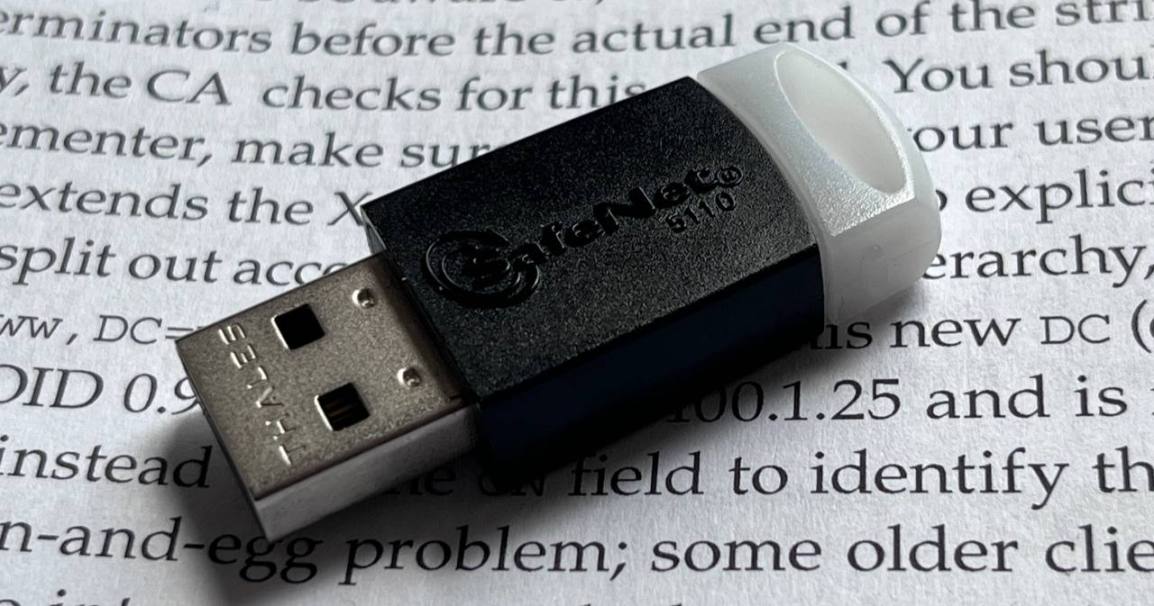
A gift I received some time ago was a Sushi themed not-LEGO set (It’s not from the LEGO corporation, but people would still colloquially call them LEGOS). This set was a recreation of a sushi dish. I like assembling models and LEGO sets, I love sushi, and I enjoyed putting this set together. I think the end result speaks for itself.

This was easy to put together. While it took me 31 minutes to do so, it was because I was recording the process and talking to someone else. The video of the assembly (minutes the audio from my conversation and minus some redundant points) is on YouTube on my alternative channel for collectables, toys, and other items (@j2inet2). It is also embedded below. If you are interested in getting this set, you can find it on Amazon (affiliate link)

Recursively Deleting Directory in Win32 (C++)

If you need to delete a directory in Windows, the function RemoveDirectory is useful if the directory is empty. If the folder is not empty, you don’t need to implement recursive logic. The shell API function SHFileOperation is likely the function that you want to use. To use this function include the header <shellapi.h>. The SHFileOperation can perform various file operations, but the one we are most interested in is deletion. For those of you looking for something quick to copy-and-paste, here is the code.

void EmptyFolder(std::wstring path, HWND hWnd = NULL)
{
	std::vector<WCHAR> doubleTerminated(path.size() + 2);
	wcscpy_s(doubleTerminated.data(), doubleTerminated.size(), path.c_str());
	doubleTerminated[doubleTerminated.size() - 1] = L'\0';
	doubleTerminated[doubleTerminated.size() - 2] = L'\0';

	std::wstring progressTitle = L"Cleaning Folder";
	SHFILEOPSTRUCT options = { 0 };
	options.hwnd = hWnd;
	options.wFunc = FO_DELETE;
	options.pFrom = doubleTerminated.data();
	options.fFlags = FOF_NOCONFIRMATION | FOF_NOERRORUI | FOF_SILENT;
	options.lpszProgressTitle = progressTitle.c_str();
	DWORD result = SHFileOperation(&options);
}

Explanation

Other code that you may encounter might use pointer data types to perform this same task. I tend minimize managing memory myself. Instead of using pointers to characters as strings, I used types from the standard library. std::wstring and std::vector<WCHAR> are used instead. When pointers to data types are needed, std::wstring::c_str() and std::vector<WCHAR>::data() can be used to supply them. The function I provide here accepts the full path to the folder to be deleted as a std::wstring. That path is copied to the std::vector<WCHAR>. In addition to the text data being copied, two nulls are copied to the end of the data. This is a requirement of the SHFileOperation function for our purpose. Appending a L'\0\0' to the end of the std::wstring does not result in those null characters being present when we use std::wstring::c_str() to get a WCHAR pointer to the data.

A SHFILEOPSTRUCT structure must be populated with the parameters needed for the operation that we would like to perform. Setting it to { 0 } at initialization will set all of the fields in the structure to zero. This is great for structures where zero or null values are what one wants to set as the default values. The fields that we do populate are

  • hwnd – The handle to the owner window. This can be set to NULL.
  • wFunc – Set to a value for the operation that we want to perform. FO_DELETE is the value to use for deletion.
  • pFrom – Set to the double – null terminated string containing the path to the folder to be delete
  • lpszProgressTitle – Set to a title to show in a UI window that shows the progress of the operation
  • fFlags – flags for various operations. The operations selected here include
    • FOF_NOCONFIRMATION – don’t ask the user for confirmation
    • FOF_NOERRORUI – don’t show an error UI if the operation fails
    • FOF_SILENT – don’t show the UI.

In testing this, my results have generally been success or 0x7c (for invalid name). The invalid name return value was encountered when a directory had already been deleted (in which case the value passed really was not a valid identifier for a directory!).


Posts may contain products with affiliate links. When you make purchases using these links, we receive a small commission at no extra cost to you. Thank you for your support.

Mastodon: @j2inet@masto.ai
Instagram: @j2inet
Facebook: @j2inet
YouTube: @j2inet
Telegram: j2inet
Bluesky: @j2i.net

Compiling V8 on Windows (version 13.7.9)

I had an idea for an application that would be using some native code, but also needed to be customizable through changing JavaScript. v8 was the first choice for a JavaScript engine to integrate. It is the most popular JavaScript engine. Having modified Chromium before, (V8 is part of the Chromium source code) I thought this would be more of the same procedures that I had followed before. That’s not the case. The last time I worked with this code, it was with Microsoft Visual C/C++. But back in September 2024 the V8 group followed Chromium’s lead and removed support for MSVC. The change makes sense, they wanted to reduce the various compiler nuances and hacks that they had to account for when updating the source code. The old procedure I used was not going to work. I had to figure out how to build V8 again.

Appreciation for the V8 Team

I want to take a moment to thank the V8 team for their effort. I’ve not interacted with them directly myself. But from reading in the Google Group for V8, I’ve seen that they’ve been responsive to questions that others have asked, and I’ve found their responses helpful. If/when I do interact with them directly I want to remember to express my appreciation. If you interact with them, I encourage doing the same.

Why doesn’t Google Just Distribute a Precompiled Version

The first time I used V8, I questioned why Google didn’t just make a precompiled version available. After working in it myself, I can better appreciate why one might not want to do that. There are a log of variations in build options. It simply just isn’t practical.

The Build Script

Because the build procedure is expected to change over time, I’ve made the rare decision to call out the V8 version that I’m working with in the title of this post. This procedure might not work with earlier or later versions of V8. Consider what version of v8 that you wish to build. The more significant the difference in that version number and what I’ve posted here (13.7.9) the higher the chance of this document being less applicable.

As I did with the AWS C++ SDK and the Clang compiler, I wanted to script the compilation process and add the script to my developer setup scripts. The script is in a batch file. While I would have preferred to use PowerShell, the build process from Google uses batch files. Yes, you can call a batch file from PowerShell. But there are differences in how batch files execute from PowerShell vs the command prompt.

Installing the Required Visual Studio Components

If you are building the V8 source code, you probably already have Visual Studio 17 20222 installed with C++ support. You’ll want to add support for the Clang compiler and additional tools. While you could start the Visual Studio installer and select the required components, in my script I’ve included a command to invoke the installer with those components selected. You’ll have to give it permission to run. If you want to invoke this command yourself to handle putting the components in place, here it is.

pushd "C:\Program Files (x86)\Microsoft Visual Studio\Installer\"
vs_installer.exe install --productid Microsoft.VisualStudio.Product.Community --ChannelId VisualStudio.17.Release --add Microsoft.VisualStudio.Workload.NativeDesktop  --add Microsoft.VisualStudio.Component.VC.ATLMFC  --add Microsoft.VisualStudio.Component.VC.Tools.ARM64 --add Microsoft.VisualStudio.Component.VC.MFC.ARM64 --add Microsoft.VisualStudio.Component.Windows10SDK.20348  --add Microsoft.VisualStudio.Component.VC.Llvm.Clang --add Microsoft.VisualStudio.Component.VC.Llvm.ClangToolset --add Microsoft.VisualStudio.ComponentGroup.NativeDesktop.Llvm.Clang	 --includeRecommended
popd

Depot Tools

In addition to the source code, Google makes available a collection of tools and utilities that are used in building V8 and Chromium known as “Depot Tools.” These tools contain a collection of executables, shell scripts, and batch files that help abstract away the differences in operating systems, bringing the rules and procedures to be closer together.

Customizing my Script

For the script that I’ve provided, there are a few variables in it that you probably want to modify. The drive on which the code will be downloaded, the folders into which the code and depot tools will be placed, and the path to a temp folder are all specified in the batch file. I’ve selected paths that result in c:\shares\projects\google being the parent folder of all of these, with the v8 source code being placed in c:\shares\projects\google\v8. If you don’t like paths, update the values that are assigned to drive, ProjectRoot, TempFolder, and DepotFolder.

Running the Script

The Happy Path

If all goes well, a developer opens their Visual Studio Developer Command Prompt, invokes the script, and is presented with the Visual Studio Installer UI a few moments later. The user would OK/Next through the isntaller. After that, the Windows SDK isntaller should present and the user does the same thing. The user could then walk away and when they come back, they should have compiled V8 libraries for debug and release modes for x64 and ARMS64.

A walkthrough of what happens

The script I provided must be run from a Visual Studio Developer command prompt. Administrative level priviledges is not needed for the script, but it will be requested during the application of the Visual Studio changes. Because elevated processes don’t run as a child process of the build script, the script has no way of knowing when the isntallation completes. It will pause when the Visual Studio Installer is invoked and won’t continue until the user presses a key in the command window. Once the script continues, it will download the Windows SDK and invoke the installer. Next, it clones Depot Tools folder from Google. After cloning Depot Tools, the application gclient needs to be invoked at least once. Thsi script will invoke it.

With gclient initialized, it is now invoked to download the V8 source code and checkout a specific version. Then the builds get kicked off. The arguments for the builds could be passed as command line argumens, or they could be placed in a file named args.gn. I’ve placed configuration files for the 4 build variations with this build script.

V8 Hello World

Just as I did with the AWS C++ SDK script, I’ve got a “Hello World” program that doesn’t do anything significant. It’s purpose is to stand as a target for validating that the SDK successfully compiled and that we can link to it. The Hello World source is frp, pme pf the programs that Google provides. I’ve placed it in a Visual Studio project. If you are using same settings that I used in my build script, you will be able to compile this program without making any modifications. Nevertheless, I’ll explain what I had to do.

// v8monolithlinktest.cpp : This file contains the 'main' function. Program execution begins and ends there.
//
#include <libplatform/libplatform.h>
#include <v8-context.h>
#include <v8-initialization.h>
#include <v8-isolate.h>
#include <v8-local-handle.h>
#include <v8-primitive.h>
#include <v8-script.h>

int main(int argc, char** argv)
{
	v8::V8::InitializeExternalStartupData(argv[0]);
	std::unique_ptr<v8::Platform> platform = v8::platform::NewSingleThreadedDefaultPlatform();
	v8::V8::InitializePlatform(platform.get());
	v8::V8::Initialize();
	v8::Isolate::CreateParams create_params;
	v8::V8::Dispose();
	v8::V8::DisposePlatform();
	delete create_params.array_buffer_allocator;
	return 0;
}

I made a new C++ Console program in Visual Studio. The program needs to know the folder that has the LIB file and header files. The settings for binding to the C/C++ runtime must also be consistent between the LIB and out program. I will only cover configuring the program for debug mode. Configuring for release will involve different values for a few of the settings.

Right-click on the project and select “Properties.” Navigate to the options C++ -> Command Line on the left On the text box on the right labeled Additional Options enter the argument /Zc:__cplusplus (that command contains 2 underscores). This is necessary because, for compatibility reasons, Visual Studio will report as using an older version of C++. The V8 source code has macros within it that will intentionally cause the compilation to fail if the compiler doesn’t report as having C++ 20 or newer. Now, go to the setting C++ -> Language -> C++ Language Standard. Change it to C++ 20. Go to C++ -> General -> Additional Include Directories. In the drop-down on the right side, select “Edit.” Add a new path. If you’ve used the default settings, the new path will be c:\shares\projects\google\v8\include. Finally, go to C++ -> Linker -> General. For “Additional Library Directories” select the dropdown to click on the “Edit” option. Enter the path c:\shares\projects\google\v8\out\x64.debug.

With those settings applied, if you compile now the compilation will fail. Let’s examine the errors that come abck and why.

Unresolved External Symbols

You might get Unresolved External symbol errors for all of the V8 related functions. Here is some of the error output.

v8monolithlinktest.obj : error LNK2019: unresolved external symbol “class std::unique_ptr> __cdecl v8::platform::NewSingleThreadedDefaultPlatform(enum v8::platform::IdleTaskSupport,enum v8::platform::InProcessStackDumping,class std::unique_ptr>)” (?NewSingleThreadedDefaultPlatform@platform@v8@@YA?AV?$unique_ptr@VPlatform@v8@@U?$default_delete@VPlatform@v8@@@std@@@std@@W4IdleTaskSupport@12@W4InProcessStackDumping@12@V?$unique_ptr@VTracingController@v8@@U?$default_delete@VTracingController@v8@@@std@@@4@@Z) referenced in function main
1>v8monolithlinktest.obj : error LNK2019: unresolved external symbol “public: __cdecl v8::Isolate::CreateParams::CreateParams(void)” (??0CreateParams@Isolate@v8@@QEAA@XZ) referenced in function main

These are because you’ve not linked to the the necessary V8 library. This can be resolved through the project settings or through the source code. I’m going to resolve it through the source code with preprocessor directives. The #pragma comment() preprocessor maco is used to link to LIB files. Let’s link to v8_monolith.lib by placing this somewhere in the cpp files.

#pragma comment(lib, "v8_monolith.lib")

If you compile again, you’ll still get an unresolved externals error. This one isn’t about a V8 function, though.

1>v8_monolith.lib(time.obj) : error LNK2019: unresolved external symbol __imp_timeGetTime referenced in function "class base::A0xE7D68EDC::TimeTicks __cdecl v8::base::`anonymous namespace'::RolloverProtectedNow(void)" (?RolloverProtectedNow@?A0xE7D68EDC@base@v8@@YA?AVTimeTicks@12@XZ)
1>v8_monolith.lib(platform-win32.obj) : error LNK2001: unresolved external symbol __imp_timeGetTime
1>C:\Users\Joel\source\repos\v8monolithlinktest\x64\Debug\v8monolithlinktest.exe : fatal error LNK1120: 1 unresolved externals

The code can’t find the library that contains the function used to get the time. Linking to WinMM will take care of that. We another an other #pragma comment() preprocessor directive.

#pragma comment(lib, "WinMM.lib")

Here’s another compiler error that will be repeated several hundred times.

1>libcpmtd0.lib(xstol.obj) : error LNK2038: mismatch detected for '_ITERATOR_DEBUG_LEVEL': value '0' doesn't match value '2' in v8monolithlinktest.obj

The possible range for _ITERATOR_DEBUG_LEVEL is from 0 to 2 (inclusive). This error is stating that the V8 LIB has this constant defined to 0 while in our code, it is defaulting to 2. We need to #define it in our code before any of the standard libraries are included. It is easiest to do this at the top of the code. I make the following the first line in my source code.

#define _ITERATOR_DEBUG_LEVEL 0

The code will now compile. But when you run it, there are a few failures that you will encounter. I’ll just list the errors here. The code terminates when it encounters one of these errors. You would only be able to observe one for each run. The next error would be encountered after you’ve addressed the previous one. These failures are from the code checking to ensure that your runtime settings are compatible with the compile time settings. Some settings can only be set at compile time. If the V8 code and your code have diffeerent expectations, there’s no way to resolve the conflic. Thus the code fails to force the developer to resolve the issue.

Embedder-vs-V8 build configuration mismatch. On embedder side pointer compression is DISABLED while on V8 side it's ENABLED.

Embedder-vs-V8 build configuration mismatch. On embedder side V8_ENABLE_CHECKS is DISABLED while on V8 side it's ENABLED.

These are also resolved by #define directives before the relevant includes. These values must be also be consistent with values that were used when compiling the V8 library. The lines that resolve these errors follow.

#define V8_COMPRESS_POINTERS
#define V8_ENABLE_CHECKS true

I’ve mentioned a few times values for options within the V8 library. Those values come from the arguments that were passed when V8 was built. Let’s take a look at one of the args.gn files that contains these arguments.

dcheck_always_on = false
is_clang = true
is_component_build = false
is_debug = true
symbol_level=2
target_cpu = "x64"
treat_warnings_as_errors = false
use_custom_libcxx = false
# use_glib = true
# v8_enable_gdbjit = false
v8_enable_i18n_support = true
v8_enable_pointer_compression = true
v8_enable_sandbox = false
v8_enable_test_features = false
v8_monolithic = true
v8_static_library = true
v8_target_cpu="x64"
v8_use_external_startup_data = false
# cc_wrapper="sccache"

I won’t explain everythin within these settings, but there are a few items to call out.

  • v8_monolith – this option causes all of the functionality to be compiled into a single lib.
  • use_custom_libxx – when true, the code will use a custom C++ library from google. When false, the code will use a standard library. Always set this to false.
  • is_debug – set to true for debug builds, and false for release builds
  • v8_static_library – When true, the output contains libs to be statically linked to a program. When false, dlls are produced that must be distributed with the program.

Many of these settings have significant or interesting impacts. The details of what each one doesn’t isn’t discussed here. I’m assuming that most people that are reading this are just getting started with V8. The details of each of these build options might not be at the top of your list if you are just getting started. For some of these settings, Google has full page documents on what the settings do. The two most important settings are the v8_monolith and the is_debug setting. v8_monolith will package all of the functionality for v8 in a single large lib. The one I just compiled is about 2 gigabytes. If this option isn’t used, then the developer must makes sure that all of the necessary DLLs for the program are collected and deployed with their program.

Enabling is_debug (especially with a symbol level of 2) let’s you step into the v8 code. Even if you trust that the v8 code works fine, it is convinient to be able to step into v8.

Distributing the Outputs

After you’ve made a build and are happy with it, you want to distribute it to either other developers or archive it for yourself. Since this example makes the monolithic build, the only files that are needed are a single lib file (though very large) and the header files. You can find the V8 libs in in v8\out\x64.release\v8_monolith.lib and v8\out\x64.debug\v8_monolith.lib. Note that these files have the same name and are aonly separated by their folder. When you archive the lib, you may want to archive the args.gn file that was used to make it. It can serve as documentation for a developer using the lib. You also need the include folder from v8\includes. That’s all that you need. Because I might want to have more than one version of the V8 binaries on my computer, I’ve also ensured that the version number is also part of the file path.

Finding Resources

I looked around to try to find a good book on the V8 system, and I can’t find any. It makes sense why there are no such books. It is a rapidly evolving system. The best place I think you will find for support is the V8 Google Groups. Don’t just go there when you need help, it may be good to randomly read just to pick up information you might not have otherwise. There is also v8.dev for getting a great surface level explanation of the system. Note that some of the code in the examples on their site are a bit out-of-date. I tried a few and found that some minor adjustments are needed for some code exables to work.


Posts may contain products with affiliate links. When you make purchases using these links, we receive a small commission at no extra cost to you. Thank you for your support.

Mastodon: @j2inet@masto.ai
Instagram: @j2inet
Facebook: @j2inet
YouTube: @j2inet
Telegram: j2inet
Bluesky: @j2i.net

React: The Comprehensive Guide

Setting another Application to Be Always On Top

When creating an application, if we want our own application to be the topmost window, many UI APIs have a call or setting that we can alter to ensure that is how our window displays. For a client, we were asked to make a third-party application that always appeared on top of other windows. Contacting the application vendor, we found that there was no way to do this within the range of settings that we have access to. Nor was there likely to be a method available on our timelines. This isn’t a serious problem though; we can use some Win32 APIs to alter the window settings ourselves.

This is something that is only to be done as a last resort. Manipulating the internal settings of another application can come with risks. When doing something like this, it should be done with a significant amount of testing. To accomplish this task, we only need to get a handle of the window that we wish to affect and call SetWindowPos with the argument HWND_TOPMOST. That’s the easy part. The less obvious part is how does get their hands on the handle of another window. The FindWindows API can be used to get the handle of a Window based either on the window title or the window class name. For the Notepad application on Windows 10, the name of the window class is simply Notepad. We could also get access to a Notepad window if we use the text string that shows up in its title bar. For flexibility, put this functionality into an application or have it use FindWindow up to 2 times so that I can attempt to find the window by the class name or the title. The value to be used here is passed as a command line parameter. In C++, we end up with an application that has the following source code. The application calls these Windows API in a loop. This allows it to have an effect if the target application hasn’t presented a window or if the application closes and reopens.

// AlwaysOnTop.cpp : This file contains the 'main' function. Program execution begins and ends there.
//
#include <iostream>
#include <Windows.h>

void ShowInstructions()
{
    std::wcout << L"Usage:\rn"
        L"AlwaysOnTop.exe[window - name]\r\n"
        L"[window - name] should be either the\r\n"
        L"window or the name of the window class. " << std::endl;
}

int wmain(int argc, wchar_t** argv)
{
    HWND windowHandle = nullptr;
    std::wstring windowName ;
    if (argc < 2) {
        ShowInstructions();
        return -1;
    }

    windowName = std::wstring(argv[1]);

    while (true)
    {
        windowHandle = NULL;
        while (windowHandle == NULL)
        {
            windowHandle = FindWindow(windowName.c_str(), nullptr);
            if (windowHandle == nullptr)
            {
                windowHandle = FindWindow(nullptr, windowName.c_str());
            }
            if (windowHandle == nullptr)
            {
                Sleep(3500);
            }
        }
        std::wcout << "Window handle found for " <<windowName << " }. \r\nSetting to top most window";
        while (true) {

            SetWindowPos(windowHandle, HWND_TOPMOST, 0, 0, 0, 0, SWP_NOMOVE | SWP_NOSIZE);
            SetForegroundWindow(windowHandle);
            Sleep(7500);
        }
    }
}


I’ve found that native executables tend to set off alarms for a security application that we use. The security application isn’t as sensitive to .Net executables. I have the source code in .Net also. It calls the same Windows APIs in the same order.

using System.Runtime.InteropServices;

namespace AlwaysOnTop.Net
{
    internal class Program
    {
        [DllImport("user32.dll", SetLastError = true)]
        private static extern IntPtr FindWindow(string lpClassName, string lpWindowName);

        [DllImport("user32.dll", SetLastError = true)]
        private static extern bool SetWindowPos(IntPtr hWnd, IntPtr hWndInsertAfter, int X, int Y, int cx, int cy, uint uFlags);


        [DllImport("user32.dll")]
        static extern IntPtr SetFocus(IntPtr hWnd);

        [DllImport("User32.dll")]
        static extern int SetForegroundWindow(IntPtr hWnd);

        // Constants for nCmdShow
        const int SW_HIDE = 0;
        const int SW_SHOW = 5;
        const uint SWP_NOSIZE = 0x0001;
        const uint SWP_NOZORDER = 0x0004;
        const uint SWP_NOMOVE = 0x002;
        const int HWND_TOPMOST = -1;
        static readonly IntPtr HWND_TOP = IntPtr.Zero;


        static void ShowInstructions()
        {
            Console.WriteLine(
@"Usage:

AlwaysOnTop.Net.exe [window-name]

[window-name] should be either the 
window name or window class.
"
            );
        }

        static void Main(string[] args)
        {
            if(args.Length < 1)
            {
                ShowInstructions();
                return;
            }            
            string windowName = args[0];


            IntPtr windowHandle = IntPtr.Zero;

            while(true)
            {
                while (windowHandle == IntPtr.Zero)
                {
                    windowHandle = FindWindow(windowName, null);
                    if (windowHandle == IntPtr.Zero)
                    {
                        windowHandle = FindWindow(null, windowName);
                    }
                    if(windowHandle == null)
                    {
                        Thread.Sleep(3500);
                    }
                }
                Console.WriteLine($"Window handle found for {windowName}. \r\nSetting to top most window");
                while(true){

                    SetWindowPos(windowHandle,  HWND_TOPMOST, 0, 0, 0, 0, SWP_NOMOVE | SWP_NOSIZE);
                    SetForegroundWindow(windowHandle);
                    Thread.Sleep(7500);
                }
            }
        }
    }
}

For applications where the class of the top-most window is not known, what do we do? I threw together one other application to get that information. With this other application, I would start the application whose information I want to acquire, then run my command line utility, saving the CSV text that it outputs. The name of the application is ListAllWindows.exe (descriptive!). The Win32 function EnumWindows enumerates all top-level windows and passes a handle to them to a callback function. In the callback, I save the window handle. With a window handle, I can call GetWindowClass() function to get the class name as a WCHAR array. This gets packaged as a std::wstring (those are safer).

// ListAllWindows.cpp : This file contains the 'main' function. Program execution begins and ends there.
//
#include <iostream>
#include <Windows.h>
#include <vector>
#include <algorithm>
#include <tlhelp32.h>
#include <psapi.h>
#include <iomanip>
#include <sstream>


struct HANDLECloser
{
    void operator()(HANDLE handle) const
    {
        if (handle != INVALID_HANDLE_VALUE && handle != 0)
        {
            CloseHandle(handle);
        }
    }
};


struct WindowInformation {
    HWND handle;
    std::wstring className;
    std::wstring processName;
};

std::vector<WindowInformation> windowList;

BOOL CALLBACK WindowFound(HWND hWnd, LPARAM lParam)
{
    windowList.push_back(WindowInformation{hWnd, L"",L""});
    return TRUE;
}

int wmain()
{    
    EnumWindows(WindowFound, 0);
    std::wcout << "Number of top level Windows found :" << windowList.size() << std::endl << std::endl;

    std::for_each(windowList.begin(), windowList.end(), [](WindowInformation& info) 
    {
            std::vector<WCHAR> buffer(1024);
            size_t stringLength;
            DWORD processID = 0;
            if (SUCCEEDED(stringLength=GetClassName(info.handle, buffer.data(), buffer.size())))
            {
                info.className = std::wstring(buffer.data(), stringLength);
            }

            DWORD threadID = GetWindowThreadProcessId(info.handle, &processID);
            if (threadID != 0)
            {
                auto processHandleTemp = OpenProcess(PROCESS_ALL_ACCESS, TRUE, processID);
                if (processHandleTemp != 0)
                {

                    auto processHandle = std::unique_ptr<void, HANDLECloser>(processHandleTemp);


                    std::vector<WCHAR> processName(1024);
                    auto processNameLength = GetModuleFileNameEx(processHandle.get(), NULL, processName.data(), processName.size());
                    info.processName = std::wstring(processName.data(), processNameLength);
                }
                else
                {
                    auto lastError = GetLastError();
                    std::wcerr << "Get Process failed " << lastError << std::endl;
                    info.processName = L"unknown";
                }                
            }
    });


    std::wcout <<  "Window Handle, Class Name, Process Executable" << std::endl;
    std::for_each(windowList.begin(), windowList.end(), [](WindowInformation& info)
        {
            std::wcout << info.handle << L", " << info.className << L", " << info.processName << std::endl;
        }
    );

    return 0;
}

Sample output from this program follows. I’ve not provided the full output since that would be more than 800 windows.

Number of top level Windows found :868
0000000000030072, .NET-BroadcastEventWindow.21af1a5.0, C:\Program Files\WindowsApps\Microsoft.YourPhone_1.25022.70.0_x64__8wekyb3d8bbwe\PhoneExperienceHost.exe
00000000000716DA, PersonalizationThemeChangeListener, C:\Windows\ImmersiveControlPanel\SystemSettings.exe
00000000008514E4, Windows.UI.Core.CoreWindow, C:\Windows\ImmersiveControlPanel\SystemSettings.exe
0000000000950E12, WorkerW, C:\Windows\ImmersiveControlPanel\SystemSettings.exe
00000000003E16C2, ApplicationFrameWindow, C:\Windows\System32\ApplicationFrameHost.exe
00000000001B1660, ComboLBox, C:\Windows\System32\mstsc.exe
000000000065157E, TscShellContainerClass, C:\Windows\System32\mstsc.exe
00000000006014C4, WorkerW, C:\Windows\explorer.exe
00000000001E0D7E, WindowsForms10.Window.20808.app.0.224edbf_r3_ad1, C:\Program Files\paint.net\paintdotnet.exe
0000000000190E8A, WindowsForms10.tooltips_class32.app.0.224edbf_r3_ad1, C:\Program Files\paint.net\paintdotnet.exe
00000000000D10A0, WindowsForms10.Window.0.app.0.224edbf_r3_ad1, C:\Program Files\paint.net\paintdotnet.exe
0000000000061732, WindowsForms10.Window.20808.app.0.224edbf_r3_ad1, C:\Program Files\paint.net\paintdotnet.exe
00000000000C1778, WindowsForms10.tooltips_class32.app.0.224edbf_r3_ad1, C:\Program Files\paint.net\paintdotnet.exe
000000000027125C, WindowsForms10.Window.20808.app.0.224edbf_r3_ad1, C:\Program Files\paint.net\paintdotnet.exe
00000000002516D2, WindowsForms10.tooltips_class32.app.0.224edbf_r3_ad1, C:\Program Files\paint.net\paintdotnet.exe

In the second column of this CSV, the names of the Window classes show along with the path to the executable that they belong to. Oftentimes, an application may have more than one top-level window. Figuring out which don’t to use comes down to experimentation. Be prepared to start the program several times.


Posts may contain products with affiliate links. When you make purchases using these links, we receive a small commission at no extra cost to you. Thank you for your support.

Mastodon: @j2inet@masto.ai
Instagram: @j2inet
Facebook: @j2inet
YouTube: @j2inet
Telegram: j2inet
Bluesky: @j2i.net

Building Clang on Window

While I’ve generally used Visual Studio for C/C++ projects, I’m introducing Clang to my C-related build chain. Clang is a front end for C languages (C, C++, Objective-C, OpenCL, CUDA). There is some other code that compiles with Clang. Building the compiler yourself also allows you to get access to the lates-and-greatest features. If you are only seeking the pre-built binaries, you can find them here. The Visual Studio installer also has support for installing a build of Clang that is older. Before trying to build Clang yourself, consider if one of these other options is right for you.

I like for setup processes to be easily repeatable and automated. For building Clang, I’ve made a batch file to perform most of the steps for me. For building this C/C++ compiler, I need to use a C/C++ compiler. I used Visual Studio 2022 Community Edition for this. I have successfully completed a set of scripts for building Clang and have made them available on Github. Instead of putting them in their own repository, I’ve made a single repository for such scripts. Since Github doesn’t appear to have a way to organize repositories in folders, I’m trying to minimize the number of new ones I make.

You can find the script at https://github.com/j2inet/DevSetup/tree/main/Clang

What does “C Front End” mean?

Understanding what this means is probably aided by knowing what LLVM is. LLVM (low-level virtual machine) originally referred to a set of technologies that targeted a language-independent machine specification. The project has grown beyond targeting a virtual machine specification. It provides tools that could help someone create a compiler for their own programming language or a compiler for some specific machine architecture. LLVM-based compilers are available for a wide range of programming languages. I’m installing Clang because some other code library that I wish to use compiles with Clang.

Customize the Installation Settings

Before running the script, some customizations should be considered. The script assumes you wish to build and install Clang on your C: drive. I’ve set a default installation path for c:\shares\clang. Variables for this and other settings are set in the script named ClangDefineEnvironmentVariables.cmd. I’ve also included the URLs to a version of CMake, Ninja, and Python. You may already have these tools installed and in your path. If you don’t want the script to attempt to install these tools, you can comment out the variables InstallCmake and InstallPython. If these are not defined, the script will skip its attempt to install them.

@ECHO OFF
setlocal Enabledelayedexpansion 
ECHO Defining environment variables
SET InstallPython=true
SET InstallCmake=false
SET InstallDrive=c:
SET InstallRoot=%InstallDrive%\shares\clang
SET TempFolder=%InstallRoot%\temp
SET MSBUILD_FULL_PATH=C:\Program Files\Microsoft Visual Studio\2022\Community\MSBuild\Current\Bin\amd64\MSBuild.exe
SET CMAKE_SOURCE_URL=https://github.com/Kitware/CMake/releases/download/v4.0.0-rc3/cmake-4.0.0-rc3-windows-x86_64.msi
SET CMAKE_FILE_NAME=cmake-4.0.0-rc3-windows-x86_64.msi
SET PYTHON_URL=https://www.python.org/ftp/python/3.13.2/python-3.13.2-amd64.exe

Run Part1.cmd

Once these are defined, there are two scripts to run. Run the script titled Part1.cmd. The body of this script only has a few of lines.

@ECHO OFF
Copy CLangDefineEnvironmentVariables.cmd + 0-InstallDependencies.cmd Combined.bat
call Combined.bat
del Combined.bat

I combine the environment variables script with the script to install dependencies. I then run that resultant script. If I were to execute these scripts separately, I wouldn’t get the same result. The environment variables in the script CLangDefineEnvironmentVariables.cmd get cleared when the script is finished running. They don’t carry over to the next script. This script will require user interaction. It will download and invoke the installers for Cmake and Python. You’ll need to be at the computer to approve the installation. It will also invoke the Visual Studio installer and automatically select Visual Studio components to add. You will need to approve those, too. Since the script cannot know when these installers have completed their job, it will wait for you to press a key at points before continuing. Once these installations are complete, you’ve completed most of the steps that require user interaction. Close the terminal window and open a new one. This new terminal window will have a different path environment that includes CMake and Python.

Run Part2.cmd

This next script could take a few hours to run. Once invoked, your attention isn’t needed any further. This will be a great time to go out to lunch or go to bed. If all goes well, when you return after this script runs, you will have a working Clang installation.

To run Part2.cmd, open a new terminal window to ensure that the environment variables created by the installations are applicable. Like Part1.cmd, this script combines two scripts and then runs the results. The file that contains the actions performed is 1-BuildClang.cmd.

@echo off
call CLangDefineEnvironmentVariables.cmd
mkdir %InstallRoot%
cd %InstallRoot%
%InstallDrive%
git clone https://github.com/llvm/llvm-project.git
cd llvm-project
git config core.autocrlf false
mkdir build
pushd build
cmake -DLLVM_ENABLE_PROJECTS=clang -G "Visual Studio 17 2022" -A x64 -Thost=x64 ..\llvm
"%MSBUILD_FULL_PATH%" ALL_BUILD.vcxproj /p:Configuration=Release
"%MSBUILD_FULL_PATH%" tools\clang\tools\driver\clang.vcxproj /p:Configuration=Release
mkdir %InstallRoot%\bin
robocopy \build\Debug\bin %InstallRoot%\bin /MIR
"%MSBUILD_FULL_PATH%" clang.vcxproj

Environment Variables

After the build has been run, the executables are there, but they are not added to your path. If you want to add it to your path, run the script CLangDefineEnvironmentVariables.cmd. It will show a variety of folder paths. The path of interest to you is InstallRoot. Within that folder is a subfolder named bin into which all of the executables have been copied. Add that to your path. You will also want to add the linker from Microsoft Visual Studio to your path. The exact location that this is at could vary. But the specific location for your installation can be found in a file that was created by CLangDefineEnvironmentVariables.cmd.

After both of these have been added, if you would like to test out the setup, I’ve got a HelloWorld.cpp with the scripts. In the subfolder, HelloWorld there is a script named build.cmd. Running that will let you know if you’ve successfully set things up.

Terminal Background

In Windows Terminal, I customize the background so that I can quickly recognize which terminal I’m using. For the terminal that I’m using in Clang, I’ve used an LLVM logo. The image that is included in the repository for this script is the same image. Those who customize their Windows Terminals may be interested in using it.


Posts may contain products with affiliate links. When you make purchases using these links, we receive a small commission at no extra cost to you. Thank you for your support.

Mastodon: @j2inet@masto.ai
Instagram: @j2inet
Facebook: @j2inet
YouTube: @j2inet
Telegram: j2inet
Bluesky: @j2i.net

Converting between .Net DateTime and JavaScript Date Ticks

Representations of time can differ significantly between programming languages. I recently mixed some .Net code and JavaScript code and had to make some conversions between time representations. This code is generally useful and is being placed here for those who find themselves looking for a quick conversion. Let’s jump into the code.

const long DOTNET_JAVASCRIPT_EPOCH_DIFFERENCE = 621_355_968_000_000_000;
static long DotNetDateToJavaScriptTicks(DateTime d)
{
    return (d.Ticks - DOTNET_JAVASCRIPT_EPOCH_DIFFERENCE) / 10_000;
}

static DateTime JavaScriptTicksToDotNetDate(long ticks)
{
    long dticks = ticks * 10_000 + DOTNET_JAVASCRIPT_EPOCH_DIFFERENCE;
    var retVal = new DateTime(dticks );
    return retVal;
}

To test that it was working, I converted from a .Net time to JavaScript ticks and then back to .Net time If all went well, then I should end up with the same time that I started with.

var originalDotNetTime = DateTime.Now.Date.AddHours(15).AddHours(4).AddMinutes(0);
var javaScriptTicks = DotNetDateToJavaScriptTicks(originalDotNetTime) ;
var convertedDotNetTime = JavaScriptTicksToDotNetDate(javaScriptTicks);

if(originalDotNetTime == convertedDotNetTime)
{
    Console.WriteLine("Time Conversion Successful!");
}
else
{
    Console.WriteLine("The conversion was unsuccessful");
}

I ran the code, and it worked! Honestly, it didn’t work the first time because I left a 0 off of 10,000. Adding the underscores (_) to the numbers makes discovering such mistakes easier. Were you to use this code in AWS, note that some values in AWS, such as a TTL field on a DynamoDB table, expect values to be in seconds, not milliseconds. The JavaScript ticks value would have to be divided by 1000 when converted from a .Net time or multiplied by 1000 when being converted back to a .Net time.


Posts may contain products with affiliate links. When you make purchases using these links, we receive a small commission at no extra cost to you. Thank you for your support.

Mastodon: @j2inet@masto.ai
Instagram: @j2inet
Facebook: @j2inet
YouTube: @j2inet
Telegram: j2inet
Bluesky: @j2i.net

Compiling and Linking to the AWS C++ SDK

Recently I was trying to work with the AWS C++ SDK. But I encountered problems with linking the .LIBs from the SDK to my project. Amazon provides instructions on compiling the SDK for various environments. I’m specifically am doing so on Windows with Visual Studio. The compilation process can take more than an hour. As I do with all such time-consuming developer setups, I’ve scripted the process. In this case, I’ve scripted the process as a batch file that is meant to be invoked from a Visual Studio 2022 developer prompt with administrative privileges. You can find a copy of the batch file here: https://github.com/j2inet/DevSetup/tree/main/aws-cpp

Compiling: An Easy Step, but a Long Wait

Should you try to run it yourself, there are 4 variables for paths that you may want to alter.

set CloneDrive=c:
set CloneFolder=%CloneDrive%\shares\projects\amazon
set InstallDrive=c:
set InstallFolder=%InstallDrive%\shares\projects\amazon\aws-cpp-sdk-lib

The version of this script that is checked in targets the C: drive. But on the actual machines I’m using, the drives where I have things are the B: drive and the D: drive. The AWS source code for the SDK will be cloned to the CloneFolder. It is then compiled, and the various DLLs, LIBs, and header files will be copied to subdirectories in the InstallFolder. Run the script, then find something else to do. This is going to take a while to run.

The Difference between Static Linking and Dynamic Linking

Projects that use the Shared option also need for the dependent DLLs to be include. Those that use the Static have the functionality included in the same binary. With the Shared version of a project, you’ll need to make sure that you include all of the DLLs on which a project is dependent. If there is a bug fix to functionality in any of the DLLs, you could update only the affected DLLs. For the Static projects you don’t need to worry about ensuring that you’ve copied all of the dependent DLLs. The needed binary code is baked into your EXE. But if there is a bug fix for any of the AWS libraries, you need to redeploy your entire application.

Even if Deploying with Static Linking, Debug with Dynamic Linking

Figuring out this information was a bit of a pain. I couldn’t locate documentation in the AWS C++ SDK that let me know which libraries had dependencies on which other libraries to know what to link to. With dynamic linking, if I miss a library on which there is a dependency, I get an error message stating what is missing. I find this useful and informative. It is more productive to debug with dynamic linking to get access to this information. The alternative, debugging with staticly linked libraries, results in earlier but less informative error messages at compile time. You’ll get a list of which functions and other objects are missing from the linked libraries. But those error messages do not let you know what LIB is needed to get these.

While Amazon provides information on how to only compile a few dependencies, saving compilation time by not compiling libraries you don’t need, I thought it better to compile everything possibly needed up front. While this can take more than an hour, since no attention is needed while the process is running, it takes very little of one’s own time. After compilation of the SDK, the folder c:\shares\projects\amazon\aws-cpp-sdk-lib has 4 folders. These folders contain the DLLs, LIBs, and headers for release and debug mode for static and dynamic linking.

Screenshot of the 4 compiled AWS SDK folders

Hello AWS with Dynamic Linking

After running this script (and waiting an hour or more), this is where the real challenge begins! Let’s start with a minimalistic AWS C++ project. This is the complete source code. When this program is successfully run, it does about nothing. This is a program that exist not to do something, but to fail or succeed at compiling.

#include <iostream>
#include <aws/core/Aws.h>

#pragma comment(lib, "aws-cpp-sdk-core.lib")

int main()
{
    Aws::SDKOptions options;
    options.loggingOptions.logLevel = Aws::Utils::Logging::LogLevel::Info;
    Aws::InitAPI(options);

    Aws::ShutdownAPI(options);
}

If you make a new C++ Console project in Visual Studio and immediately try to compile this, it will fail. Some additional information is needed. Visual Studio needs to know from where to find the #include headers and the LIB referenced in the source code. Right-click on the project, select Properties, and change the following settings.

C/C++ โ†’ General โ†’ Additional Include Directories

Click on the setting and select “Edit.” Click on the “New Folder” button and enter the path to the Include files. If you’ve left the default values in the script, this will be c:\shares\projects\amazon\aws-cpp-sdk-lib\DebugShared\include. I’m going to assume you are using default values from this point forward. If you are not, be sure to adjust any path that I state.

Linker โ†’ General โ†’ Additional Library Directories

Click on the Edit button on this setting. In the window that opens, click on the New Folder button. Enter the path c:\shares\projects\amazon\aws-cpp-sdk-lib\DebugShared\bin.

Compile the program now. It should succeed at being compiled. However, if you run the program, it will likely fail. The program is unable to find the DLL that it needs to run. There are a couple ways to address this. You could change the system search path to include the folder where the DLLs are saved. But since release mode and debug mode use different DLLs, I don’t want to do this. Getting back errors on which specific DLLs are missing proved to be useful to me. For now I will copy the needed DLL, aws-cpp-sdk-core.dll, from the path c:\shares\projects\amazon\aws-cpp-sdk-lib\DebugShared\bin to the x64 output folder. Upon running again, you’ll find out that another dll is needed. Rather than let you discover all the DLLs that are needed, I’ll list them here.

  • aws-c-auth.dll
  • aws-c-cal.dll
  • aws-c-common.dll
  • aws-c-compression.dll
  • aws-c-event-stream.dll
  • aws-checksums.dll
  • aws-c-http.dll
  • aws-c-io.dll
  • aws-c-mqtt.dll
  • aws-cpp-sdk-core.dll
  • aws-crt-cpp.dll
  • aws-c-s3.dll
  • aws-c-sdkutils.dll

If you copy those DLLs to the output folder and run the project, it will now run. In the above, the project is linking to the Shared (dynamic) version of the libraries. Let’s change it to use the Static.

Hello AWS with Static Linking

Right-click on the project and open it’s properties again. Under Linker -> General -> Additional Include Directories, change the value that you entered to c:\shares\projects\amazon\aws-cpp-sdk-lib\DebugStatic\lib. Under C/C++ โ†’ General โ†’ Additional Include Directories, change the value entered to B:\shares\projects\amazon\aws-cpp-sdk-lib\DebugStatic\include.

Clean the project and recompile it. It is important that you clean the project. If you don’t, it could continue to run the old version (we haven’t actually changed the source code). When you compile the project now, you will get a lot of linker errors. To resolve these, there are several LIB files that you need to link to. I prefer to link to LIB files in source code. One could also do this through the project settings. The project settings method is preferrable when you want to have multiple build definitions. You could setup your project settings to debug using dynamic links to the DLLs and staticly link for release. If you want to link to the libs, right-click on the project, and select “Properties.” Go to Linker โ†’ Input โ†’ Additional Dependencies. In this setting you can place the name of the LIBs to which you want to link. Note that in the upper-left corner of the window is a drop-down for Configuration. Here, you could select whether the change you are making applies to the Release builds or Debug builds. Though it is beyond the scope of the discussion here, note that the “Configuration Manager” opens an interface where someone can make additional build variations.

Back to the source code. When we did a dynamically linked build, we got error messages about DLLs that needed to be available. For the static build, there are LIB files that correlate to each one of those DLLs. A line with #pragma comment(lib, "lib-name.lib") for each lib that we need to link to. If you make those lines for each of the DLLs that I listed above and compile again, there will be less unresolved external errors. You could work your way through the error list to discover each of the LIBs that is missing. Or, you could just take my word and copy from the following.

#pragma comment(lib, "aws-cpp-sdk-core.lib")
#pragma comment(lib, "aws-c-auth.lib")
#pragma comment(lib, "aws-c-cal.lib")
#pragma comment(lib, "aws-c-common.lib")
#pragma comment(lib, "aws-c-compression.lib")
#pragma comment(lib, "aws-c-event-stream.lib")
#pragma comment(lib, "aws-checksums.lib")
#pragma comment(lib, "aws-c-http.lib")
#pragma comment(lib, "aws-c-io.lib")
#pragma comment(lib, "aws-c-mqtt.lib")
#pragma comment(lib, "aws-cpp-sdk-core.lib")
#pragma comment(lib, "aws-crt-cpp.lib")
#pragma comment(lib, "aws-c-s3.lib")
#pragma comment(lib, "aws-c-sdkutils.lib")

#pragma comment(lib, "aws-c-s3.lib")
#pragma comment(lib, "aws-c-common.lib")
#pragma comment(lib, "aws-crt-cpp.lib")
#pragma comment(lib, "aws-cpp-sdk-s3.lib")
#pragma comment(lib, "aws-cpp-sdk-s3-encryption.lib")
#pragma comment(lib, "aws-cpp-sdk-s3-crt.lib")
#pragma comment(lib, "aws-cpp-sdk-transfer.lib")

With these added, you should now be able to compile and run the program.

I Can Compile! Now What

There is an actual program that I want to share. But the process of compiling the SDK was involved enough (and takes long enough) such that I thought it was worthy of its own post. I have also found that there are some others that have struggled to compile the SDK and have encountered challenges in figuring out how to link. This post also serves to help them out. The next time I mention the AWS C++ SDK, it will likely be to show an application for storing information on various systems to S3.


Posts may contain products with affiliate links. When you make purchases using these links, we receive a small commission at no extra cost to you. Thank you for your support.

Mastodon: @j2inet@masto.ai
Instagram: @j2inet
Facebook: @j2inet
YouTube: @j2inet
Telegram: j2inet
Bluesky: @j2i.net
Windows 10’s Coming Demise

It is the year 2025. Come October, Windows 10 will reach end of life. I have some computers running Windows 11. But I also have a few computers running Windows 10 that haven’t been upgraded yet. They haven’t been upgraded because the PC Health Check application tells me the computers don’t meet the requirements for Windows 11. I was surprised the first time that I saw this. The computer’s configuration isn’t on the weak side. It has 160 gigs RAM, a Xeon series processor running in 3.0 GHz, RTX 3090 video. In every version of Windows prior to 11, new Windows releases would generally run on hardware from the previous version of Windows, even if that meant running with diminished experience.

There are two issues on which my computer fails. (Note: When Windows 11 first started rolling out, the upgrade would not give me informative reasons for not installing making the problem even more perplexing). The computer didn’t have a TPM, and the processor isn’t supported. The TPM problem is an easy one to address. I could just buy a TPM for less than 20 USD and plug it into the motherboard. But why the processor wasn’t supported was confusing. But within the past week, I saw a post in the Microsoft Answers forum that, while speculative, gave me a bit of relevant information. I am [re]posting the message in its entirety.

From https://answers.microsoft.com/en-us/windows/forum/all/windows-11-does-not-support-xeon-processors/40456b46-5834-4467-a38c-0ac7a23cd9cc

(Speculation with factsโ€ฆperhaps at least a level frame of reference when explaining ‘why’ to the higher ups when it’s time)

Your unsupported processor(s) are a security risk to MS moving forward. It’s not about speed, or cores, cache size, or anything like that.
It’s all about the older architecture.

In 2018 modern CPUs were affected by serious design flaws that enabled the Spectre and Meltdown side channel attacks. Microsoft had to release patches for Windows that slowed down PCs with older CPUs. This let Windows work around the security problems in these processors. A band-aid basically.

As recently as November 2021 Intel confirmed two high severity vulnerabilities concerning almost every flavor of Xeon processor.

Intel (and other CPU manufacturers, to some degree) would totally have to rearchitect their older CPU designs to truly patch these security weaknesses.
(โ€ฆand you know that’s not going to happen)

(The important part here)

Intel said that Spectre and Meltdown were addressed with hardware level changes starting with the Intel 8th-generation CPUs. I find it super interesting that Windows 11 requires 8th-generation CPUs or newer? I imagine this is very related. Of course, Microsoft isnโ€™t screaming from the rooftops that PCs with older CPUs are fundamentally insecure at a hardware level compared to new devices. That wouldnโ€™t be good for business. But it seems like Microsoft wants to quietly move everyone to new hardware so Microsoft knows it only has to support Windows 11 on CPUs with these security fixes.

That’s business I supposeโ€ฆ Hope that helps!

Having read that it may be a security concern but not a capabilities issue, I decided to move forward with trying to upgrade. I purchased a TPM. It showed up the next day. Note that some motherboards have a TPM built in that must be enabled first, or may required a firmware update. After plugging it in, I knew that there was a registry change that I would need to make force the installation. The key is located at HKEY_LOCAL_MACHINE\SYSTEM\Setup\MoSetup. There should be a DWORD value in this location named AllowUpgradesWithUnsupportedTPMOrCPU. Ensure that this element has it’s value set to 1. After this change, I tried to perform the upgrade. It ran without complaint and so far things have been working fine. Having a TPM appears to be the most important feature. Without one, the Windows Installation will not complete.

Should you Try This?

As much as I would love to give you a plain “yes” or “no” answer on this, I can’t. I can understand the position that Microsoft might be in. If this decision is in fact a response to the Spectre bug, then this route is associated with higher security risks. I can’t tell you to take that risk. On the other hand, with Windows 10 security updates coming to an end (unless someone pays for them) raises risks (or costs) with not migrating over. That’s an assessment that you’ll have to make on your own. For more information on the nature of the bug that is speculated to be behind this decision, at least in part, see the Wikipedia entry about it.

Enabling or Acquiring a TPM

You should first check your BIOS/UEFI to see if TPM settings are present within it to be enabled. If there are not any settings, check your motherboard. Many motherboards will have unpopulated sockets in them which are labeled. Search for one labeled TPM. If you find it, take note of pin positions in the socket and whether there are any pins missing. Your motherboard may also be labeled with a manufacturer. In my cases, I found one TPM specifically for Gigabyte motherboards and another generic 20-pin (technically 19, wince one position is blank) for another motherboard. I was able to source my TPMs from Amazon.

Programmable IO on the Pi Pico

Iโ€™m working on a project with a Raspberry Pi Pico to control some devices over IR (infrared). Many IR controlled devices pulse the IR LED at a frequency of about 38 kilohertz so that it can be differentiated from other stray IR light sources. ย What is a good way to turn a pin on and off 38,000 times per second? As a starting point, I used one of the PICO examples that generates a square wave. ย 

The most obvious way would be to write code in a cycle that activates a pin, waits for a moment, and then deactivates a pin.  That code would look similar the following.

gpio_put(LED_PIN, true);
sleep_us(12);
gpio_put(LED_PIN, false);
sleep_us(12);

There are 1,000,000 us (microseconds) in a second. The total of the two waits together is 24 us. 1,000,000/24 is 38,461. There will be additional time consumed on the calls to set the pins, making the actual number of times that this code can run in a loop per second to be slightly lower than 38,461. But it is close enough to be effective.

There is a lot of room for improvement in approach. A significant problem with this code is that it consumes one of the execution cores of the processor to be in wait states. This is a waste of a processor core; thereโ€™s other work that it could be doing in that time. Letโ€™s take a step towards a better approach. While there are several elements that would be part of a better solution, I want to focus on one.

In addition to the primary cores, the Pi Pico also has processors that are made specifically for operations on a few of the GPIOs.  These make up the Programmable IO (PIO) system. This processor is simple.  There are two blocks of 4 processors (8 total). There are only 9 instructions that the processor can execute. But its execution of these instructions is deterministic, taking 1 clock cycle per instruction.  We can also set an instruction to wait up to 31 additional cycles before going to the next instruction.

These execution units give a developer the following hardware to work with.

  • Two general purpose registers, labeled X and Y
  • An Input and Output shift register
  • A Clock Divider for modifying the execution speed of the PIO unit
  • Access to the Picoโ€™s IRQ registers
  • Mapped and direct access to the GPIO pins

Because the execution units support mapped IO, the same program could run on multiple PIO units and be assigned to different GPIOs

PIO is programmed with PIO Assembler (pioasm). Each PIO unit has two general purpose records, labeled X and Y. There are only 9 instructions, each of which is encoded as a 16-bit structure of the instructions and the operands. We donโ€™t need all the instructions for the task Iโ€™m trying to accomplish here. Iโ€™ll list all nine of them.

  • IN โ€“ shift up to 32 bits from a GPIO or register to the input shift register
  • OUT โ€“ shift up to 32 bits from the Output Shift Register to a pin or register
  • PULL โ€“ move the contents of the Tx FIFO to the output shift register
  • PUSH โ€“ move the contents of the input shift register to the Rx FIF and clear the ISR.
  • MOV โ€“ Copy data from a register or pin to some other register or pin.
  • IRQ โ€“ Sets or clears an IRQ flag
  • SET โ€“ Write an immediate value to a pin or register
  • JMP โ€“ Jumps to an absolute address within the PIO instruction memory
  • WAIT โ€“ stall execution until a specific pin or IRQ flag is set or unset

Since all I am trying to do is set a pin to alternating states, the only instruction I need for this program is the SET instruction.  One call to SET will activate a pin. Another call will deactivate it. The part where more attention must be given to detail is to ensure that this happens about 38,000 times per second. There will be more code in this posting about setting PIO attributes than in the PIO code itself. Letโ€™s address the easier part, the PIO program.

The PIO program itself is only 7 lines. Most of these lines are not executable code.  The first line lets the software tools know what version of the pio spec is being used. The second line sets the name of the program. This name will propagate to other auto-generated elements in code. It isnโ€™t only notational.  In the third line, I specify that the pins that are assigned to the program should be set to output pins. There will only be one pin assigned to the program.

The first line of executable code is the call to โ€œset pins , 1 [1]โ€. This sets the assigned pin to high. The [1] next to the instruction causes the execution unit to stall for a clock cycle. This line of code takes 2 clock cycles to execute. The next line sets the pin to the low state.  

.pio_version 0
.program squarewave
    set pindirs, 1  ; Set pin to output
loop:
    set pins, 1  [1]
    set pins, 0 
    .wrap

The last line of the program, .wrap, marks the end of the executable code. While .wrap isnโ€™t itself an instruction, implicitly there is a JMP instruction hat gets executed when this line is reached. The program will either jump to the beginning of the code (if no jump target is specified) or it will jump to a line with .wrap_target (if such a line is entered).  The code that gets executed could be written as follows.

loop:
set pins, 1 [1] ; Set pin (1-cycle) + delay (1-cycle) = 2-cycles
set pine, 0 ; 1-cycle
 jmp loop ; 1-cycle

You might have the question of why I have a delay. I want the output to have a 50% duty cycle. If I wrote that code without any delays, then the pin would be high for 1/3 or the cycle and low for 2/3, since the pin would remain low while the jump instruction was executing.

When the code is compiled, a C++ header file is emitted. The C++ header contains the program as an array of numerical data. It also defines some additional functions that provide support and initialization for the program. If we want additionally C/C++ code that is associated with our PIO program, we can embed C/C++ code in our PIO file. This ensures that if the PIO is distributed, the C/C++ code will always be distributed with it. We just need to ensure that it is embedded between โ€œ% c-sdk {โ€œ and โ€œ%}โ€.

For my program, I have added a function named โ€œsquarewave_program_initโ€ that performs a few tasks. It performs the some initialization steps for my PIO program, including applying a clock divider to lower the frequency at which the program runs.

.pio_version 0
.program squarewave
    set pindirs, 1  ; Set pin to output
loop:
    set pins, 1  [1]
    set pins, 0 
    .wrap

% c-sdk {
    static inline void squarewave_program_init(PIO pio, uint sm, uint offset, uint pin, float div)
    {
        pio_sm_config c = squarewave_program_get_default_config(offset);
        sm_config_set_out_pins(&c, pin, 1);
        pio_gpio_init(pio, pin);
        pio_sm_set_consecutive_pindirs(pio, sm, pin, 1, true);

        sm_config_set_clkdiv(&c, div);
        sm_config_set_set_pins(&c, pin, 1);
        pio_sm_init(pio, sm, offset, &c);
        pio_sm_set_enabled(pio, sm, true);
    }
%}

We still need to calculate a divider frequency. The Raspberry Pi Pico can run up to 133 MHz. They will generally be clocked between 125 MHz and 133 MHz. To get the frequency at which the Pico is running, we can use the function clock_get_hz().  Each loop of my PIO program needs 4 instructions. To run at 38KHz, I need for the PIO program to run with a clock rate of 38,000 x 4 times per second. The PIO clock rate needs to be at 152 KHz. The divider amount needs to be the result of the clock frequency divided by 152,000.

static const float pio_freq = 38000*4;
float div = (float)clock_get_hz(clk_sys) / pio_freq;

The last couple of things that must be done is that I need to grab an available PIO unit and assign my program to it. Then I need to enable my program to run.

bool success = pio_claim_free_sm_and_add_program_for_gpio_range(&squarewave_program, &pio, &sm, &offset, CARRIER_PIN, 1, true);
 hard_assert(success);
squarewave_program_init(pio, sm, offset, CARRIER_PIN, div);

After that last line of code runs, the PIO will be active and running the program. It will stay active until I deactivate it (or the Pico loses power). If I needed to stop the PIO program and deallocate the use of resources, I can perform that with a call to pio_remove_program_and_unclaim_sm();

The Pico that I am using is connected to a break-out board that shows the status of each one of the GPIOs. (See A Pi Pico Breakout Board โ€“ j2i.net).While 38KHz is too fast to observe with the naked eye, when I run the program, the first indication that it is operating as expected is that the light on the target pin appears to be illuminated with a slightly lower intensity than the other pins. This is expected, since the status light is unpowered 50% of the time.

To know it is working, we can use an oscilloscope. Connecting the scope to the pin, I see a square wave.

Checking the frequency on the scope, I see a reading of 38.0 KHz.

A closeup of the Oscilloscope showing the frequency

This gives me a carrier for IR signalling. With that accomplished, I now need to turn this output on and off in a sequence to communicate an IR message. If you’d like to see the code used for making this post in the form it was in at the time this post was published, you can find it on GitHub at this URL.

https://github.com/j2inet/irdetect/tree/addingGpio


Posts may contain products with affiliate links. When you make purchases using these links, we receive a small commission at no extra cost to you. Thank you for your support.

Mastodon: @j2inet@masto.ai
Instagram: @j2inet
Facebook: @j2inet
YouTube: @j2inet
Telegram: j2inet
Bluesky: @j2i.net
Raspberry Pi Pico
Pi Pico Breakout Board

flexDOCK (Icy Dock)

I’ve got a machine that I’ll be repuposing and decided to add additional drives to it. I’ve got plenty of 2.5 inch drives on shelves and through they would be good candidates for the machine. Often times, the limits on how many drives I place in a machine is from how many bays there are to place them; the machines are often capable of connecting to more drives. There is just no place to put them.

The Icy Dock (or flexDOCK) is a solution for this. I’m using a SATA verion. There is a version for M.2 drives also. The Icy Dock distributes power to up to 4 drives (only one power cable is needed to the Dock) and provides 4 slots for holding hot-swappable drives. The device installs into a 5.25 inch bay. Horizontally in line on the back of the dock are 4 SATA connectors; one connector is available for each drive. There is also a fan on the back of the unit for circulating air over the drives. Speed adjustment for the fan is on the front of the dock. There’s a jumper on the back for disabling the fan alltogether.

Provided that the computer’s operating system and firmware supports it, these drives are hot-swappable. If one wants to experiement with different operating systems on the same computer, this is a great option for being able to swap out drives without breaking out a screwdrive or removing drive bays. Each one of the slots for a drive has a power button that can be used to disrupt power from the drive, and an eject button.

One criticism I have is that the eject buttons sometimes require a lot of force to eject the drive. But it is still much easier and more convinient than opening up the drive.

You can find the Icy Dock on Amazon here (affiliate link).


Posts may contain products with affiliate links. When you make purchases using these links, we receive a small commission at no extra cost to you. Thank you for your support.

Mastodon: @j2inet@masto.ai
Instagram: @j2inet
Facebook: @j2inet
YouTube: @j2inet
Telegram: j2inet
Bluesky: @j2i.net
Pi Pico Cases

I picked up a few Pi Pico cases. Both provide different protection for the units. I also find them to be aesthetically pleasing additions to have on the board. They both protect the top and underside of the board. The most significant difference is whether they also protect the pins that may be soldered to the board.

The Minimalistic Case

One of the cases is minimalistic. It sandwiches two pieces of acrylic around the board. There are spaces so that the acrylic on the top side isn’t resting on the board and has enough space to hold an extension so that the BOOTSEL button is still accessible. But this case was clearly made for the Picos that don’t have the WiFi chip. The debug header pins are in different places on the Picos with Wi-Fi and without. If you don’t use the debug header pins, this won’t be an issue. The lower acrylic is just wide enough to cover the bottom of the board between the header pins. This case protects the board itself, but not the pins that are connected to it. I use this on a Pico that is connected to a breakout board. That it doesn’t cover the pins gives me enough clearance to easily plug it in.

C4Labs Case

C4Labs Case

The other case, from C4Labs, is also made of acrylic pieces. Though it is many more pieces sandwiched together to completely envelope the Pico circuit board, the pins, and the debug header. This case was made to universally fit the Picos with and without Wi-Fi. There are cutouts for either position of the debug header. Since the pins are completely enveloped, there are restrictions on how one might connect something to it. Jumper wires will connect to the pins without trouble.

Underside of C4 Labs Case

I cannot use this case with the breakout board that I have though. Parts of the case conflict with other connectors that I have on my breakout board. However, the area in the case in which the pins would extend could potentially be used to hold a small amount of other electronics. I’m working on an IR control project, and I might place an IR Emitter and detector within this space.

These cases are available on Amazon. The minimalistic case is available by itself or with a Pi Pico. You can purchase them through the following links. Note that these are affiliate links. I make a small commission if you purchase through these links.


Posts may contain products with affiliate links. When you make purchases using these links, we receive a small commission at no extra cost to you. Thank you for your support.

Mastodon: @j2inet@masto.ai
Instagram: @j2inet
Facebook: @j2inet
YouTube: @j2inet
Telegram: j2inet
Bluesky: @j2i.net