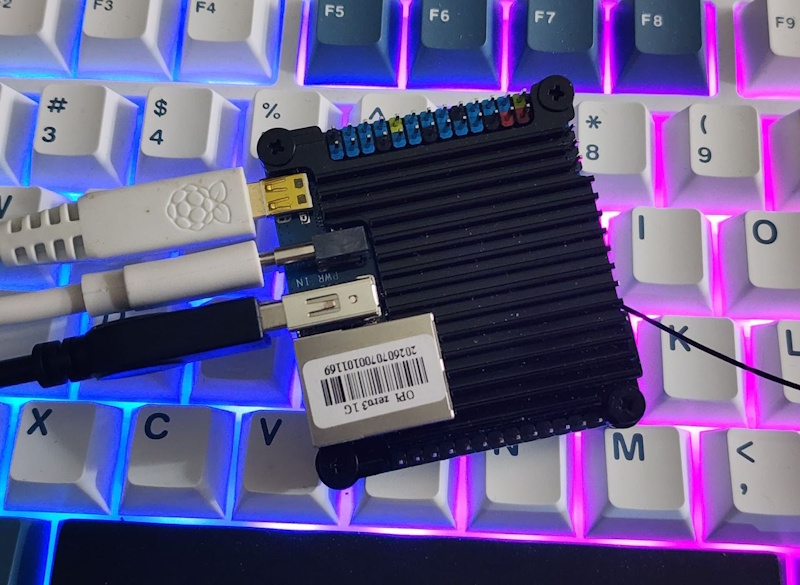
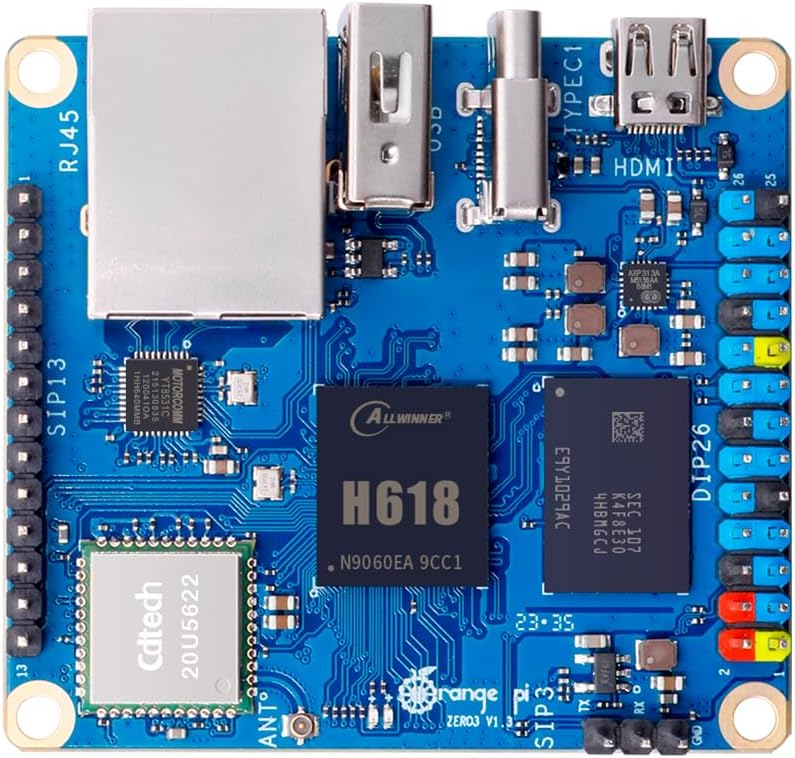
The OrangePi includes an NPU. But to take advantage of it, there are hardware specific components that must be installed to take advantage of it. Some code, such as ONNX modules, may require some conversion to be usable. But before one gets this far, they may want to just see the device work, such as through example code. The Orange Pi 6 Plus manual contains the information that is needed to make use of the NPU. But I have some criticisms in the way they conveyed the information for doing so. The way it is presented in the manual has decision points. I see decision points as possible opportunities to get something wrong in matters where someone is just getting started.
Having installed the Ubuntu image onto my Orange Pi 6 Plus, all of the hardware-specific bits that someone needs are already there as part of the image. However, to use them (in Python), one needs to create a new Python environment and do some configuration so that Python scripts will use those components instead of standard ones that don’t take advantage of Orange Pi-specific hardware. I present an approach to performing these steps in a GitHub repository. Using these scripts, one has fewer decision points. I followed the instructions of the manual and made some decisions, encoding them into a set of scripts. You can find the scripts here: https://github.com/j2inet/OrangePi/tree/main/SixPlus/RunNPUTest
You will need to install Conda for managing your Python environment. If you haven’t already installed it (or your Python environment manager of choice), the commands in install-conda.sh will be of interest ( https://github.com/j2inet/OrangePi/blob/main/SixPlus/RunNPUTest/install-conda.sh ). Create an environment for Python 3.11. (see activate-environment.sh and create-environment.sh if you are using Conda). Once you have your environment activated, run setup.sh to perform the rest of the steps.
This script addresses several concerns. There were some typos in the instructions from Orange Pi. I’ve corrected them in the script that I provide. The script will install other needed components and deactivate some that don’t take advantage of the NPU, replacing them with ones that do. After setup is complete, the script will run two AI scripts from the Whisper examples. It will run the first test using the CPU. When this test runs, you’ll know it. You will hear the fan on the Orange Pi run at full speed. It will then run the example using the NPU. There will be a noticeable drop in fan noise. If that runs, then you can start taking advantage of the NPU in your Python scripts.
There are other environments in which I would like to start using the NPU and may refine this script over time as I have time to explore them.
Posts may contain products with affiliate links. When you make purchases using these links, we receive a small commission at no extra cost to you. Thank you for your support.
Mastodon: @j2inet@masto.ai
Instagram: @j2inet
Facebook: @j2inet
YouTube: @j2inet
Telegram: j2inet
Bluesky: @j2i.net