Adding a few colors to text in an output console can make it a lot more readable. Preferably my text colours will be white and 2 or 3 other colors for emphasis. Many text-output APIs have functions that one can call to change text color. Generally, I don’t use these. There are specific byte sequences that, when printed to the console, will signal for the console to change text software. These byte sequences were defined long ago. They developed from tele-typewriter control sequences. These sequences started developing in the 1920s or 1930s. But it wasn’t until the 1960s to mid 1980s that we get the ANSI standards for the control codes. The control codes contain a variety of actions that one might want to use in a text console, such as clearing the screen, moving the cursor around, emitting beeps to get attention, and changing text color.
The color codes will start off with printing the escape character (ASCII code 27, or 0x1B) followed by an open square bracket, then the digit 3 (for a foreground color) or 4 (for a background color) and then a digit that identifies a color, terminate the sequence with m.
| Code | Color |
| 0 | Black |
| 1 | Red |
| 2 | Green |
| 3 | Yellow |
| 4 | Blue |
| 5 | Magenta |
| 6 | Cyan |
| 7 | White |
There are codes for changing text styling, such as to make text bold, italicised, or underlined. I avoid these because I don’t find those consistently implemented.
You are not limited to the above 7 colors. There is also an extended color palette from which you can select. To use these extended text colors use the sequence \x1b[38;5;<colour-code>m. You can find the colour codes in the following table.
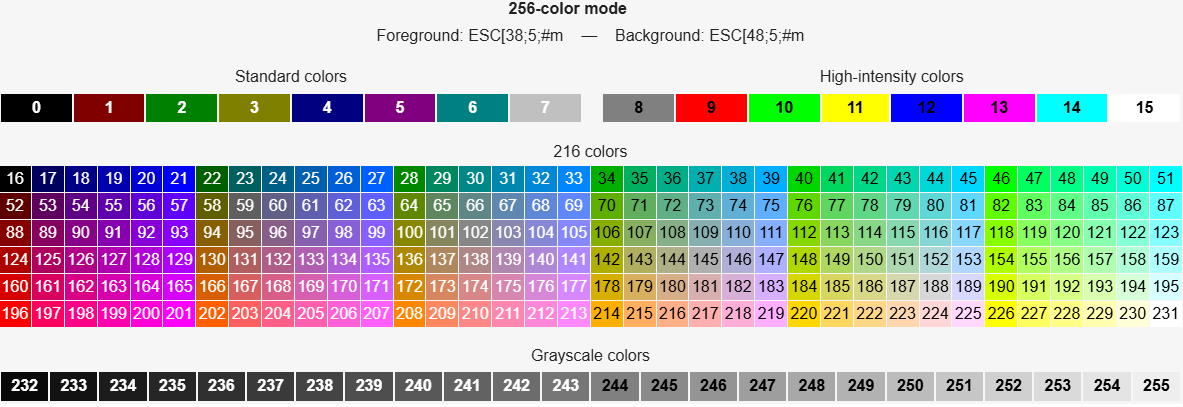
Alternatively, you can specify an RGB color code. To use the RGB colour codes, output the sequence \x1b[28;2;<r>;<g>;<b>;m.
Enabling Color Code Processing on Windows
Note that on Windows that your terminal may or may not have ANSI color code processing enabled. There is a WinAPI function named SetConsoleMode that can be used to enable it.
HANDLE hOut = GetStdHandle(STD_OUTPUT_HANDLE);DWORD dwMode = 0;GetConsoleMode(hOut, &dwMode);dwMode |= ENABLE_VIRTUAL_TERMINAL_PROCESSING;SetConsoleMode(hOut, dwMode);
If you want to call this code from a C# application, you’ll need to make a few WinAPI declarations in your code.
[DllImport("kernel32.dll", SetLastError = true)private static extern IntPtr GetStdHandle(int nStdHandle);[DllImport("kernel32.dll", SetLastError = true)]private static extern bool GetConsoleMode(IntPtr hConsoleHandle, out uint lpMode);[DllImport("kernel32.dll", SetLastError = true)]private static extern bool SetConsoleMode(IntPtr hConsoleHandle, uint dwMode);
Then these functions would be called as follows.
    private const int STD_OUTPUT_HANDLE = -11;
    private const uint ENABLE_VIRTUAL_TERMINAL_PROCESSING = 0x0004;
public static void EnableVirtualTerminalProcessing()
    {
        IntPtr hOut = GetStdHandle(STD_OUTPUT_HANDLE);
        if (hOut == IntPtr.Zero || hOut == new IntPtr(-1))
            return; // invalid handle, bail out

        if (!GetConsoleMode(hOut, out uint dwMode))
            return; // could throw new Win32Exception(Marshal.GetLastWin32Error()) instead

        dwMode |= ENABLE_VIRTUAL_TERMINAL_PROCESSING;

        if (!SetConsoleMode(hOut, dwMode))
        {
            // could throw new Win32Exception(Marshal.GetLastWin32Error()) instead
        }
    }
In some of the example code that I post, you might come across color sequences being defined in constants.
const std::wstring ANSI_COLOR_RED = L"\033[31m";const std::wstring ANSI_COLOR_GREEN = L"\033[32m";const std::wstring ANSI_COLOR_YELLOW = L"\033[33m";const std::wstring ANSI_COLOR_BLUE = L"\033[34m";const std::wstring ANSI_COLOR_MAGENTA = L"\033[35m";const std::wstring ANSI_COLOR_CYAN = L"\033[36m";const std::wstring ANSI_COLOR_WHITE = L"\033[37m";const std::wstring ANSI_COLOR_RESET = L"\033[0m";const std::wstring ANSI_BACKGROUND_RED = L"\033[41m";const std::wstring ANSI_BACKGROUND_GREEN = L"\033[42m";const std::wstring ANSI_BACKGROUND_YELLOW = L"\033[43m";const std::wstring ANSI_BACKGROUND_BLUE = L"\033[44m";const std::wstring ANSI_BACKGROUND_MAGENTA = L"\033[45m";const std::wstring ANSI_BACKGROUND_CYAN = L"\033[46m";const std::wstring ANSI_BACKGROUND_WHITE = L"\033[47m";const std::wstring ANSI_COLOR_BOLD = L"\033[1m";
Note that if the output of a program is captured and written to a file, the color codes are captured, too. They may look weird. If you intend for the output of your program to be capturable, you might want to use the APIs that your system provides. Alternatively, instead of defining these color codes as constants, define them as default values for variables. Allow the user an option to disable colored text. If they want to disable it, set those variables to empty strings.
ANSI Art
For at least the past 30 years, there have been people that have made art exclusively from text and ANSI color codes. That art isn’t the point of this post. But you might find such art interesting.
Posts may contain products with affiliate links. When you make purchases using these links, we receive a small commission at no extra cost to you. Thank you for your support.
Mastodon: @j2inet@masto.ai
Instagram: @j2inet
Facebook: @j2inet
YouTube: @j2inet
Telegram: j2inet
Bluesky: @j2i.net

