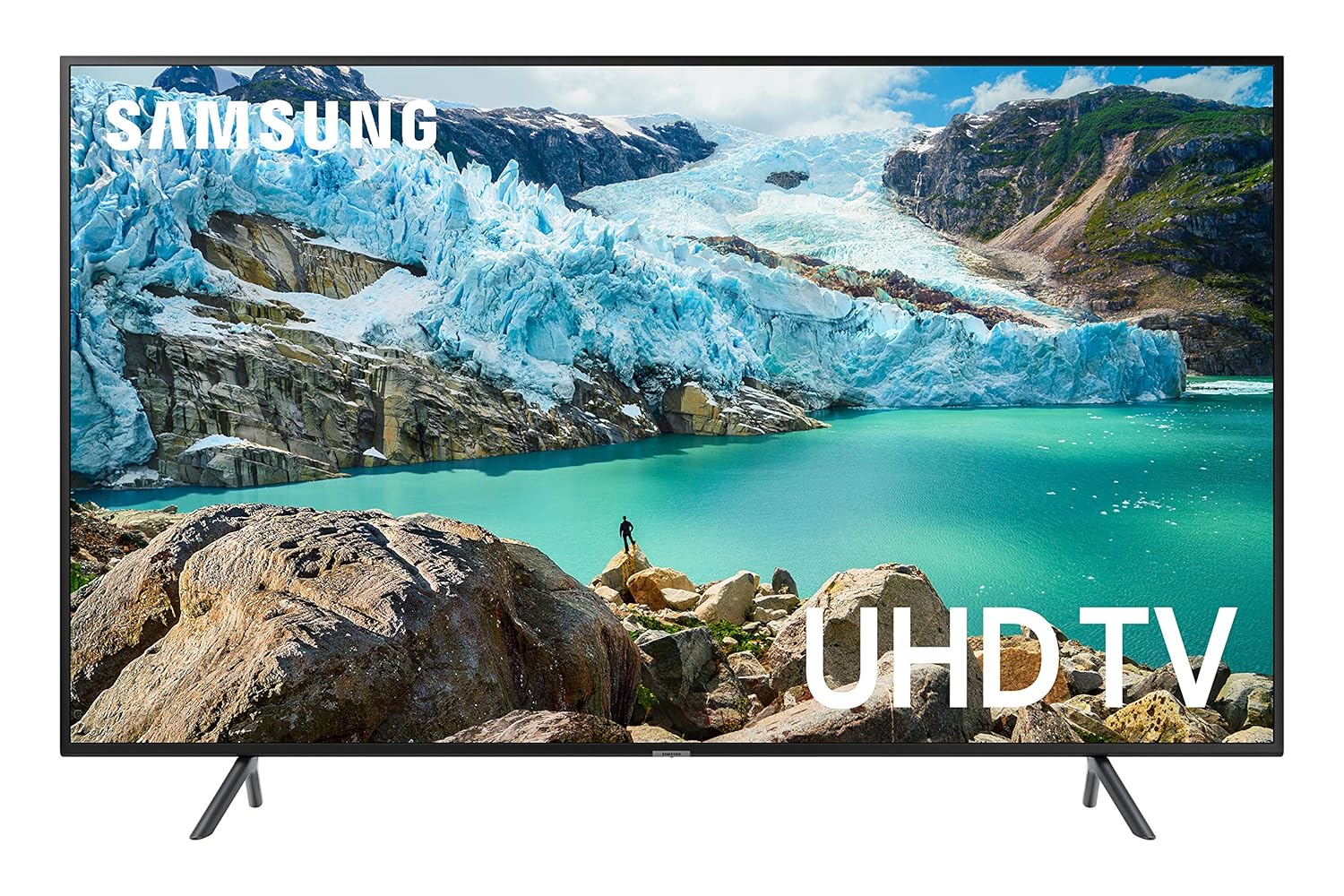
The objective of this entry while basic covers an easy mistake to make. It is a mistake that I have made. I’ve got a new Samsung Series 6 TV and I tried to deploy a new project to it. Errors were encountered, frustration levels were raised, but eventually I encountered success.
The Samsung TVs are more locked down than some of the other Tizen devices that I’ve worked with. The more recent ones are more locked down than some of the previous ones. When things go wrong this is what you might see.
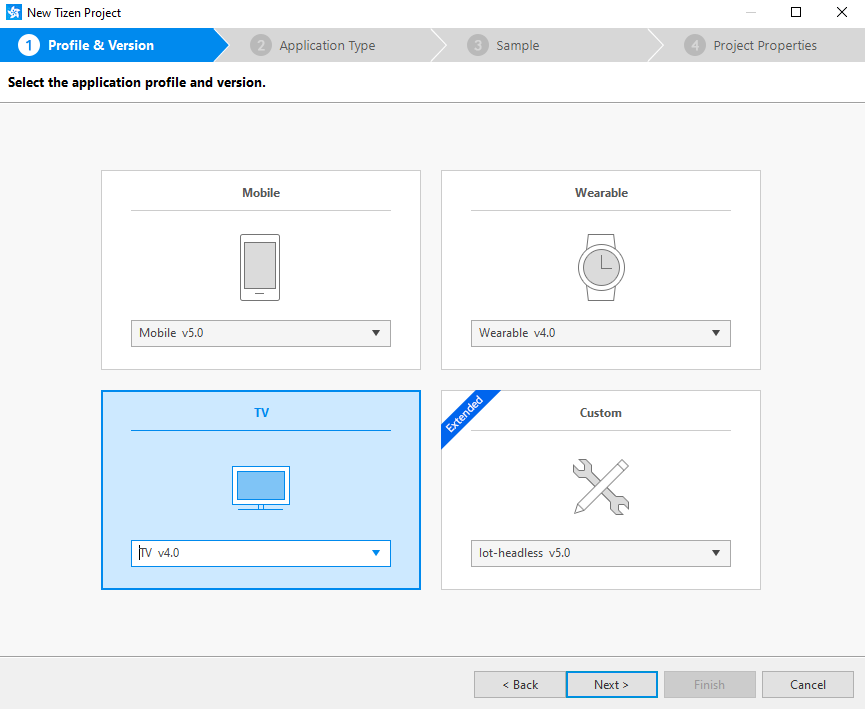
The TV I am using runs version 4 of the Tizen operating system. I make a new Tizen project and select to create the new project from the TV templates choosing Tizen 4 as the platform.
Attempts to debug the project created from this template fail. I get an error message stating:
Launching [your app name here] has encountered a problem
closed
   closed
     closed
The terminal output isn’t of much help.
Launching the Tizen application...
# If you want to see the detailed information,
# please set the logging level to DEBUG in Preferences and check the log file in 'C:\tizen-studio-data\ide\logs/ide-20191006_014055.log'.

[Initializing the launch environment...]
RDS: Off
Target information: UN43NU6900
Application information: Id(07DOxO8iKR.SystemInfo3), Package Name(07DOxO8iKR), Project Name([your app name here])
Unexpected stop progress...
(0.337 sec)
So what gives? There are two ways to address this that are essentially two paths to the same destination. The manual solution involves editing a couple of configuration options in the files config.xml and .tproject.
The file .tproject is not visible in the Tizen IDE. But you can still open it through file -> open. This file is an XML file. There is an element named that has a sub-element . I changed the value here to tv-samsung-540. The other change in config.xml is on an element of the form . This needs to be changed to .
Why are these changes necessary? I don’t have full confirmation on this, but I believe it has to do with differences between a generic Tizen device and Samsung Tizen devices. At the time of this writing I know of no physical implementations of any non-Samsung TV Tizen devices. But it does exist as a specification.
The other solution would be performed at the creation of the project. When creating a new project do not select from the TV project templates. Instead select the Custom project templates. Within these templates there is a TV template subtype. If you choose this project type then you will start off with the configuration files mentioned above having the values that are needed.
As the Tizen operating system and the development environment are updated year to year more readers will read this entry after a new Tizen version has been released than before. It is likely that the exact values that you include here will be different than what I have used. You may need to update the values accordingly. But hopefully this will point you in the right direction.
If you try to install Windows 10 IoT core from the installer chances are you wil get blocked with the following error.
Your administrator has blocked this application because it potentially poses
a security risk to your computer."  and "Your security settings do not allow
this application to be installed on your computer.
I ran into this recently when preparing a Raspberry Pi to run Windows 10 IoT Core. What gives? Well, that is due to a Windows Security Setting. The setting can be changed by editing the registry. The registry key can be found at the following location
The keys inside of this path contain one key named Internet that is set to Disabled. Change it to Enabled. Then you should be able to perform the installation and then change the key back.
Raspberry Pi Starter Kit
Available on Amazon for free at the time of this writing
The holiday season is upon us; by the end of this month I expect to start seeing my neighbors put out their fall decorations. By mid-October decorations for Halloween will show up. After Halloween the decorations roll back to fall themed only and then are changed to Christmas decorations right after new years. Two of these holidays tend to come with flashy displays and lights: Halloween and Christmas.
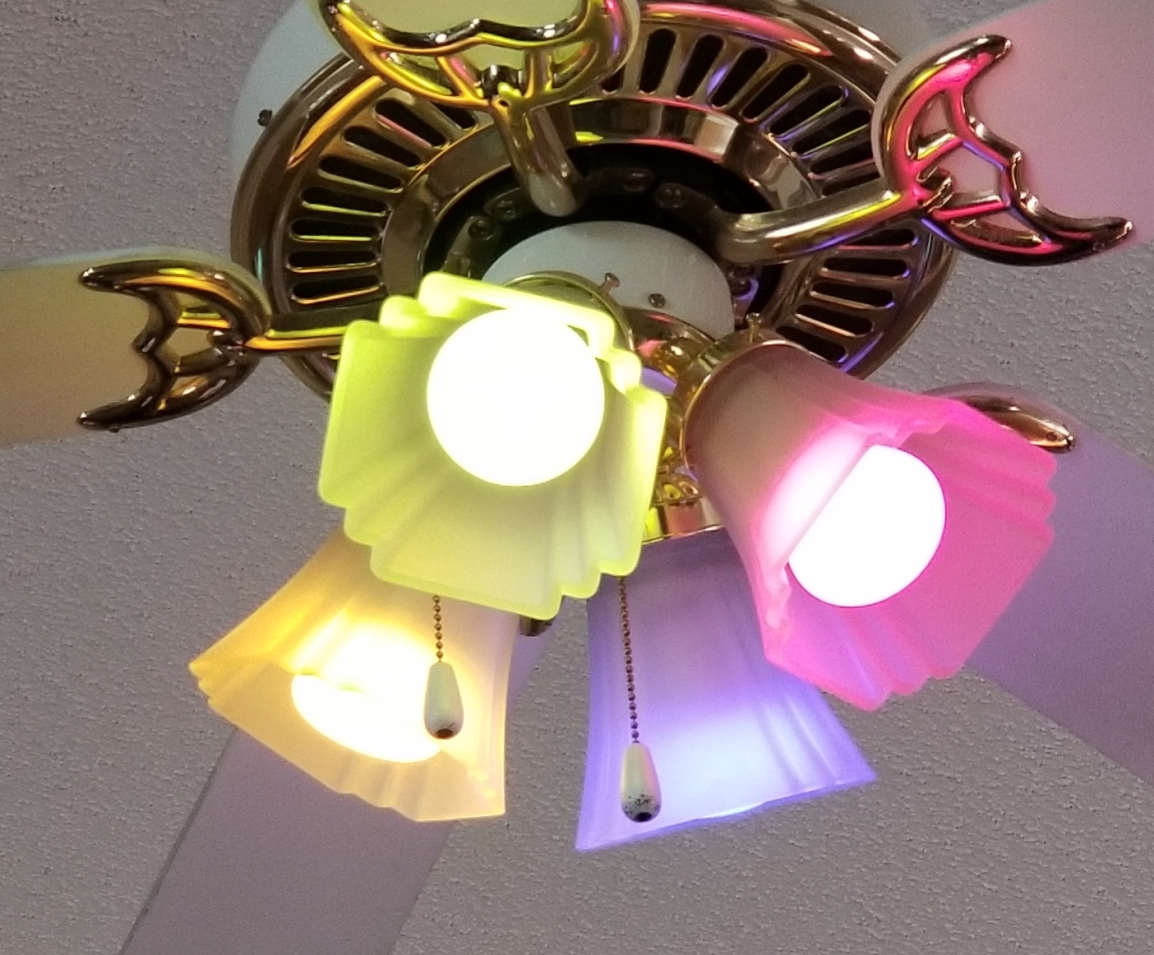
I primarily use Phillips Hue lighting throughout my house and it is a perfect companion for festive displays. The color bulbs are adaptable to any color scheme and the newly released Edison-style bulbs add a warm glow to fall scenes. The Phillips Hue lighting sets are programmable if you are using a hub. While the new light bulbs have Bluetooth support to directly be controlled by a phone there’s not public API for them (yet). For programming a hub is needed.
I’ve written on controlling the Phillips Hue lights before. Expanding on that I wanted to make a project that would let an IoT device trigger a scene according to some external event. I’ll use a motion sensor to trigger the relevant events.
But you could also use sound, change in temperature, lighting, or time as sources. I’ll be using a Raspberry Pi; it has network connectivity and can be easily interfaced to a number of devices. I’m using the Raspberry Pi zero but about any Pi will do. Hue does have available a motion sensor ; if one only wishes to control lights based on motion a solution is available. But if one wishes to have other triggers or trigger other actions along with the lights a custom solution is needed.
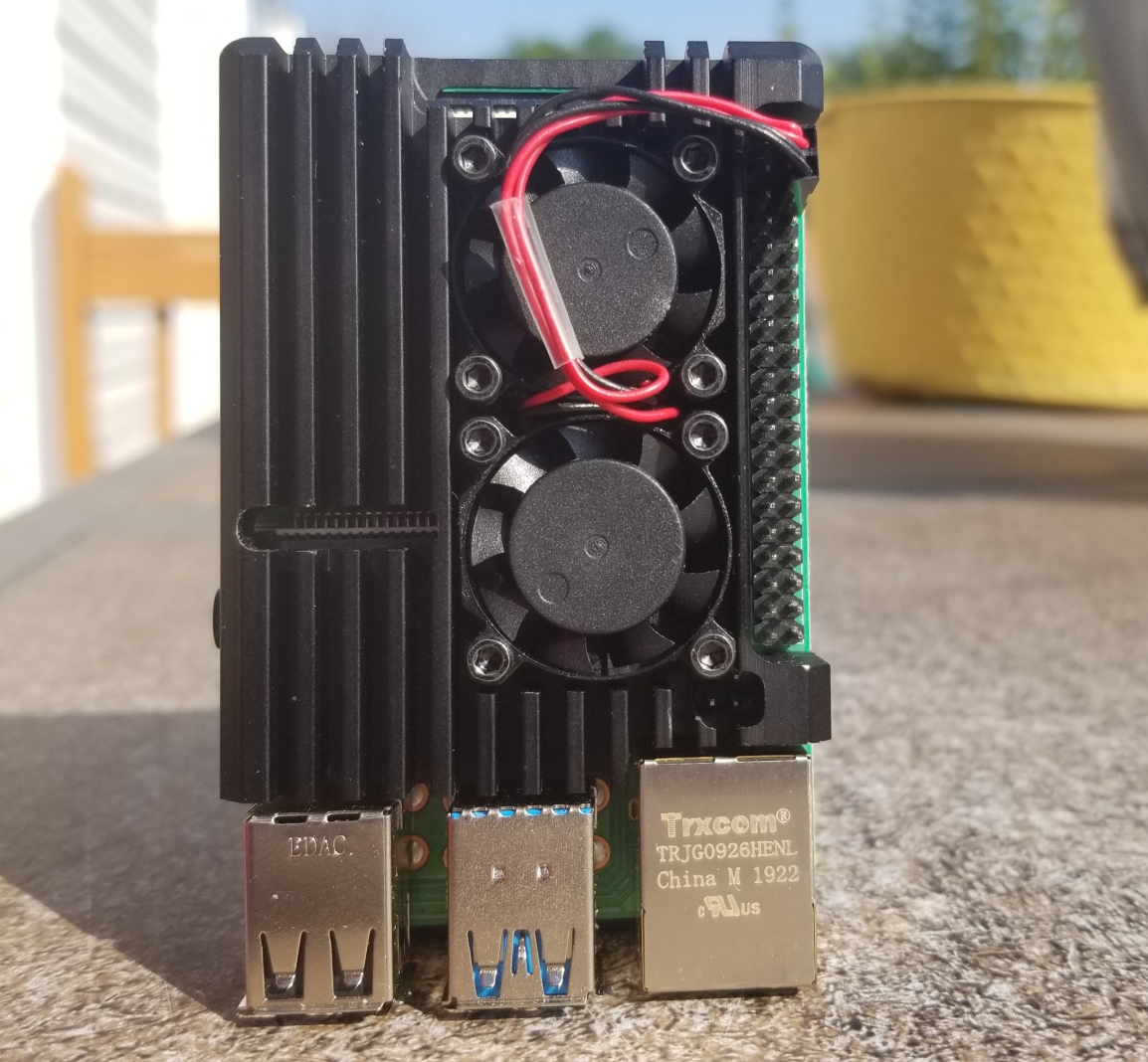
The Raspberry Pi 4 with a heat sink attached.
Raspberry Pi Zero with a 4-port USB hub
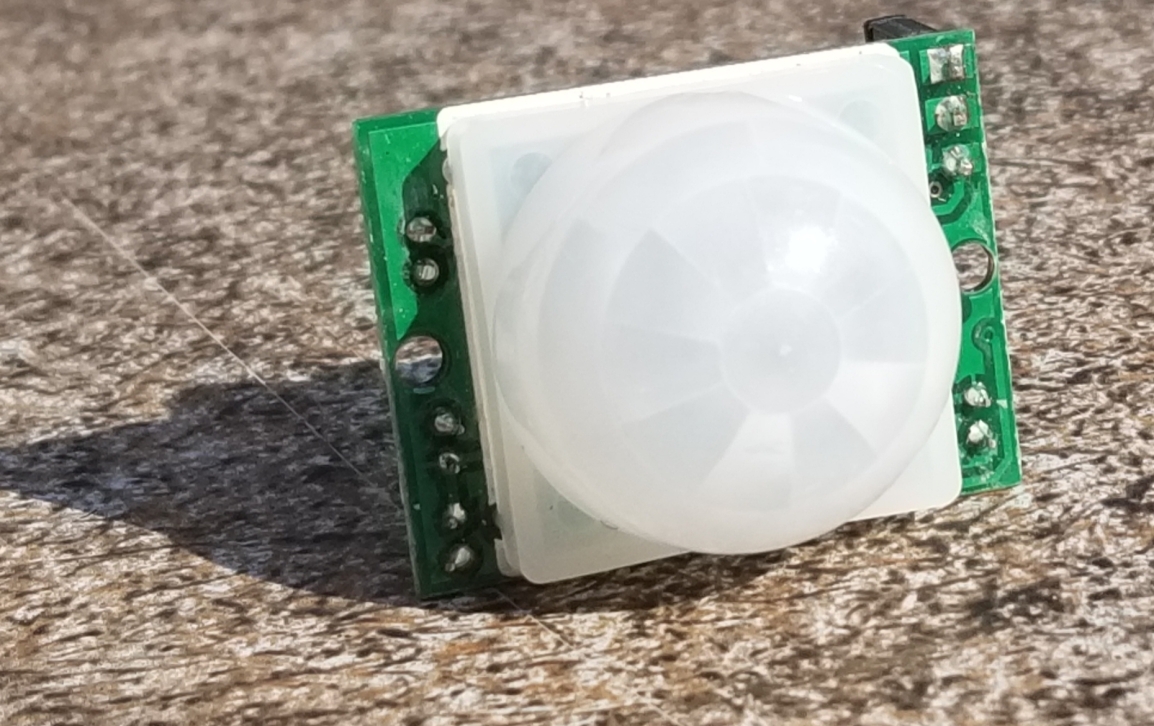
All that I want to happen is for the the lighting pattern to change when a person is detected. I’ll use a passive infrared sensor for presence detection. For Halloween I want a Hue light that is illuminating a jack-o-lantern to pulsate an orange color. When someone comes up knock on the door I want the light for the front door to go bright white. A few moments after a person is no longer there I want the system to go back to it’s previous pattern. But past a certain hour I don’t want this to continue; after 10:00pm the lights should extinguish. Simple enough, right?
This is the passive infrared sensor that I used.
The physical build for this circuit is easy. The Passive Infrared Sensor (PIR) will get power from the VCC and ground pins of the Raspberry Pi. The signal line from the PIR can be connected to any of the GPIO pins. I’m going to use pin 3. The circuit will need to be put in an enclosure to protect it from rain or humidity in general. If your enclosure doesn’t already have a weather protected way to get power in your options are to either run the Pi off of a battery that is within the enclosure (that means periodic recharging) or drill a hole for the wires yourself and apply a sealant.
There are a lot of languages that I could use for writing my program on the Pi. Python, Java, and C/C++ make the top of the list (in no specific order). For this project I’ve decided to go with Java. To interact with the pins in Java we will need to import classes from com.pi4j.io and com.pi4j.wiringpi. These are not standard libraries; they exists to provide an interface to the pins. To demonstrate reading a pin in Java here is a simple program that will print text in a look that reflects the pin state.
import com.pi4j.io.*;
import com.pi4j.wiringpi.Gpio;
import com.pi4j.wiringpi.GpioUtil;

public class PinTest {
   public static void main(String args[]) throws InterruptedException {
      final GpioController gpio = GpioFactory.getInstance();
      Gpio.pinMode (3, Gpio.INPUT) ;
      while(true) {
         if (Gpio.digitalRead(3) == 0){
               System.out.println(The Pin is ON");
         }else{
            System.out.println("The Pin is OFF");
         }
      }
   }
}
Phillips has an SDK for Java. You might see it present as an SDK for Android, but it works fine in other Java environments. A convenience from this is that a significant portion of the development can be done on your computer of choice. I did most of the development on a Mac and used git to transfer it to the Raspberry Pi when done.
The color Hue lighting can take on a variety of colors.
The overall execution loop of the program will check whether or not the trigger condition has occurred. If the trigger condition has occurred then the program will activate a scene. If not then it deactivates the scene. The program loop also contains some debouncing logic. Depending on the type of sensor used and the sensors characteristics a sensor could change states with ever cycle. I’ve chosen to only deactivate if a certain amount of time has passed since the last activation. For initial development instead of interfacing to an actual sensor I have a method that is returning a random Boolean value. When the code is moved to the Raspberry Pi this method will be updated to read the state of the actual sensor. The following will only deactivate after there have been 2 seconds with no activation event.
Controlling the lights happens through the Hue SDK. Before activating the lights the Hue bridge must be discovered. While Hue makes a series of lights that have Bluetooth controllers built in and can be controlled without the Hue Bridge currently they only support APIs through the bridge. It is a required hardware component.
The SDK already contains functions for discovering the bridge. All that a developer needs to do is initiate a search and implement a callback object that will receive information on the bridges discovered. In the following I instantiate the Phillips Hue SDK object and register a listener. If the program had been connected with a bridge before the IP address if that bridge is loaded and it reconnects to it. Otherwise the search is initiated. As the search occurs the earlier registered listener receives callbacks.
private void init() {
    this.loadSettings();
    System.out.println("Getting SDK instance");
    phHueSDK = PHHueSDK.create();
    System.out.println("Setting App Name");
    phHueSDK.setAppName("HolidayLights");
    phHueSDK.setDeviceName("RaspPi");
    System.out.println("SDK initialized");
    phHueSDK.getNotificationManager().registerSDKListener(listener);

    if(this.getLastIpAddress()  != null) {
        System.out.println("Connect to last access point");
        PHAccessPoint lastAccessPoint = new PHAccessPoint();
        lastAccessPoint.setIpAddress(getLastIpAddress());
        lastAccessPoint.setUsername(getUserName());
        if (!phHueSDK.isAccessPointConnected(lastAccessPoint)) {
            phHueSDK.connect(lastAccessPoint);
        }
    } else {
        System.out.println("Searching for access point");
        PHBridgeSearchManager sm = (PHBridgeSearchManager) phHueSDK.getSDKService(PHHueSDK.SEARCH_BRIDGE);
        // Start the UPNP Searching of local bridges.
        sm.search(true, true);
    }
}
The listener is of type PHSDKListener. I won’t show the full implementation here but will show some of the more relevant parts.
When the bridges are found they are returned as a list. I’ve only got one on my home network and so I connect to the first one seen. If you have more than one bridge you’ll need to implement your own logic for making a selection.
@Override
public void onAccessPointsFound(List accessPoint) {
    System.out.println("Access point found");
    if (accessPoint != null && accessPoint.size() > 0) {
        System.out.println("Number of access points: "+new Integer(accessPoint.size()).toString());
        phHueSDK.getAccessPointsFound().clear();
        phHueSDK.getAccessPointsFound().addAll(accessPoint);
        phHueSDK.connect(accessPoint.get(0));
    }
}
When the connect attempt is made it is necessary to press the pairing button on the bridge. The console will print a message from the SDK saying this. Once the bridge is connected I save an instance of the bridge and the a
After the bridge connects the SDK will query the state of the lights on the system and update some objects representing the last known state of each light. The first time the cache is updated the program prints the name of each light and the light’s identity. This information is useful for selecting which lights will be controlled. The light list is saved for the program to use.
With that in place we now have enough information to change the state of the lights. To test things out I started with implementations of activateScene and deactivateScene that will just turn all the Hue lights on and off (don’t do this if you have other people in your dwelling that this would affect).
If the program is run at this point the lights will turn on and off somewhat randomly. Ultimately we don’t want it to control all the lights. Instead I want to be able to specify the lights that it is going to control. I’ve made a JSON file file that contains a couple of elements. One is the RGB color that I want to use in the form of an integer, the other is an array of numbers where each number is an ID for the light to be controlled. The RGB color is specified here as a base 10 number instead of the normal base 16 that you may see used for RGB codes. Unfortunately JSON doesn’t support hexadecimal numbers 🙁.
{
    "lights":[5, 7, 9],
    "color": 16711935
}
These values are read by the code. Before the code acts on any light it checks to see if its identifier is in this array before continuing. During activation if the identifier is in the array the light’s state is set to on, brightness is set to full, and the color is applied. The color must be converted to the right color space before being applied to the light; something that is done with a utility function that the SDK provides.
The last steps needed to make the device work as intended are to update the getActivationState() function to read the actual state of the motion sensor instead of a random value and wiring the motion sensor to a Raspberry Pi. From hereon the code is only going to work on a Raspberry Pi since the libraries for reading the pins are only applicable to this device. It is possible to dynamically load class libraries and use them as needed for the specific platform on which code is running. But information on doing that is beyond the scope of what I wish to discuss here.
I’m declaring a GpioController variable at the class level and am instantiating it in the constructor. I also set the mode of the IO pin that I’ll be using to input.
With that change it will now work. If the Raspberry Pi is placed in a position where the motion sensor has a view of the space of interest then it will control the lights. If you are using one of the earlier Raspberry Pis (anything before the Raspberry Pi 4) you should be able to also power the Pi off of a portable phone charger; there are many that will make sufficient batteries for the Pi. The Raspberry Pi 4 has higher energy requirements and you may run into more challenges finding a portable power supply that works.
Why use the Pi at all for this? Because there is a lot of room to expand. Such as using the video capabilities of the pi to power a display or controlling other devices. Controlling the lights is a start. I’ll be revisiting this project for add-ons in the future.
If you want to start on something similar yourself the following (affiliate) links will take you to the products on Amazon.
If you already have a Samsung TV and want to start developing for it chances are you don’t have the latest and greatest model. But when you install the Tizen development tools they only target 2 operating system versions; the latest version that is out now and the version that is yet to be released in a year or so. Your TV is too old! So what can you do?
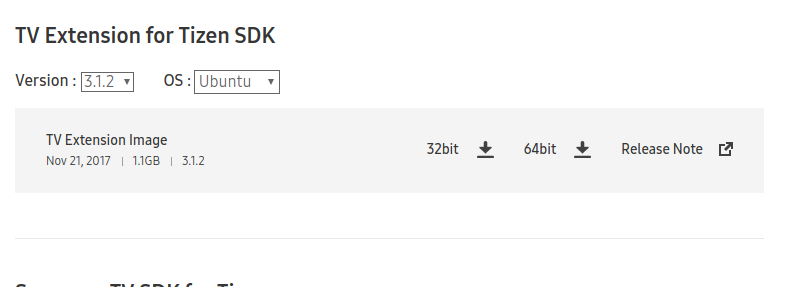
If you check the Tizen development forums the suggestion is to install an older version of the development tools. But that’s no fun! And it is possible to develop for the older TVs with the newer tools. Go ahead and install the latest versions of the Tizen development Studio first. While that is installing you will need to download an older version of the Extensions for TV. You can find them at this site. As you scroll through the available versions you will see that if you attempt to get a version older than the 3.0 version you can’t download it. Download the 3.1 or 4.0 extensions. Don’t worry, the extensions also contain the components needed for TV’s running the 2.3 and 2.4 Tizen version.
After Tizen Development Studio is installed open the package manager. In the upper right corner of the package manager is a gear icon. Select it.
Expand the “Extensions SDK” area of the window to see the extensions installed and click on the + button to add an extension. A window opens asking for a URL. Leave the URL blank and click on the three dots next to it. You’ll now be asked to navigate to a local archive of the extension you with to add. Navigate to the file that you downloaded earlier and select it. The package manager will take a few moments to install the extension.
When you attempt to create a new project and look at the TV templates available there’s only the 4.0 and 5.0 projects. What gives? The missing project templates can be found under the Custom projects. Select “TV-Samsung v3.0.” Even if you have a TV running Tizen 2.3 this opeion will work. When you click the next button you’ll see the familiar project templates.
In a Tizen project I was working on I found that Tizen Web alone wasn’t enough to help me accomplish my goal. For some of the functionality that I needed a native application would be needed (more on that in another blog post). Rather than completely write the application in native code I was going to use HTML for the UI and a native service for other functionality. This is a Tizen Hybrid application.
The Tizen documentation wasn’t quite clear to me on what identifier to use when trying to launch a service packaged with an HTML application. It mentions using the App ID. This didn’t work for me. I only figured out the right name to use when I tried listing all of the applications and services on the device.
Getting a list of the applications and services is done through tizen.application.getAppsInfo. This function takes as a parameter a callback. The call back is given a list of the applications installed on the device. For my purposes I was only interested in the id member of the objects that were passed back.
tizen.application.getAppsInfo(
    function onListInstalledApps(applications) {
        console.log("List of Applications:");
        applications.forEach(
          function(app) {
    		console.log(`  app.id: ${app.id}`);
        });
    });
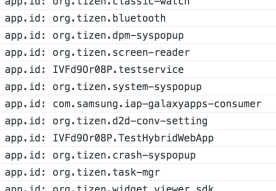
Once I saw the output of this it was easy to identify the problem I encountered with launching the service.
Output of app listing code
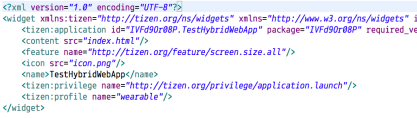
According to the Tizen documentation when launching a service the ID string used is composed of the package ID and the app ID of the service. The package ID can be found in the confix.xml for the web application. In the following you can see the package ID is “IVFd9Or08P”.
The app ID can be found in then tizen-manifest.xml for the service project.
The app ID here is “org.sample.service.” If you look in the output from the code sample for listing installed applications you will see that the service shows up as IVFd9Or08P.testservice. It is using the entry from the “exec” field instead of the appid field. I’m not sure why the documentation points to the appid only. But I’m happy to have figured out this problem.
I was thinking about a video game from my childhood and how easy it would be to rebuild the game now. Having decided to do this I had to decide what platform to target. I chose to make it a browser application. While the game could be played with a keyboard or mouse I wanted to use a game pad to play it the way it was meant to be played.
Game pads can be used in HTML. I’ve not seen many applications that actually take advantage of this, but as game streaming becomes more popular this is likely to change. Let’s start with one of the simplest things we can do: detect what game pads are present. I’m going to share all of my code in TypeScript. TypeScript is basically JavaScript with type information added. It compiles down to JavaScript. The advantage of using it here is that you will know the data types of a variable or parameter instead of needing to analyze the code and make inferences.
Detecting a Game Pad
To start we want to ensure that our browser supports the game pad API. To do this just check whether or not the getGamepads function exist on the navigator object.
var isGamepadSupported:boolean = (navigator.getGamepads != null);
There are two ways that we can detect the presence of game pads. We can listen for the events that are fired when a controller is connected or disconnected, or we can just poll for their presence. Here’s a code sample that does just that. The TypeScript elements are highlighted in blue.
function handleGamePadConnected(e:GamepadEvent) {
     console.log('A game pad was connected', e);
}
function handleGamePadDisconnected(e:GamepadEvent) {
     console.log('A game pad was disconnected', e);
}
window.addEventListener("gamepadconnected", handleGamePadConnected);
window.addEventListener("gamepaddisconnected", handleGamePadDisconnected);
If we run this code within a page we can see the code get triggered by ensuring the browser has focus (a browser without focus will not receive game pad events). Connecting and disconnecting a controller (if USB) or turning a controller on and off (for Bluetooth) will cause the event to trigger. On some controllers you may have to press a button for it to fully connect. The event passed to the handlers has a field named game pad that contains all of the data for the game pad being used. The other way to get this information is to try to read the game pad state Calling navigator.getGamepads() will return information on all the game pads connected to the system. A word of warning though, the value returned is an array that has some null elements in it. If you iterate through the array don’t assume that because you are reading a valid index that there is actually an object there.
This might sound weird at first, but imagine you are playing a four player game and player 2 decides to turn off his controller and leave. Rather than assign a new index to players 3 and 4 their controller indices will stay the same and the second element in the array will be null. To get the state of all of the game pads attached to the system use the following.
var controllerStates:Array<Gamepad> = navigator.getGamepads();
When I call this method I always receive an array with up to 4 elements in it, most of which are null. If this function is being called in the game loop from one call to another one can see what controllers are present . Keep in mind that the object returned here is the state of the game pad, but it is not a reference to the game pad itself. If you hold onto the object it will not update as the state of the controller changes.
There are two properties on the GamePad object of most interest to us; the buttons property has the state of the buttons and the axes property contains the state of each axis for each directional control on the game pad.
Axes
A D-pad input on a controller has two axes that can range from -1 to 1. There will be a vertical axis with three possible values and a horizontal axis with three possible values. While one might expect the neutral position of the controller to be zero I’ve found that even with my digital controllers the neutral value is near-zero but not quite zero. There is a range for which we could receive a non-zero value that we would need to treat as zero.
For the analog sticks the general range of values returned will also be between -1 and 1 for each axis, but there are values between this range that could also be returned depending on how far the directional stick has been used. When the stick isn’t being touched the axis will return a value that is near zero. Like the digital input there is a near zero range that should be treated as zero. Note that the controller interface may return more axes than actually exists on the controller.
Buttons
The buttons element of a GamePad object has a list of buttons. The collection may return more objects than there are physical buttons on the controller; these non-existing buttons will not change state. The GameButton Interface has three attributes.
pressed – will be true if the button is pressed, false otherwise.
touched – for controllers that can detect touch this attribute will be true if the button is touched, false otherwise
value – a value between 0 and 1 that tells how far the button is pressed or how hard it is pressed.
Even if you have a controller that doesn’t support touch or analog input the touched and values buttons will still update. If a button is pressed it can be inferred that it is being touched and the touched attribute updates accordingly. For a digital button the value attribute will only be 0 or 1 and no value between.
There are some other attributes that can be found on the game pad that I haven’t discussed here. There GamePad object has an index attribute that will identify its own index in the array. There is a string id field that gives a name identifying the controller. There is also a timestamp attribute that indicates the time at which a Gamepad object was grabbed.
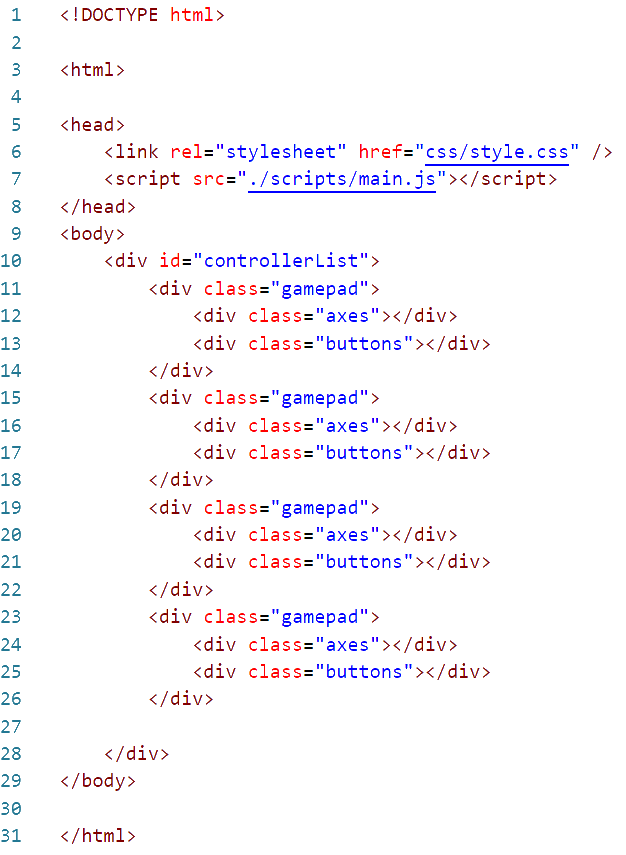
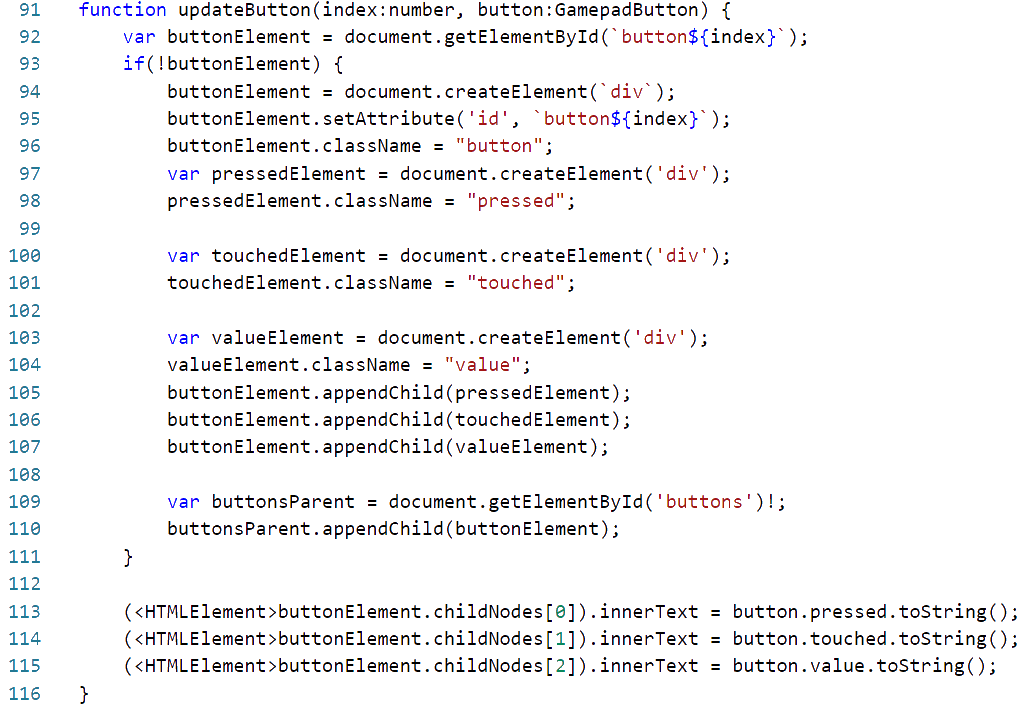
This code sample here will read the states of up to 4 controllers and show their states on the screen. I’m using images to present the code here as I have found that WordPress will sometimes unescape HTML code and render it as HTML instead of text. But you download the code sample directly to view it.
The file main.js here was compiled from a typescript file, main.ts. Execution in mail.ts starts after the document is loaded. The first method executed is named start. It adds some handlers for the game pad being connected or disconnected. These handlers only print the event out to the console. We are more interested in what is running within the interval. In the interval the states of all of the game pads is retrieved and then we call a function (updateController) to display them on the screen.
Update Controller will find the HTML block to which a specific controller index is assigned and get the represented button state and axes states updated. The functions updateAxes and updateButtons take care of the details of these. There are several other HTML elements needed for this that were not declared in the page. Instead they are being created as they are needed.
In updateAxes if the needed element doesn’t exists I create it and then I show the value of the axis.
The function updateButtons does pretty much the same thing. Only instead of a single element it is updating three.
Do you have a game controller and want to try things out? I’ve got it loaded on a web page that you can try. Get your computer and controller paired. Then see the demo run at https://j2i.net/apps/gamePadStatus/
I recently was working on a project in which, among other things, there needed to be a process that would restart the application should it ever be terminated for no reason. This isn’t unusual for kiosk applications where the only UI that the user will be able to get to is a single application running on the system. This isn’t an unusual need and something for which we had a utility that could do this; we generally refer to these as “Kiosk Application Monitors.” But I decided not to use it. Why not? Because when developing it is a pain to deal with an app that isn’t easily killed. If I manually terminated the application it would almost immediately restart; this was a behaviour that was by design. When I really wanted the application to terminate and stay that way things were more challenging. This had to be done from the task manager and the task manager wasn’t easily accessible since the KIOSK app ran as always on top. To see the task manager I would first have to kill the app. But if the app were killed it would just restart.
Not wanting to deal with the difficulty of this I made a new a Kiosk Application Monitor (hereon referred to as KAM). While I would generally prefer to make utilities in C# I used C for this; I was going to be using Win32 APIs and it is easier to have direct access to them instead of writing P/Invoking declarations for them.
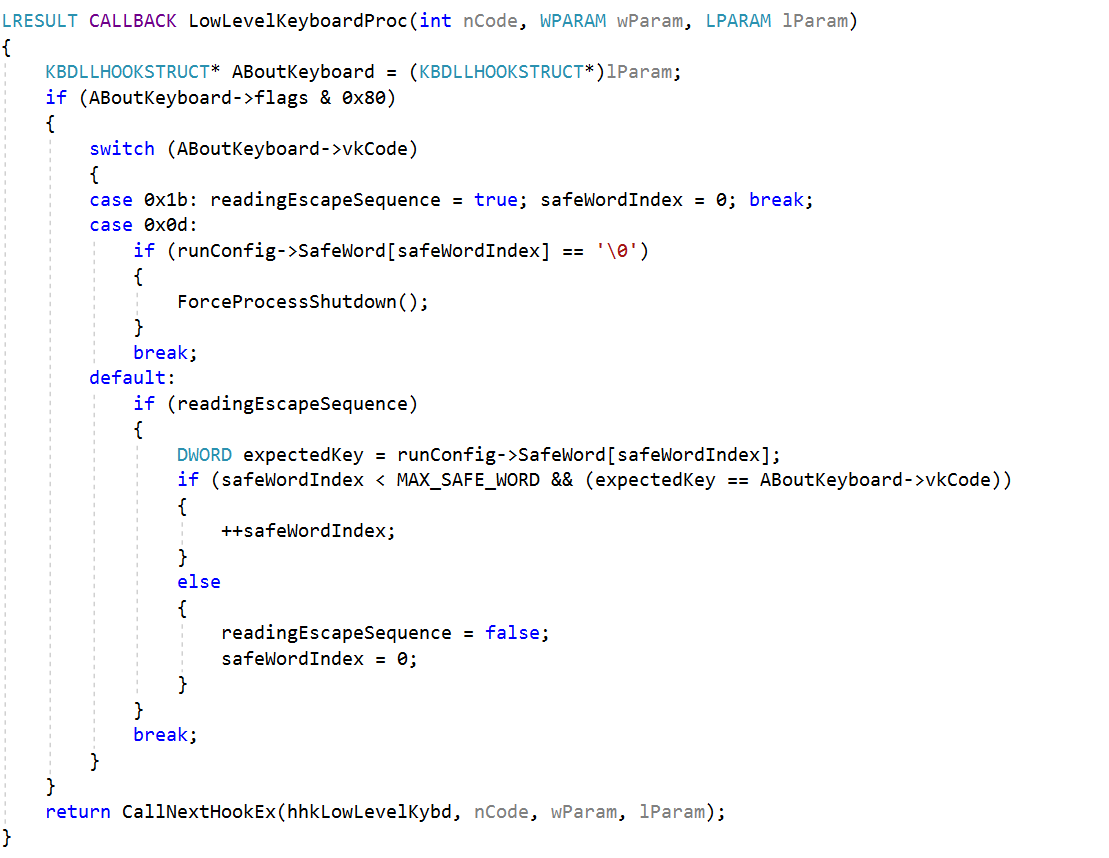
The key difference in this KAM and the other ones that we had used was that this KAM could be terminated through keystrokes. It adds a keyboard hook that receives every keystroke that a user makes no matter what application.
Termination on Detecting Safe Word
I’ve got a variable named SafeWord that contains the word that when typed will kill all of the child processes and shut down the KAM. To better insulate the app from an accidental activation I’ve mandated that the escape key be pressed before the safe word and the enter key be pressed immediately after the safe word. The keyboard hook receives the virtual key codes for the keys pressed. The code for escape (0x1b) and enter (0x0d) are both used directly within the source code. Any other key press will be will be ignored until the escape key has been pressed, and will be checked for a match to the safe word. At the first mismatch the procedure will stop comparing until the escape key is pressed again. When the enter key is pressed the routine checks if the end of the safe word has been reached. If it has then the user has typed the same word; the routine to terminate the child processes is called.
They keyboard routine is a small part in what this does, but a real time saver for me.
Allowing Only One Instance
I didn’t want more than one instance of this program ever running on the same machine. The way I managed that is pretty usual for Win32 programs; I used a named event to ensure there is a single instance. Named events are shared across programs. After creating one (with CreateEvent ) calling the GetLastError() function afterwords indicates whether or not this is the only instance of an application that has access to the event or if another program already has an instance of an event by the same name. When another instance has already created one GetLastError returns ERROR_ALREADY_EXISTS.
Process Description and Start-Up
Moving from the ancillary functionality to the core functionality, I decided to use JSON for specifying information on the processes that should be started and watched. The C++ libraries do no intrinsically support JSON data handling. I used a third party library for this. The data in the JSON is used to populate a structure that gives very basic information on the process to be monitored.
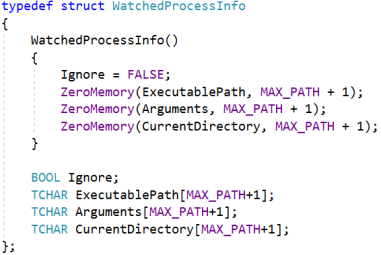
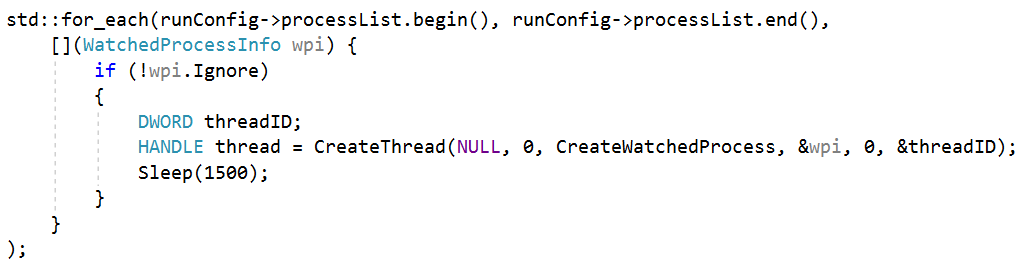
Most of these values are passed directly to the Win32 function CreateFunction. Ignore is there so that I could disable a process without completely removing it from my configuration file. For each process that I’m going to start I create a new thread to monitor it.
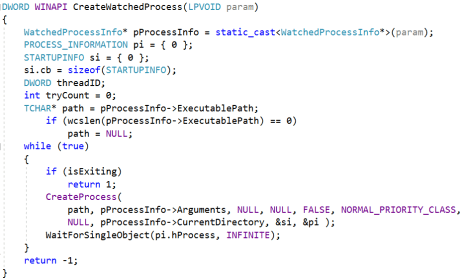
Most of the code within the CreateWatchedProcess function will run within an infinite loop. The process is created and information about it is populated into a PROCESS_INFORMATION variable (which I have named pi). The value of interest for the KAM is pi.hProcess. This is the process handle. The wait functions in the Win32 API can accept handles processes. In the case of WaitForSingleObject passing a process handle will block the calling thread until the process terminates. There is nothing that my program has to do for detecting the termination of the process. When the next line after WaitForSingleObject executes we know the process has been terminated. The only question is if it was terminated because there was a request for the KAM to shut down or if this were an unexpected .
How Did it Perform
In testing things worked fine. I’d intentionally put a bug in the program of interest that would cause it to crash and the KAM restarted it. The app I was using it with also remembered it’s state and could restore the UI to what it was before. From the perspective of the user the screen flashed but was otherwise normal. When I tried the same utility in the production environment I’m happy to say that its full functionality was not exercised; the program it was monitoring never crashed.
I’ve found the program to be useful and see some opportunities to increase it’s utility. I plan to make updates to it to support things such as starting processes in a specific order, monitoring the message pump of another process to detect lock conditions, and allowing the utility to accept or transmit process information over a network connection.
It’s 10:39 AM on January 4th, 2019 as I sit and begin typing this in the Buckhead area of Atlanta. Around the world, if other people were to read that (with appropriate language translations applied), there would be an overwhelming agreement as to how long ago that was. Such an agreement wasn’t always the case throughout human history. Throughout time humans kept different calendars and clocks in different civilizations. It hasn’t always been possible to take a statement like my first sentence and reach the same consensus on it that we do today.
My thoughts in this article are reflecting on the changes in time keeping methods throughout history and how they differ. They are related to a simple question that someone asked me: how do I know what time the sun will set. There are some other astronomy related programs that I plan to discuss in the future and will be referring back to this post when expanded information is needed on a topic.
Solar Days
Across human cultures, one concept of time measurement is derived from the apparent movement of the sun. This is a frequent and common celestial observation that is shared among humanity in most areas on the earth that are populated. Most of us regularly see the sun appear to rise above the horizon in one area of the sky and go back below the horizon in another. At areas close to the polar regions, depending on the time of the year, the sun might not go below the horizon, but instead travels in a circle around the observer (circumpolar movement). The same areas at other times of the year might not see the sun, but they still have the experience of being able to make the celestial observation.
From this observation humans have created the concepts of the day and the night and can communicate about past and future events in terms of the number of instances of this observation. The first division of this period is the instance in which the sun is above the horizon and the times in which it is below the horizon (day and night) and the instances at which it is making this transition (sunset, sunrise). There is also the instance at which the sun is at its apparent highest point in the sky; solar noon.
Hours
In East Asia a day was divided into 24 periods. During one of these divisions the starts of the night sky appear to move about the pole by 15 degrees. (Note: you can use the word “hour” to talk about 15-degree increments absent the concept of time). An even finer division of these periods is thought to have come from the Sumerians through the Babylonians. They had a counting system that instead of being base-10 was base-60. The Sexigesimal.
Mean Solar Day
If you measure the passage of time from one sun rise to another you’ll find that it isn’t the same every day and wobbles throughout the year. This is in part from the earth’s orbit around the sun being eliptical instead of circular and part from the 23 degree tilt of the earth with respect to it’s orbit around the sun. The longest period between sunrises is experienced about December 21 or December 22 (the winter solstice) and the shortest is at the summer solstice about June 20. As it turns out the apparent movement of the sun isn’t a great way by itself to keep track of time. But we can take the average (mean) of the length of these periods over a year and use that as a measurement of time. This is the time that our watches and other time pieces are based on; the mean solar day.
Sidereal Day
Celestial Sphere
Relative to each other the stars appear to not move. From one night to another they appear to be in fixed positions rotating around the earth. This is sometimes visualized as a rotating sphere on which lights are fixed known as the celestial sphere.
Solar observations are not consistent from day to day, but observations of the stars over a considerable period of time are consistent. your face towards the sun at noon on one day and then turned your face to the sun at noon at another day (let’s say 180 days later) you would not be facing in the same direction. If you turn your face towards a star on one night and then turn your face towards the same star on another day both days you are facing the same direction. movements with respect to the starts are sometimes described using a Latin word for stars, sidera. An adjective form of this word is sideral (prnounced sahy-deer-ee-uhl)
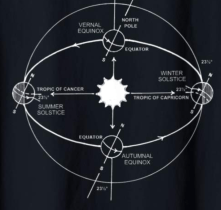
Temporary Graphic. To be replaced with SVG
Unlike the sun, the stars are in the same apparent position for every 360 degrees of the earths rotation (at least if we are talking about periods of time of a lifetime or less). The earth completes a rotation every 23 hours 56 minutes and 4 seconds. This period of time is called a Sidereal Day. But because a sidereal day is slightly shorter than a solar day on any given calendar date there are 3 minutes and 56 seconds of Sidereal time that occur twice within the same calendar day.
Sidereal time is especially useful in communicating celestial observations. Since sidereal time is related to the position of an observer a celestial observation that is communicated with a direction and a sidereal time can easily be interpreted as the same direction by someone else on the earth. With mean solar time more work is required to do such a conversion.
For Solar Meantime there’s a contemporary preference to using UTC (Universal Time ) instead of Greenwich Time. But since Sidereal time is relevant to a longitude any agreed-up sidereal timezone is inextricably connected to locations. So you will see Greenwich Sidereal Time communicated as one zone of sidereal time with there being a continuous number of Local Sidereal Times as one circumnavigates the earth. Sidereal times, like someone’s position, are continuous and not segmented into a discrete number of zones like solar mean times.
Local Time
In an era in which a considerable amount of time was needed to move from one populated region to another each area had it’s own local time. There could be variation in the agreed upon time from one region to another, but it didn’t matter much. Once faster forms of transportation became an option (in the form of trains) . It was necessary to coordinate actions in different areas in order to keep schedules.
Months
The second brightest object in the sky, the moon, is also a the inspiration for another time division that is commonly used. Like the stars over the course of 24 hours the moon appears to move with the rest of the celestial sphere. But the moon also appears to move along the celestial sphere. One cycle of the moon moving about the celestial sphere is called a sidereal month. This period last 27.32166 solar mean days. One can also measure the moon’s change in illumination cycles driven by the changing geometry of the positioning of the earth, sun, and moon. The time for this cycle is 29.53059 solar mean days. This period is called a synodic month. The moon goes through 12 complete cycles in a year in addition to a fraction of a cycle. Constructing months based on the whole number of moon cycles will result in a calendar that drifts around the calendar.
Weeks
The seven day week were followed by Judaism and Islam with one of the days being a day of rest. The Romans had an 8 day week with one of the days being for market day. But eventually roman astrologers assigned a wandering star (planet) to each day of the week. They named the days of the week after Saturn, the Sun, Moon, Mars, Mercury, Venus and Jupiter.
Progressive Web Apps (PWA) are HTML based applications that run as though they are desktop applications. Google Chrome received support for PWAs on Chrome OS in May with the release of Chrome 67. Linux and Windows received support in August with the release of Chrome 70. Support for Mac OS X is yet to come.
One of the first differences that stands out for PWAs is that they can run in their own application window and are indistinguishable from other applications running on a machine. That difference is largely visual. But the differences extend well beyond what is visible. Resources that are not usually available to an HTML page are available to a PWA such as access to Bluetooth, serial ports, UDP networking, and more. Chrome PWAs can be installed and have their own icon in your programs menu and function offline.
There are requirements that must be satisfied before an HTML page can be installed as a PWA. These are the conditions that must be met.
The page must be served over SSL/HTTPS.
The page must have a service worker with a fetch handler.
User engagement requirements must be met (interaction with the domain for at least 30 seconds).
A manifest must be present.
192px and 512px icons must be included.
Application must have a short name and long name.
The display mode must be specified.
start_url must be specified.
If all of these requirements are met Chrome will trigger a beforeinstallprompt event for the web page. Once this event is triggered your application can present the user with an install prompt. Depending on the Chrome version your application may be able to suppress this prompt and display it to the user later (allowing you to decide where in the interaction flow that the prompt shows up) or your app might not be allowed to suppress it.
I’ll make a minimilastic application that satisfies the requirements for being a PWA. The application that I’ll make will calculate sidereal time. Sidereal time is a time tracking system used by astronomers and is always expressed in 24 hour format. The usual system of tracking time was formed around trying to map the time of the day to the position of the sun (solar time, though it is far less than perfect). Sidereal time is based on the position of the stars relative to the observer. I will not talk much about the algorithm behind this calculation much here. I talked about calculating sidereal time in an application I had made for the now defunct Windows Phone 7; while that OS is no more the description I gave on how sidereal time works is still applicable.
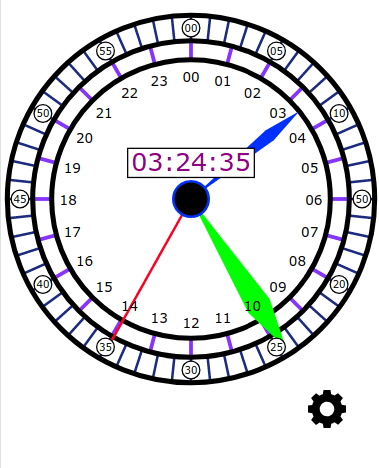
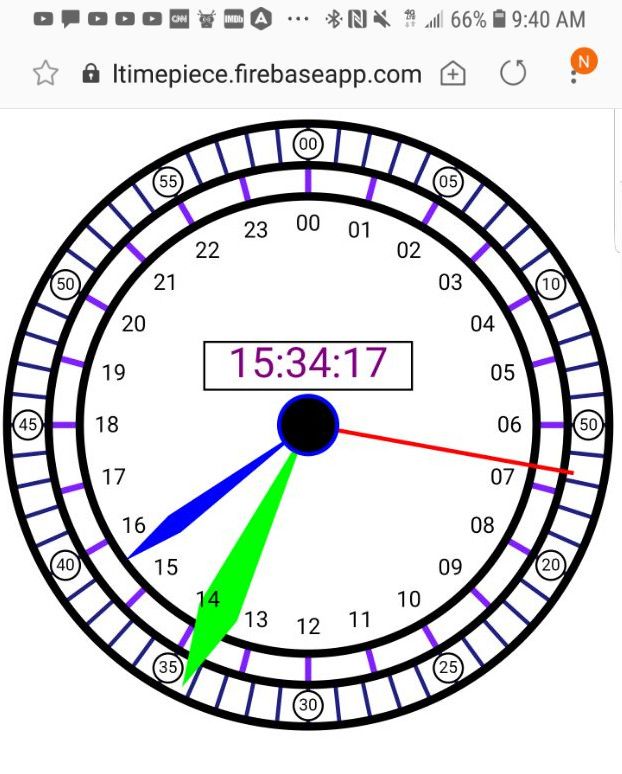
Using SVG I’ve made a simple 24 hour clock face. The clock face is really there for aesthetics. Chances are if you try to read the hands of the clock the hour hand will cause confusion since it’s position on a 24 hour clock will not meet expectations that have been formed from being able to read a 12 hour clock. The digital readout is the part that will actually give the information of interest. Every second the time is updated and the hands animate to their new position. There’s also a gear icon for opening the settings interface.
Satisfying the SSL/HTTP Requirement
A lot of the necessary features are only available if your application is being served over SSL. If you don’t see HTTPS in the address bar then these features simply will not work. To satisfy this requirement for now I’m using Google Firebase and the temporary URL that it has assigned to me. I don’t plan on keeping this URL forever, but at the time of this post you can play with the application over at https://siderealtimepiece.firebaseapp.com.
Satisfying Manifest Resources Requirements
The manifest for my application is in the root directory of the application. It is a JSON formatted file with information on where the program icons can be found, the starting URL, and the name of the application as it should appear on the user’s machine.
To satisfy the service worker requirement there’s a JavaScript file in the root of this application’s files named sw.js. The service worker works in the background behind the page. For this application we only want the service worker to do two things; respond to an install event by caching the required files locally and serve up those files when needed. The list of the files that are to be cached are in an array named urlsToCache. When the service worker response to the install event it will pass this list of URLs to a call of the addAll method on the cache object. The cache object will then download the resources at these URLs and save them locally where we can use them offline.
For the fetch event I’m using code from a Google recommendation. This handler will serve the contents from the cache when there is a cache hit and also add new files to the cache when a request is made for a file that isn’t already there.
self.addEventListener('fetch', function(event) {
    event.respondWith(
      caches.match(event.request)
        .then(function(response) {
          // Cache hit - return response
          if (response) {
            return response;
          }

          // IMPORTANT: Clone the request. A request is a stream and
          // can only be consumed once. Since we are consuming this
          // once by cache and once by the browser for fetch, we need
          // to clone the response.
          var fetchRequest = event.request.clone();

          return fetch(fetchRequest).then(
            function(response) {
              // Check if we received a valid response
              if(!response || response.status !== 200 || response.type !== 'basic') {
                return response;
              }

              // IMPORTANT: Clone the response. A response is a stream
              // and because we want the browser to consume the response
              // as well as the cache consuming the response, we need
              // to clone it so we have two streams.
              var responseToCache = response.clone();

              caches.open(CACHE_NAME)
                .then(function(cache) {
                  cache.put(event.request, responseToCache);
                });

              return response;
            }
          );
        })
      );
  });
This file must be registered as the service worker for it to be able to do anything. In one of the JavaScript files loaded by the page I check the navigator object to ensure there is a serviceWorker member (if there isn’t then the browser in which the code is running currently doesn’t support service workers). If it is there then the service worker can be registered with navigator.serviceWorker.register(path_to_service_worker).
If your code is running on a Chrome implementation that supports it you can defer the presentation of the installation prompt. In my case I’ve decided to defer it and make a button available in the settings UI. The variable installPrompt will hold the reference to the event object that when activated will present the user with the Chrome install UI. When the event is raised the variable is populated with the event object and the install button within my settings UI is made visible.
var installPrompt;


function beforeInstall(e) {
    console.log('beforeInstallPrompt()')
    e.preventDefault();
    installPrompt = e;
    $('.installUI').show();
}


window.addEventListener('beforeinstallprompt', beforeInstall);
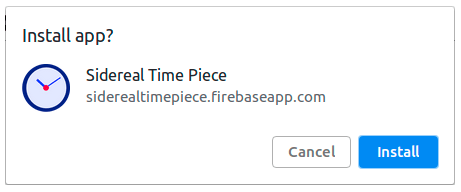
Testing the application on Chrome on Ubuntu Linux when I select my install button the Chrome install prompt shows.
The Install Prompt that shows on Google Chrome on a desktop
Program Launchers on the Desktop
On the desktop once installed the icon for the PWA shows up in the computer’s program launcher. It also shows up in the Chrome app list. When launched since this application was made to run in standalone mode the application runs in it’s own window with the OS appropriate buttons for going full screen, minimizing, and closing the window. My test application uses location services to acquire the longitude at which the sidereal time is being calculated. When run in a regular browser window I’m prompted each time I visit the page to give permission for location information. This gets a little annoying after a while. When the application is running in stand alone mode the application’s border shows an icon indicating that the location is being detected. Clicking on the icon gives the user the ability to change the location permissions for the application.
Samsung Internet Compatibility
Samsung Internet, the default browser for a long period on many Samsung phones, also supports PWAs. (Samsung Internet can also be installed on non-Samsung phones). Samsung Internet is a Chromium based browser and Samsung is one of the contributors to the Chromium project. It may come as no surprise that no code changes are necessary for this application to work on The UI it presents for installing PWAs is different than what Chrome presents. When Samsung Internet detects that a page can be installed as a PWA an icon is shown in the address bar that resembles a house with a plus in the center. Selecting it will add the icon to the home screen. The icon shows with a smaller image of the Samsung Internet icon indicating that it is a PWA. The beforeinstallprompt event will never be triggered. Since the presentation of the custom install button was driven by this event it simply will not show.
Adding iOS Compatibility
If you saw the original iPhone announcement back in 2007 Steve Jobs had announced that making apps for the iPhone could be done with HTML; at the time there was no SDK available to developers and if they wanted to target the iPhone they were making a web app that had an icon on the home screen. From 2007 to 2018 Apple didn’t do much to advance the platform. It wasn’t until March 2018 that Apple made significant updates to their support to HTML based applications. Apple added support for web manifest, and services workers, web assembly, and other features.
There’s not 100% parity between iOS and Android for available features in PWA. On iOS storage is limited to 50MB per app. On Android the application can request more storage. Android BWAs also have access to Bluetooth features, speech recognition, background sync, and other features. For my sample application none of these mentioned differences matter. While the Android implementations have UI notifications that let the user know that the app can be installed on iOS there’s no visual notification. To install the application the user must select the share option and add the page to their home screen.
Safari ignores most of the attributes of the manifest. It also doesn’t save state if the user leaves the application. So the developers must make their own implementation to save state as the user jumps in and out of the application. If you want a custom icon to show in Safari for your application Apple has a document on specifying the icon using the link tag. An icon can be specified like the following.
If you want to specify multiple icons and allow the phone to select the most appropriate one for the user’s resolution add a sizes attribute to the tag.
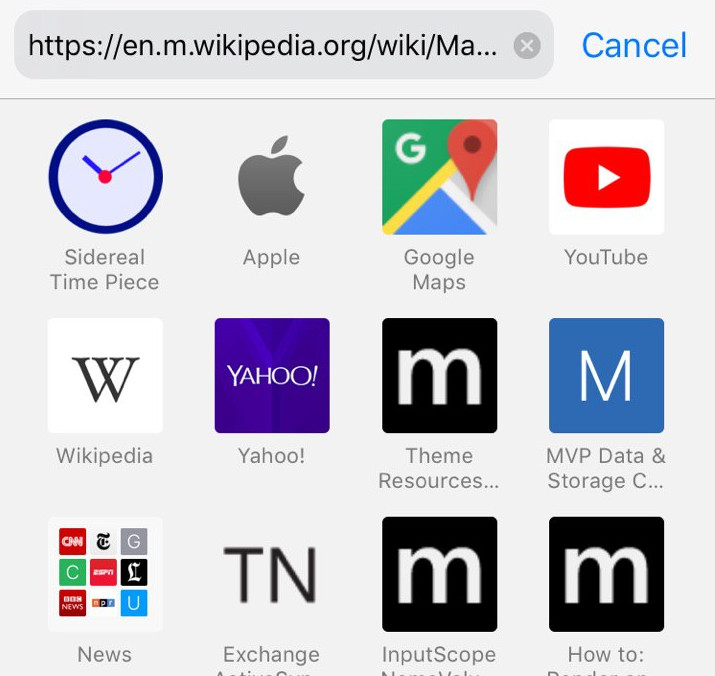
My clock icon for the program shows up in the iPhone favourites list as the following.
Offline Functionality
This application doesn’t need the internet for any functionality. It’s only inputs are the current local time and the user’s longitude. With the lack of need for any network resources and the service worker caching the required files for the application it will work just fine offline after it has been installed. If you make an application that requires network access you will want to give some thought to what to do when there is no data connection. Even if the application can’t do anything without a connection it would be better to show a friendly message than to just let the application not work.
An Alternative to the App Store
PWAs longtime might turn out to be a good alternative to app stores for some types of applications. Whether or not it is a good fit for the needs that you have will depend on the functionality that your applications require and what is available on the devices that you need to target. Apple appears to be behind on this front at the moment. But I hope that the attention that they’ve put on the platform this year to be indicative of future efforts. I’m personally am interested in what could be done when PWAs and WebAssembly are combined together. These are topics to which I hope to give a good bit of attention over the following months.
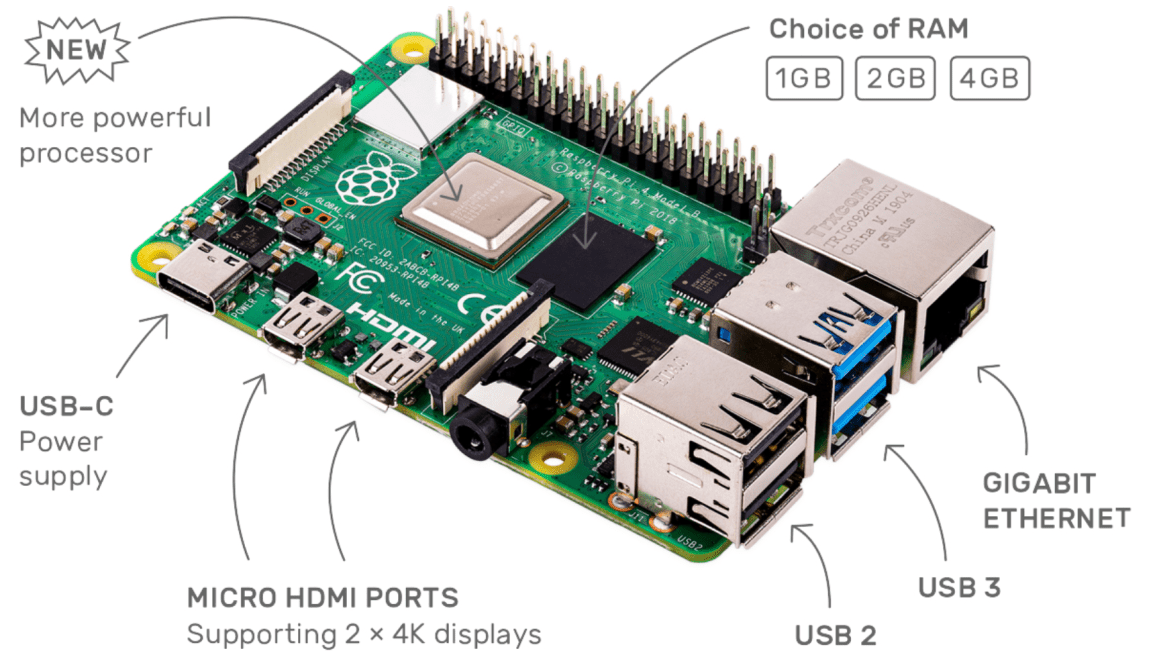
The fourth generation of the Raspberry Pi has been announced. Each generation of the Raspberry Pi is primarily identified by its specifications. (Not including the Raspberry Pi Compute module because it generally is not used by hobbyist). With the Raspberry Pi 4, this isn’t the case. There are three variations available. The new Raspberry Pi 4 comes with a 1.5 GHz ARM Cortex-A72 quad-core processor. With that processor the Raspberry Pi 4 can decode 4K video at 60 FPS or two 4K videos at 30 FPS. The amount of RAM available to the unit depends on the version. The smallest amount of RAM, 1 gig, is available for $35 USD. The next size, 2 gigs, can be purchased for $45 USD. The largest unit, 4 gigs, is $55 USD.
At first glance, the unit will be recognized as a Raspberry PI but a closer look at the ports will show some immediate differences. The Pi has converted from a micro-USB port to USB-C. The full sized HDMI port is gone and has been replaced with two micro-HDMI ports. The unit can drive two displays at once. A couple of the 4 USB ports have been upgraded to USB 3 while the other two are still USB 2. The wireless capabilities are upgraded to use USB 5.0 and dual-band 802.11ac Wi-Fi.
The unit is available for purchase from Raspberry Pi’s site now. A new case for the Pi 4 and a USB-C power supply of appropriate wattage are both available through the site as well.
I was writing some code to perform some celestial calculations. A lot of it handled changes in positions from certain rotations (orbits, revolutions). There are also instances where time is treated as a rotation (ex: 1 hour of rotation is 15 degrees). The best notation for the rotation depends on what is being done. Here are the rotation notations that might be used.
Radians
Degrees
Decimal Degrees
Degrees, Minutes, Seconds
Hours
Decimal Hours
Hours, Minutes, Seconds
Conversion from one to another is easy. What I did find challenging is ensuring that the right conversion had been performed before working with it. The trig functions expect to always receive radians. More than once I made the mistake of converting to the wrong unit before performing a calculation. Rather then continue forward on a path that has many opportunities for mistakes I made a single class to represent rotations that can be used in various scenarios. It will always internally represent rotations in degrees. If I want to explicitly convert the class to a specific type there are methods to explicitly convert to any of the other rotation types.
Instances of this custom type also can be assigned a preferred notation. This preferred notation is used when printing it to the output stream. This allows a preferred format to be assigned without risking making any conversion mistakes.
The interface for the class and the support class follows.
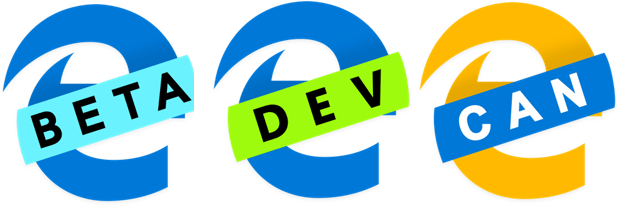
Microsoft had made an announcement some time ago stating that they were adopting Chromium as the foundation of the Edge browser. They are making more information available about their plans. A computer will be able to have up to 4 Edge. In addition to the general release version there will be a beta , development, and canary channel where canary is the most experimental channel.
Microsoft is going to make a web view control available. This is a feature I wish had been available a couple of years ago. I worked on a project in which it was necessary to insert a Chromium based web view and that required making modifications to the Chromium source. Compiling Chromium can take hours!
Microsoft Edge is the only browser that has achieved a 100% score in accessibility evaluation. Microsoft is planning to make contributions to Chromium which should help improve the scores of Chromium based browsers across the board. One example of a change coming from Microsoft is a media query for detecting when a user has turned on high contrast in either their computer or browser. The web developer can choose to change the appearance of a page accordingly.
Windows Biometric sign in is also going to be available to web sites (see navigator.credentials.get). This allows for a more secure way of logging in that doesn’t require a password. Edge also has a hardware backed feature named “Play Ready” that allows for secure playback of premium media.
The user agent-string for Edge Chromium will be Edg (that’s not a type, there is no E on the end). Note that the non-chromium version of edge uses the user token Edge instead. But it is recommended that instead of using the user agent string for enabling or disabling functionality in a web page it is better to use feature detection; new features are being added to browsers all the time and relying on the user agent alone can lead to a page not using a feature that was actually available within a browser. Edge gets supports for module import and much better much better speech synthesis.
When I’m travelling for work there are a number of items that I make sure are in my travel bag. These include a USB-C charger (almost all of my electronics can charge over USB-C now); a copy of any recent projects I’ve worked on (sometimes I need to hop in to help a team member); and a computer.
The operating system on that computer may vary. Sometimes I travel with a Windows machine, sometimes a Linux machine, and other times a Mac. Regardless of the operating system, I usually always have a Windows To Go drive.
The last item is something that is probably a little more obscure. Since Windows 8, there have been a special type of USB drives that are different in one aspect: they appear as a fixed drive to the computer, even though they are connected to a USB port. These drives were specifically made for making a portable Windows experience on a USB drive.
It is possible to make bootable Windows environments on other USB drive, but there are some differences. If you have a Windows ISO you can make a bootable Windows USB drive with a number of tools. I recommend using Rufus to make the drive. Though there are other options (including one that is a part of Windows Enterprise Edition), Rufus doesn’t care much about the drive properties. It will just write the data to the drive in a bootable format.
With any type of USB drive you’ll be able to boot up with little to no trouble and do initial setup on the drive. The difference will show up when you start installing programs. Some programs will only install to a fixed drive. Visual Studio is one such program. If you have a USB drive that isn’t Windows To Go certified, then chances are that it will appear as a removable drive to the computer. Visual Studio will not install to a removable drive.
With a non-certified drive it will generally refuse to install. If you know that the programs of interest to you don’t care about the drive type, there’s a couple of other reasons why you still may want to consider a Windows To Go certified drive. One is performance. There was a minimum performance requirement that these drives had to achieve as a part of their certification. However, now there are other solid state drives available that are much faster than the available Windows To Go drive (such as the Thunderbolt 3 only Samsung X5 drives). Another consideration is security. Some of the Windows To Go drives have hardware implemented encryption and include the option of voiding the contents of the drive under some conditions that you can define (such as the wrong password being entered at bootup too many times).
The best practice, if you plan to work with any sensitive data, is to not store it on a portable drive, if possible. But if you must, then encryption is an uncompromising need. Whether or not a Windows To Go drive is necessary for you may only be known after you review your needs.
One significant drawback of Windows To Go drives is you cannot perform a major Windows Update on it. The installation can receive Windows security updates though. When there is a major Windows Update if you want to install it, it’s necessary to format the entire drive and start from scratch.
For my needs, I have a Super Talent 128 GB USB 3.0 drive (for speed) and a Western Digital 500 GB mechanical drive (much slower, but I can work with larger projects using it). If you choose to do this with a certified drive, make sure you read the drive’s instructions, before you begin writing your Windows Image to it. Some drives come with their own software that must be used for making the image and if you start off formatting the drive then you’ve already destroyed the software that you need (and it may not be readily available for download from the company’s website).
If your project needs call for a Windows To Go certified drive, I’ve found 4 available on Amazon. Here are the links to them (affiliate links).
Signangelive is a platform for managing content on digital signage. It works on a variety of devices, including BrightSign, Chrome OS, LG webOS, Samsung Tizen TVs, and Windows. I recently used evaluated Signagelive for use with a BrightSign project.
One of the units of deployent on Signangelive is an HTML Widget. An HTML Widget is a zip file of HTML assets with a manifest and a .wgt file extension. Prior to now, the only place I’ve really seen Widgets used is on Samsung’s Tizen based platforms. The Samsung smart watches, TVs, and the Tizen powered phones support HTML applications through Widgets. The Widgets and other presentation items (such as videos, pictures, or other displayable elements) can be scheduled to run on a device and the platform will take care of the rest.
For the solution I am working on, I packaged it as a widget. The only additional file that I had to make to do this was a config.xml along with a PNG image to use as an icon. I updated the WGT into the signage live system, scheduled it, and sometime later the widget was running on the BrightSign. This deployment process would work great for a production environment, but it doesn’t work as well for development where you might want to make a quick change and refresh. I found two solutions for this.
IFRAME
One solution was to deploy an IFRAME whose address pointed back to my development machine. With this solution, if I want to make a quick change, I can make the change on my local file system and then refresh my view on the device. Refreshing the video on the device could be done by pressing the reset button, but that takes too long. If you have Chrome installed, you can connect to port 2999 of the BrightSign unit; connect to the browser instance; and then press the refresh menu option on your local browser. It results in the BrightSign refreshing too.
Remote File System Browsing
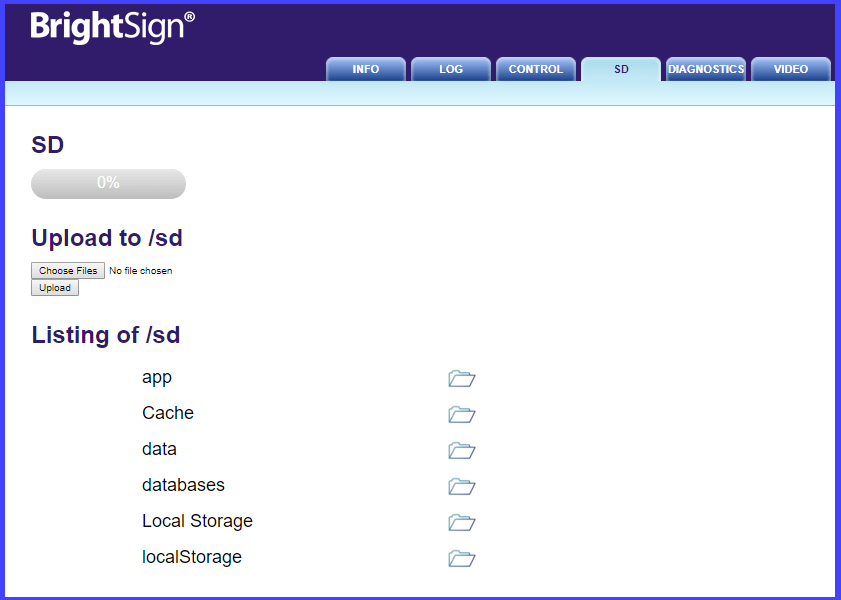
You can also upload files directly to the BrightSign. Connect to the BrightSign’s IP address (without the port specified). There’s a tab labeled “SD” (for the SD card). From there you can upload content to any place on the file system. After your files are copied, you can either reset the device (which in my opinion takes too long) or connect to the devices IP and refresh the view as described in the IFRAME section.
Accessing Node
I initially ran into another problem with running my code in a widget. I mentioned in another blog posts that BrightSign does not support the HTML5 APIs for persistent storage. The solution that I suggest for this is using NodeJS within BrightSign. Signagelive runs the code that was packaged inside of a widget in an IFRAME. As it turns out IFRAMES on BrightSign does not support NodeJS functionality, but that is easily overcome. The IFRAME that contains the widget has access to the parent window. The child window cannot call NodeJS functions directly, but it can grab a reference to its parent and invoke the parent’s NodeJS functionality. To minimize the difference between code run within and outside of the WGT and IFRAME we can coalesce the possible locations of a needed function. To get access to the required function, I used the following.
My attempts to access the file system would initially fail while hosted in Signagelive. To fix this it was necessary to modify AutoRun.brs. When the BrightSign version of Signagelive creates its HTML window (of type roHtmlWidget in BrightScript) it does not configure the window for file system access. To fix this the WebWindowHTML function in Autorun.brs needs a couple of items added, storage_path and storage_quota.
Function WebWindowHTML(index% as integer, url$ as string, RectX as integer, RectY as integer, RecWidth as integer, RecHeight as integer) as Object

	webRect=CreateObject("roRectangle", RectX, RectY, RecWidth, RecHeight)
    is = {
        port: 3000
    }
    webPageConfig = {
        nodejs_enabled: true,
        storage_path: "SD:"
        storage_quota: 1073741824
        inspector_server: is,
        brightsign_js_objects_enabled: false,
        javascript_enabled: true,
        mouse_enabled: true,
        scrollbar_enabled: false,
        storage_path: "SD:",
        storage_quota: 1073741824,
		port: m.msgPort,
        security_params: {
            websecurity: false,
            camera_enabled: true,
            insecure_https_enabled: false
        },
		url: url$
    }

    webhtmlWidget = CreateObject("roHtmlWidget", webRect, webPageConfig)
    webhtmlWidget.Show()

	return webhtmlWidget

End Function
I talked to an engineer at Signagelive about addressing this issue. I do not know how frequently Signagelive makes updates., but this change may appear in future versions of the software making it unnecessary. If you happen to read this close to the time that the post was made, the change might not have rolled out yet. You can make the change yourself but beware of a possible risk. There is a possibility that an update will be made and pushed out to your device that does not yet contain this change. If that happens you would want your code to fail gracefully instead of simply crashing.
While preparing for a full moon / blue moon, I was looking at an algorithm for calculating sidereal time and had a mini epiphany. The algorithm is basically an elaborate modulo operation. Modulo is generally applied to integer values, but it can be used with decimal numbers and even fractions.
For the algorithm that I have generally used, a lot of the calculations are only for converting the date to some linear expression of time. The calendar that is usually used does not express time linearly.
The amount of time from the beginning of one month to the beginning of another month could be 28 to 31 days. With linear representations of dates, a subtraction operation is all that is needed to know the amount of time between two moments in time.
In JavaScript, this linear representation of time is shown by calling getTime() on a date object. The time value for 2019 January 10 @16:40:20 UTC is 1547138420000. This value is the number of milliseconds since another date and time. This time and date is also 00:00:00 Sidereal time. The number of milliseconds in a sidereal day (23 hours 56 minutes 4.1 seconds) is 86164100. For any date after 2019-01-10T16:40:20 we could get the Sidereal time by doing the following:
Acquire the getTime() value for the date in question.
Subtract 1547138420000 from that value.
Get the modulo 86164100 for the resulting value.
Multiply the result by 24/86164100.
The result of these operations is the sidereal time in decimal. If you want to convert it to hour:minute:second format do the following:
var hour = Math.floor(result);
var minute = (result % 1) * 60;
var second = (minute % 1) * 60;
minute = Math.floor(minute)