In previous posts on the NVIDIA Jetson posts I’ve talked about getting the device setup and some additional accessories that you may want to have. The OS image for the NVIDIA Jetson already contains a compiler and other development software. Technically someone can start developing with the OS image as it is when it ships. But it is not desirable to develop this way.
There may be some things that you prefer to do on your primary computer and you’d like to be able to control the Jetson from your primary machine. The OS image for the Jetson already has SSH enabled. If you are using a Windows machine and net an SSH client I suggest using PuTTY for Windows. It’s a great SSH client and also works as a telnet or serial console when needed. It’s available from https://www.putty.org/.
When Putty is opened by default it is ready to connect to a device over SSH. You only need to enter the IP address to start the connection. Once connected enter your account name and password and you’ll have an active terminal available. For copying files over SSHFTP I use WinSCP (available from https://winscp.net/).
For development on the device I’ve chose Visual Studio Code as my IDE. Yes, it runs on ARMs too. There are a number of guides available on how to get Visual Studio Code recompiled and installed for an ARMS system. The one that I used is available from code.headmelted.com. In a nutshell I followed two steps; I entered a super user session with the command
su -s
Then I ran the following (which downloads a script from the head melted site and runs it).
The script only takes a few moments to run. After it’s done you are ready to start development either directly on the board or from another machine.
To make sure that everything works let’s make our first program with the Jetson Nano. This is a “Hello World” program; it is not going to do anything substantial. Let’s also use make to compile the program. make will take care of seeing what needs to be built and issuing the necessary commands. Here it’s use is going to be trivial. But I think starting with simple use of it will give an opportunity for those that are new to it to get oriented with it. Type the following code and save it as helloworld.cu
#include
__global__ void cuda_hello()
{
printf("Hello World from GPU!\n");
}
using namespace std;
int main()
{
cout << "Hello world!" << endl;
cuda_hello<<>>();
return 0;
}
We also need to make a new file named makefile. The following couple of lines will say that if there is no file named helloworld (or if the file is out of date based on the date stamp on helloworld.cu) the to compile it using the command /usr/local/cuda/bin/nvcc helloworld.cu -o helloworld
Note that there should be a tab on the second line, not a space.
Save this in the same folder as helloworld.cs.
Type make and press enter to build the program. If you type it again nothing will happen. That’s because make sees that the source file hasn’t changed since the executable was build.
Now type ./helloworld and see the program run.
Congratulations, you have a working build environment. Now that we can compile code it’s time to move to something less trivial. In an upcoming post I’ll talk about what CUDA is and how you can use it for calculations with high parallelism.
Samsung has announced that Linux on Dex is coming to more devices. Previously it was only available on non-LTE models of the Galaxy Tab S4 and on the Galaxy Note 9. Per an email that Samsung sent on Monday support is coming to the Android Pie builds of the S9, S9+, S10e, S10+, Tab S4, and Tab S5e.
Based on interaction with others (and also being my own personal story) there are owners of the TAB S4 that haven’t yet received Linux on Dex support that wait with anticipation for support to come. I’ve not been able to confirm compatibility yet as the Pie build of Android isn’t yet available for my device. The Linux on Dex page had previously stated that none of the LTE Tab S4 models were supported. The page now only states that the Verizon LTE tablets are not supported. I hope that this means that support for my device is coming. For now the only option is to wait.
Update (2019-April 30): Today I received the Android Pie update for the Galaxy Tab S4. It does indeed have support for Linux on Dex (finally!).
I had made a video posted to YouTube about the Jetson Nano and the additional items that I purchased for it. This is a complete list of those items and some extras (such as memory cards of some other sizes).
I pre-ordered the NVIDIA Jetson Nano and had the opportunity to have my first experiences with it this week. For those that are considering the Nano I give you the gift of my hindsight so that you can have a smoother experience when you get started. My experience wasn’t bad by any measure. But there were some accessories that I would have ordered at the same time as the Jetson so that I would have everything that I needed at the start. I’ve also made a YouTube video covering this same information. You can view it here.
How does the Nano Compare to Other Jetson Devices?
The Jetson line of devices from NVIDIA can be compared across several dimensions. But where the Jetson Nano stands out is the price. It is priced at about 100 USD making it affordable to hobbiest. Compare this to the Jetson TK1 which is available for about 500 USD or the Jetson Xaviar available for about 1,200 USD. Another dimension of interest is the number of CUDA cores that the units have. CUDA cores are hardware units used for parallel execution.
In addition to the cores the other Jetson kits have support for other interfaces, such as SATA for adding hard drives or a CAN bus for interfacing with automotive systems. For someone getting started with experimentation the Jetson Nano is a good start.
What is In the Box?
Not much. You’ll find the unit, a small paper with the URL of the getting started page, and a cardboard cutout used for supporting the card on the case.
Most of the things on that list you might already have. For an SD card get one at least 8 gigs or larger.
Power Supply
A power supply! It uses a 5 volt power supply like what is used in a phone. Well, kind of. Don’t expect for any of your 5V power supplies to work. I found the hard way that many power supplies don’t deliver the amount of current that is needed. Even if the power supply is capable a USB cable might not allow the needed amount of current to pass. If this happens the device will just cut off. There’s no warning, no error message, nothing. It just cuts off. I only came to realize what was going on after I used a USB power meter on the device. I used a power meter for USB-A, but the board already has contacts for using a USB-C port. Depending on when you get your board it may have a USB-C port on it (possibly, speculatively).
A Raspberry Pi camera will work. But I used a Microsoft LifeCam. There are a number of off-the-shelf webcams that work. You’ll only need a camera if you plan on performing visual processing. If your going to be processing something non-visual or if your visual data is coming from a stream (file, network location) then of course this won’t be necessary.
WiFi
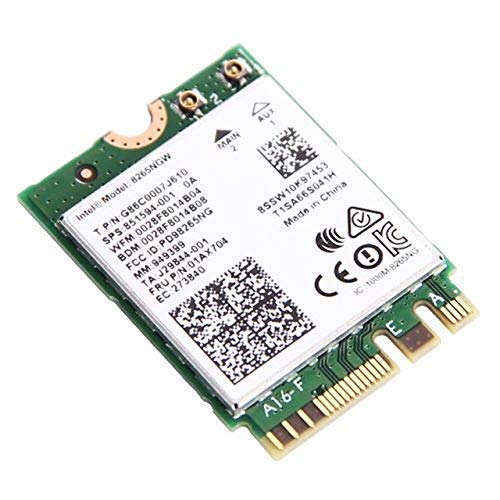
You have two options for WiFi. One option is a USB WiFi dongle. There are a number of them that are compatible with Linux that will also work here. I am using the Edimax EW-7811UN. After being connected to one of the USB ports it just works. Another solution is to install a WiFi card into the M.2 adapter. It might not be apparent at first, but there is a M.2 slot on the case. I chose to use this solution. Like the USB solution there’s not much to be done here; inserting the WiFi adapter into the slot, securing it is most of the work. Note that you’ll also need to connect antennas to the wireless card.
Operating System Image
The instructions for writing a new operating system image are almost identical to that of a Raspberry Pi. The difference is the URL from which the OS image is downloaded. Otherwise you download an image, write it to an SD card, and insert it into the Nano. Everything else will be done on first boot. You’ll want to have a keyboard connected to the device so that you can respond to prompts. When everything is done you’ll have an ARMs build of Ubuntu installed.
For writing the OS image I used balenaEtcher. It is available for OS X and Linux. The usage is simple; select an OS image, select a target drive/memory device, and then let it start writing to the card. The process takes a few minutes. But once it is done put the SD card in the Jetson Nano’s memory card slot.
Case Options
A case may be one of the last things that you need. But if you seriously have interest in having the Jetson Nano I suggest ordering the case at the start. There are no off-the-shelf cases available for purchase for the Nano. But there are a few 3D printable plans for the Jetson Nano. I’ve come across three and have settled on one.
The case is a bit thick, but it isn’t lacking for ventilation. The case height accommodates a fan. While the design doesn’t include any holes for mounting antennas for WiFi drilling them is easy enough.
The NanoBox will envelope the Jetson leaving the heat sink almost flush with the case. I’d suggest this one if you plan don’t plan to use a fan on the Jetson. If you ever change your mind and decide that you want to have a fan it can be added. But it will be on the outside of the case.
There’s not much to say about this case. It fully envelopes the Jetson Nano. But I’ve got questions about the cooling effectiveness of this case.
It’s Assembled and Boots Up. Now What?
Once the Jetson is up and running the next thing to do is to setup a development environment. There is a lot of overlap between targeting the Jetson series and targeting a PC that has an NVIDIA GPU. What I write on this will be applicable to either except for when I state otherwise.
There are 4 main units in the BrightSign product line (there are a few others available for hardware integrators, but I’m ignoring these for now and am only looking that the units in their own cases).
LS Line
The LS line of the bright sign players is compact. It is idea when working with a single HD stream at up to 60 frames per second. It also offers a single USB port for connecting to other peripherals.
The HD line can decode a single 4K video stream. With the HD line of players a GPIO port is also added to allowing additional hardware to be connected to the player for other forms of interaction.
These are the most capable Brightsign units, able to decode two 4K video streams at once. Some of the units in this family also feature an HDMI in allowing them to mix in video from another source with content. These units have 2 USB ports (USB-A and USB-C). They can also be powered via PoE.
If you’ve installed Visual Studio 2019 and are trying to work with CUDA there are a couple of problems that you’ll encounter. The first is going to be an error that you receiving when trying to opan any CUDA project about missing properties. This is from the CUDA installer placing some of the files in the wrong place. It places the files based on what was in Visual Studio 2019 Preview. It was only recently that the full release of 2019 was made available (and for the full release theses files need to go into a different place). To work around that see this post for where to move the missing files to.
Once that is resolved the next problem is that the CUDA project templates are missing. An NVidia representative in the NVidia developer forums acknowledged the problem and says a fix will come in an upcoming release. Until then the current solution is to grab an existing CUDA project and rename it. If you need an existing CUDA project you can find them in the folder for the NVidia CUDA samples or download one from here:
If you try to install the nVidia CUDA SDK and plan to use Visual Studio 2019 there’s an additional manual step that you’ll need to take. The installer available for the current version of CUDA (10.1) doesn’t specifically target the recently released Visual Studio 2019, but it will mostly work with it. I say “mostly” because after installing it you’ll find that the CUDA related project templates are missing and you can’t open the sample projects.
Fixing this is as simple as copying a few files. Copying everything from the following folder
BrightSign Media Players work with a number of content management systems. With a content management system, you can upload a BrightSign presentation as an asset and it will be distributed to the the units out in the field automatically.
Recently, I was investigating what the options are for other persistent storage. The assets to be managed were not a full presentation, but were a few files that were going to be consumed by a presentation. As expected, the solution needed to be tolerant to a connection being dropped at any moment. If an updated asset were to be partially downloaded, the expected behavior would be that the BrightSign continues with the last set of good assets that it had until a complete new set could be completely downloaded.
The first thing that I looked into was whether the BrightSign units supported service workers. If they did, this would be a good area to place an implementation that would check for new content and initiate a download. I also wanted to know what storage options were supported. I considered indexedDB, localStorage, and caches. The most direct way of checking for support was to make an HTML project that would check if the relevant objects were available on the window object. I placed a few fields on an HTML page and wrote a few lines of JavaScript code to place the results in the HTML page.
Things looked good, at first. Then, I checked the network request. While inspection of the objects suggests that the service worker functionality is supported, the call to register a service worker script did not result in the script downloading and executing. There was no attempt made to access it at all. This means that service worker functionality is not available. Bummer.
Usually, I’ve used the cache object from a service worker script. The use of it there was invisible to the other code that was running in the application. But with the unavailability of the service worker the code for the presentation will show more awareness of the object. Not quite what I would like, but I know know that is one of the restrictions in which I must operate.
The Caches object is usually used by a service worker. But the object can be used by the window, while it is defined as a part of the service worker spec, there’s no requirement that it be only used by it.
The next thing worth trying was to manually cache something and see if it could be retrieved.
This doesn’t actually do anything with the cache yet. I just wanted to make sure I could retrieve a cache object. I ran this locally and it ran just fine. I tried again, running it on the BrightSign player, and got an unexpected result, window.caches is non-null, and I can call window.caches.open and get a callback. The problem is that the callback always receives a null object. It appears that the cache object isn’t actually supported. It is possible that I made a mistake. To check on this, I posted a message in the BrightSign forum and moved on to trying the next storage option, localStorage.
The localStorage option didn’t give me the results that I expected on the BrightSign. For the test I made a function that would keep what I hoped to be a persistent count of how many times it ran.
function localStorageTest() {
if(!window.localStorage) {
console.log('local storage is not supported' );
return;
}
var result = localStorage.getItem('bootCount0') || 0;
console.log('old local storage value is ', result);
result = Number.parseInt( result) + 1;
localStorage.setItem('bootCount0', result);
result = localStorage.getItem('bootCount0', null)
console.log('new local storage value is ', result);
}
When I first ran this, things ran as expected. My updated counts were saving to localStorage. So I tried rebooting. Instead of saving, the count reset to zero. On the BrightSign, localStorage had a behavior exactly like sessionStorage.
Based on these results, it appears that persistent storage isn’t available using the HTML APIS. That doesn’t mean that it is impossible to save content to persistent storage. The solution to this problem involves NodeJS. I’ll share more information about how Node works on BrightSign in my next post. It’s different than how one would usually use it.
Of the many HTML capable clients that I’ve worked with, among them is an interesting family of devices called BrightSign Media Players (made by Roku). One of the things that they do exceptionally well is playing videos. They support a variety of codecs for that job and it’s easy to have them go from one video to another in response to a network signal, a switch being pressed, or a touch on the screen. I’m using the XT1143 and XT1144 models for my test.
For simple video-only projects, the free tool BrightAuthor works well. But the scenarios that this is best fit for seem to be scenarios with relatively low amounts of navigation complexity. For projects with higher amounts of navigational complexity or projects that require more complex logic in general, an HTML based project may be a better choice.
After working on a number of HTML projects for BrightSign, I’ve discovered some of the boundaries of what can and can’t be done to have a different shape than on some other platforms. I have seen that there are some things that while taxing to other devices, work well on the BrightSign players; and other things that don’t work so well on BrightSign that will work fine on other players.
The BrightSign HTML rendering engine in devices with recent firmware is based on Chromium.
BrightSign Firmware Version
Rendering Engine
4.7-5.1
Webkit
6.0-6.1
Chromium 37
6.2-7.1
Chromium 45
8.0 (not released yet)
Chromium 65
You can encounter some quirky rendering behaviour if you are on a device with an older firmware version. At the time that I’m writing this the 8.0 firmware isn’t actually available (coming soon). I’ve found that while the device can render SVG, if I try to animate SVG objects, then performance can suffer greatly. It is also only possible to have no more than two media items playing at a time (audio or video). If an attempt is made to play more than two items, then the third item will be queued and will not begin to play until the previous two complete playing.
Rather than spend a lot of time developing and testing something in Chrome before deploying it to a BrightSign, it is better if you start off testing your code on the BrightSign as soon as possible. The normal deployment process for code that is to run from the BrightSign is to copy a set of files to an HTML card, insert it into the BrightSign, reboot it, and wait a minute or two for the device to start up and render your content.
Compared to something being tested locally ,where you can just hit a refresh button to see how it renders, this process is way too long. A better alternative, if your development machine and BrightSign are on the same network and sub-net is to make a BrightSign presentation that contains an HTML widget that points back to your development machine. You’ll need to have a web server up and running on your machine and use the URL for the page of interest in the BrightSign presentation. You will also want to make sure that you have enabled HTML debugging. This is necessary for quick refreshes of the page.
When the BrightSign boots up, if everything is properly configured you should see your webpage show up. You’ve got access to all of the BrightSign specific objects even though the page is being served from another page. You can inspect the elements of the page or debug the JavaScript by opening a Chrome browser on your development machine and browsing to the IP address of the BrightSign, port 2999. Note that only one browser tab instance can be debugging the code running on the BrightSign.
The interface that you see here is identical to what you would see in the Chrome Developer Console when debugging locally. If you make a change to the HTML, refreshing the page is simply a matter of pressing [CTRL]+[R] from the development window. This will invoke a refresh on the BrightSign too.
I’ll be working on a BrightSign project over the course of the next few weeks and will be documenting some of the other good-to-know things and things that do or don’t work well on the devices.
I ran into this error when I was trying to use the same shader across different environments; it worked in most environments but was giving me problems in WebGL on Chrome 72. The source of the problem was that my environments were using different versions of GLSL. In some environments I needed to use the texture() function. In some others I needed to use the texture2D() function. To keep compatibility across both environments I added a simple define at the beginning of my script.
I was having a discussion about some recent articles from a few blogs. The articles were speaking of what they labeled as holograms. But some of the articles didn’t actually have anything to do with holography despite their stated subjects. The question came up “What is a hologram.” I think the answer to that question can be better understood by contrasting it against photography and a brief presentation of the differences of the principals of the two technologies.
Development of Photography and Optics
As with many technologies the contributions that led to photography were developed by incremental discovers and developments over a long period of time. Principals of photography were developed well before those of holography. One of the earliest devices related to photography was the camera obscura (Latin, camera meaning chamber or room, obscura meaning dark). When we think of cameras now we typically don’t think of rooms in a building. The usage of many words change over time and our usage of the word camera today evolved from this usage. A camera obscura can refer to a room or a box with light blocked off except for a single hole through which light is allowed to enter. An upside down image of the scene outside the room is projected on the wall to the opposite of the hole. The earliest known writings that mention such a device are found in the writings of the philosopher Mozi. Mozi asserted from the camera obscura that light travels in a straight line. His followers developed an optic theory based on this.
Image Credits: Wikipedia
There had been two prevailing theories of how vision worked. The emissions theory of vision hypothesized that the eyes emitted something and that we were able to see these emissions had to collide with the object being perceived. It was supported by people such as Ptolemy and Euclid The intromission theory of vision (supported by Aristotle) hypothesized that physical forms of the object were entering one’s eye. Around 1011 – 1020 C.E. the “Book of Optics” was written by Alhazen. His was that from an illuminated object light of different colors would travel from the object in every direction. Thought experiments with lenses and mirrors he developed a more complete theory on how light travels. He could not answer the question of how that light formed an image on an eye. Kerplar addressed the question of how images form. Kerplar also saw the human mind as playing an active role in the perception of images.
It had already been known that exposure to light would change the color of certain substances. During the year 1727 in German Johann Heinrich Schulze published the results of experiments that showed that the darkening of silver salts was due to exposure to light. The first person to capture images with through such a process was Thomas Wedgwood. But his images were less than permanent as they would fade with further exposure to light. It wasn’t until 1826 that Joseph Nicéphore was able to create the first permanent image. He used a camera obscura with a eight hour exposure time through a process he called heliography (Greek, helio from sun and -graphy from writing/message. Joseph Nicéphore partnered with Louis-Jacques-Mande Daguerre to improve the process and carried on with the work on improving the contrast after Nicéphore’s death. Henry Fox Talbot had independently developed a process for fixing silver salts only to find that Daguerre had accomplished this before him. Nevertheless he sent a paper to the Royal Institution titled “Some Account of the Art of Photogenic Drawing.” In his process a negative image was captured and that negative image was later copied to a positive image. By contrast for the daguerreotypes direct images were created. The images from daguerreotypes were sharper, but the production of the negative for Talbot’s two step process allowed unlimited positive images to be produced from the negative. The first daguerreotypes camera was produced in 1839.
Image Credits: Wikipedia
With the process improvements instead of an exposure that lasted for hours in a dark room exposures took minutes for a portable box. Instead of a shutter a lens cap was removed from the front of the device. As film became more sensitive exposure times were reduced from minutes to seconds. A mechanical shutter was added to better control exposure times. In 1885 George Eastman started producing paper film. By 1889 he changed to using celluloid film. Eastman decided to sell cameras at a loss expecting to make money back from the sales of film. The first camera was called the “Kodak.” In 1975 Kodak engineer Steven Sassonmade a camera with an electronic sensor. The images were captured at a resolution of 0.1 megapixel. He also combined the sensor with parts from a movie camera to save series of images to a cassette tape that could be viewed on a TV monitor. Twenty five years later flash memory started to replace the use of film and magnetic.
Beginning of 3D Imaging
The same year that the first daguerreotype camera was produced Sir Charles Wheatstone invented the reflecting mirror stereoscope. He used mirrors at 45-degrees to to the viewer’s eyes so that each eye would see a slightly different drawing. Through binocular depth perception the two images were experienced by the person as a single three dimensional scene.
Image Credits: Wikimedia
The same year David Brewster created a simple stereoscope crediting the idea to a teacher of mathematics named Elliot that is said to have come up with the idea in 1823. Brewster improved upon the stereoscope concept with the lenticular (lens based ) stereoscope (also known as the Brewster Stereoscopes). Taking the design to France improvements were made on the stereoscope by Jules Duboscq with the creation of the stereoscopic daguerreotypes. In 1861 Oliver Wendell Holmes made a verion of the stereoscope that was easier to produce. Patend in 1939 was the View-Master Stereoscope. In 1950 a device titled the “Sensorama” was created designed to present stereoscopic motion pictures, smells, feelings, and sound. About the same time Douglas Engelbart (inventor of the mouse) was experimenting with using screens as input and output devices. In 1968 the first system that would be describe in modern terminology as “augmented reality” was created by Ivan Sutherland and Bob Sproull. It was heavy and the headset had to be suspended from the ceiling. The graphics it displayed were wire frames.
View Master Image Credits:Wikimedia
Holmes Stereoscope Image Credits: Wikimedia
Development of Holograms
The development of holograms occurred much more recently in history. In 1947 Dennis Gabor developed holographic theory. His efforts were to improve the quality of images from electron microscopes. In electron holography a subject is placed in a diverging electron beam (This would be a good place to talk about Quantum coherence, or it may be bad to talk about it at all).. Electrons that are scattered by the object and electrons undisturbed by the object both strike a detector and create an interference pattern with each other. An image of the object is constructed by this interference pattern. Holograms made with light didn’t occur at the time in part because of the properties of available light sources. Many light sources emit light that falls across a spectrum of wavelengths (colors) and are not a single pure color. It wasn’t until 1960 that such a light source became available through the work of N. Bassov and A. Prokhorov, and Charles Towns with the development of the laser. Light emitted from a laser has two important properties that are vital to making holograms. The light is monochromatic (a single pure color) and the light is coherent. One might wonder if single color light is needed why not add a color filter to a light bulb. Most light filters will reduce but not necessarily completely eliminate the other wavelengths of light. It’s also not coherent. (note: LED lighting achieves being monochromatic without being coherent).
Components of original Ruby Laser. Image credits Wikimedia.
One process for producing light holograms is similar to that of electron holography. Instead of using a detector being hit with undisturbed and scattered electrons a detector is hit with undisturbed and scattered particles of light (photons). The detector is a holographic plate. Because slight movement of the subject being holographed, the light source and optics, or the holographic plate would change the interference pattern it’s necessary for all of these parts to be absolutely still when the “image” is being made. After the exposure of the holographic plate it can be fixed/developed so that further exposure to light won’t damage recording.
Looking at an object through a hologram is like looking at an object through a window. If you took a hologram and broke it in half it doesn’t prevent you from being able to see the hologram. It’s analogous to reducing the size of the window through which could look by painting over part of it. While you can still see outside the number of angles from which you can view the scene is reduced. If you move your head to the left or right your perspective of the objects holographed will change which contributes to the perception of depth. Each observer of a hologram will see it from her own perspective. Each eye having it’s own perspective provides the stereoscopic depth queue.
Is it Really a Hologram
Returning to the discussion that inspired this entire post, when I was commenting on an article I was surprised that the article that mentioned holograms in it’s title was actually about holograms. Most articles I’ve come across mentioning holograms are not about holograms. What about the Hololens? It is described as being “the first fully untethered, holographic computer, enabling you to interact with high‑definition holograms in your world.” Are these really holograms? No, they are not holograms in the same sense as the word is used in holography. Computer based systems are full of terms and names that have been borrowed from other items and concepts. We often use these terms without thinking much about them. An audio streaming application isn’t really a radio. The root graphical interface on my computer isn’t really a desktop. There’s a long tradition of adopting terms as a metaphor. After those terms are used long enough they they come to denote the item for which they have been used. Internet radio isn’t radio, but it may have some of the experience of using a radio. The root graphical interface of some computers has been called the “Desktop” for 34 years at the time that I”m writing this. Similarly the images viewed through the Hololens are not from holography. But there are elements of the experience of viewing a hologram that one has with the Hololens. If you move your head from left to right the perspective of the object changes. There are several perceptual depth queues experiences including the images being stereoscopic, parallax, and perspective transformations of the object represented. The use of the word seems to communicate well what to expect from the experience; the presence of an image with depth.
As a developer, there are some problems for which I get enjoyment out of solving. There are some problems for which JavaScript had not been my tool of choice because of its limits on precision of the Number type. That is no longer the case with the JavaScript type BigInt. The number of bytes used to store a BigInt scales with the magnitude of the number. On some browsers the following JavaScript code will show a difference between Number and BigInt. The value in the BigInt variable increases as one would naturally expect it to. The value in the Number variable will stay the same.
var myBigInt = BigInt(Number.MAX_SAFE_INTEGER);
var myBigResult;
console.log('BigInt value ', myBigInt);
myBigResult = myBigInt * 4n;
console.log('BigInt value * 4 = ', myBigResult);
var myNumber = Number.MAX_SAFE_INTEGER-0.9;
var myResult;
console.log('Number value ', myNumber);
myResult = myNumber *4 ;
console.log('Number value * 4 = ', myNumber);
The output for the above was as follows:
BigInt value 9007199254740991n
BigInt value * 4 = 36028797018963964n
Number value 9007199254740990
Number value * 4 = 9007199254740990
For any operation that involves values that are beyond the maximum safe integer value, the resulting value could be wrong. It is also possible to have values that appear identical when printed as a sting, but are unequal to each other when compared. BigInt literals are expressed as an integer number suffixed with a lowercase ‘n’. If you use the typeof operator on a BigInt the string 'bigint‘ is returned.
While there are no additional floating number types that offer high precision, BigInt can be used for some types of calculations. For example, if you needed a big decimal value for money calculations you could use BigInt and have your presentation of the results take into account that the number type is not storing a decimal position. For example, if the result of a calculation were 1234 when printing the number it could be converted to a string and a period could be inserted into the right position producing the string 12.34 to the user.
This is the second part of a two-part post. The first part can be found here.
At the end of the first part, I had gotten discovery of the bridge implemented and had performed the pairing of the bridge. In this part, I will show you how to create a query for the state of the light groups and control them.
Querying Group State
I’m only allowing the modification of the state of groups of lights on the Hue. First I need to query the bridge for what states exist. The list of groups and the state of the group are available at `http://${this.ipAddress}/${this.userName}/groups`. Here the data in this.userName is the user name that was returned from the Hue bridge in the pairing process. With this information I am able to create a new UI element for each group found. I only show groups of type “room” from this response. It is also possible that the user has grouped an arbitrary set of lights together in a group. I don’t show these.
var hueDB = (function () {
var db = {};
var datastore = null;
var version = 1;
db.open = function (callback) {
var request = indexedDB.open('hueDB', version);
request.onupgradeneeded = function (e) {
var db = e.target.result;
e.target.transaction.onerror = db.onerror;
var store = db.createObjectStore('bridge', { keyPath: 'bridgeID' });
};
request.onsuccess = function (e) {
datastore = e.target.result;
callback();
};
};
db.getBridgeList = function () {
return new Promise((resolve, reject) => {
var transaction = datastore.transaction(['bridge'], 'readonly');
transaction.onerror = function (e) {
reject(e.error);
};
transaction.oncomplete = function (e) {
console.log('transaction complete');
};
var objStore = transaction.objectStore('bridge');
objStore.getAll().onsuccess = function (e) {
console.log('bridge retrieval complete');
resolve(e.target.result);
};
var bridgeList = [];
});
};
db.addBridge = function (bridge) {
console.log('adding bridge ', bridge);
return new Promise((resolve, reject) => {
var transaction = datastore.transaction(['bridge'], 'readwrite');
transaction.onerror = function (e) {
reject(e.error);
};
transaction.onsuccess = function (e) {
console.log('item added');
};
var objStore = transaction.objectStore('bridge');
var objectStoreRequest = objStore.add(bridge);
objectStoreRequest.onsuccess = function (e) {
resolve();
};
});
};
return db;
})();
Changing the State of a Light Group Attributes
There are several elements of a light group’s state that can be modified. I’m only considering two: the brightness of the light group and whether or not the group of lights is turned on. Both can be set with a PUT request to the bridge at the the URL http://${this.ipAddress}/${this.userName}/groups/${id}/action`. This endpoint accepts a JSON payload. Turning a group of lights on or off; changing the brightness; activating a scene to change the color; and many other options can be changed through this end point. It is not necessary to specify all of the possible attributes when calling this endpoint. If an attribute is not specified it will remain at its current state. I have made a method named setGroupState that will be used by all other methods that make use of this endpoint. The methods will differ in the payloads that they build and pass to this method.
Of the many attributes that could be packaged in the payload are bri and on. The on state sets whether or not the lights are turned on. The bri attribute accepts a value in the range of 0 to 254. Note that a value of 0 doesn’t mean off. Zero is the value level assigned to the lowest level of illumination above off that the light will provide.
Activating Scenes
Scenes, or a collection of settings that applies to lights, can by associated with a predefined light group or with some arbitrary group of lights. The Hue API labels scenes as either LightScene or GroupScene accordingly. I am only working with groups scenes. A list of all of the scenes defined on the bridge is retrievable through the the endpoint http://${this.ipAddress}/api/${this.userName}/scenes.
The object returned is a dictionary of the scene IDs and the attributes. The scene ID is a string of what appears to be random characters. It’s not user friendly and should only be used internally by the code and never presented to the user. Here is a response showing only two scenes.
To activate a scene on a group I use the same endpoint that is used for turning light groups on and off or setting their brightness level. The JSON payload will have a single element named scene whose value is one of the cryptic looking scene identifiers above.
activateScene(sceneID) {
var scene;
if(sceneID in this.sceneList) {
var scene = this.sceneList[sceneID];
var group = scene.group;
var req = {scene:sceneID};
return this.setGroupState(group,req );
}
}
Application Startup
To hide some of the events that occur at startup the application has a splash screen. The splash screen is only momentarily present. During the time that it is momentarily shown the application will attempt to reconnect to the last bridge that it had connected to and will query for the available groups and scenes. This is just enough of a distraction to hide the time taken to do this additional setup.
The Application Splash Screen
Installing and Running the Application
If you have downloaded the source code to your local drive, you can add the program to Chrome as an unpacked extension. In a browser instance open the URL chrome://extensions. In the upper-left corner of this UI is a button labeled Load Unpacked. Select this option.
UI for loading unpacked Chrome extensions
You will be prompted to select a folder. Navigate to the folder where you have unpacked the source code and select it. After selecting it you will see the application in the list of installed extensions.
The application will now show up in the Chrome app launcher. This may be exposed through the regular app launcher that is part of your operating system (such as the Program menu on Windows) and will also appear in Chrome itself. Close to the address bar is a button labeled “Apps.”
The application in the Chrome app launcher
Completing the Application
As I mentioned in the opening, this is not meant to be a complete application. It is only an operational starting point, creating something that is functional enough to start testing different functions in the Hue API.
I will close with mentioning some other potential improvements. For a user running the application for the first time the setup process might be smoothed out by automatically trying to pair with the first bridge seen (if there is only one bridge seen) and prompting the user to press the link button. This makes the setup process a two step process: start the application and press the link button on the bridge. There could also be other people that are operating the Hue lighting at the same time that this application is running. Periodically polling the state of the lights and light groups on the network and updating the UI accordingly would improve usability. A user may also want to control individual lights within a group or have control over the light color. For this a light selection UI would also need to be developed.
It took me about an evening to get this far in the development and it was something enjoyable to do during a brief pause between projects. As such projects go, I’m not sure when I’ll get a change to return to it. But I hope that in it’s current form that it will be of utility to you.
If you’ve received the error message “input parameter ‘xxxx’ missing semantics” in a shader the cause of the error is a missing piece of information on one of your parameters or structures. Here is an example of a shader that will produce that error.
Screenshot of Chrome application for controlling Hue lighting.
Continuing from the post I made on SSDP discovery with Chrome, I’m making an application that will do more than just discovery. For this post I’m going to show the starting point of a Chrome application for controlling your home Hue lighting. I’ve divided this into two parts. In this first part I’m showing the process of pairing with the bridge. In the second part I’ll control the lights.
The features that this application will implement will include bridge discovery and pairing; the power state of the light; and the brightness level of the light. There’s many other features that could still be implemented. Given the full range of capabilities that the Hue kits support (changing color, timers, response to motion sensors, etc.) this will not be an application that utilizes the full capability of the Hue lighting sets.
Chrome Only
This application is designed to only run in Chrome. If you want to adapt it to run outside of Chrome, you can do so by first disabling SSDP discovery. (Other HTML application platforms might not support UDP for discovery.)
The other discovery methods (querying Hue’s discovery web service or asking the user to enter the IP address) can still work. A non-chrome target will also need to allow CORS to be ignored and allow communication without SSL.
What is Hue Lighting?
Hue Lighting is an automated lighting solution made by Philips. Generally the lighting kits are sold in a package that contains three LED based light bulbs and a bridge. The bridge is a device that connects to your home network with an Ethernet jack and communicates with the light bulbs.
Philips also makes free applications for iOS and Android for controlling the lights. For any Hue light the light’s brightness and whether or not it is turned on can be controlled through the applications. Some lights also allow the color temperature to be changed (adjusting the tint between red, yellow and blue). Some lights support RGB (Red, Green, Blue) parameters so that their colors can be changed. These settings can be individually adjusted or settings for a collection of the lights can be defined together as a “scene.” When a scene is activated the state of all of the lights that make up the scene are updated. Scenes can be activated through special light switches, through an app, through a schedule, or in response to a Hue motion sensor detecting motion.
Discovery: Review and New Methods
The central piece of hardware for the Hue lighting is the Hue Bridge. At the time of this writing there are two versions of the bridge. For the functionality that this application will utilize, the differences between the two bridges will not matter. The messaging and interaction to both versions of the bridge will be the same. My UI will properly represent the bridge that the system discovers. The first version of the Hue Bridge is round. The second version of the Hue Bridge is square. In either case we must first find the bridge’s IP address before we can begin interaction.
Phillips Hue Bridge Version 1 (left) and Version 2 (right)
The Hue bridge can be discovered in multiple ways. It can be discovered using SSDP. The basics of SSDP discovery were previously discussed here. Please refer back to it if you need more detail than what is found in this brief overview. Devices that support SSDP discovery join a multicast group on the network that they are connected to. These devices generally wait for a request for discovery to be received. An SSDP request is sent as an HTTP over UDP message and every SSDP device that receives it responds with some basic information about itself and a URL to where more information on the device can be found. Examples of some devices that support SSDP are network attached storage; set top boxes like Android TVs and Rokus; printers; and home automation kits.
Two other methods of discovering a bridge include asking the user to enter an IP address and asking for a list of IP addresses of bridges on your network through the Hue discovery service. If you have a Hue bridge connected to your network right now you can see it’s IP address by visiting https://discovery.meethue.com/ . If you are on a shared network then you may also see IP addresses of other bridges on your network. It is also possible that not all bridges on your network are reachable. This method is much easier to implement than SSDP based discovery. But on a network for which there is no Internet connection (whether by design or from an outage) this method will not work. The SSDP method is only dependent on the local network.
function discoverBridge() {
discovredHueBridgeList = [];
fetch(' https://discovery.meethue.com')
.then(response => response.json())
.then(function (hueBridgeList) {
console.info(hueBridgeList);
hueBridgeList.forEach((item)=> {
// each item processed here has a bridge IP address
// and serial number exposed through item.id and
// item.internalipaddress
}
);
}
Once I have a bridge IP address I attempt to query it for more information. If communication succeeds, then I show a representation of the bridge with an icon that matches the version of the bridge that the user has. The UI layout has two images ( one named hueBridgev1 and the other hueBridgev2) I show the appropriate image and hide the other.
Pairing
Now that the bridges have been discovered, it is up to the user to select one with which to pair. After the user selects a bridge, she is instructed to press the pairing button on the bridge. While this instruction is displayed the application is repeatedly attempting to request a new user ID name from the bridge. This should be viewed more as an access token. The Hue documentation uses the term “user name” but the actual value is what appears to be a random sequence of characters. To request a user name a JSON payload with one member named devicetype is posted to the bridge. The value assigned to devicetype matters little. It is recommended that it be a string that is unique to your application. The payload is posted to http://%5Byour bridge IP address]/api. A failure response will result. This is expected. The application must repeatedly make this request and prompt the user to press the link button on the bridge. The request will fail until the pairing button on the bridge is passed.
function pairBridge(ipAddress) {
console.info('attempting pairing with address ', ipAddress);
var req = { devicetype: "hue.j2i.net#browser" };
var reqStr = JSON.stringify(req);
var tryCount = 0;
return new Promise(function(resolve, reject) {
var tryInterval = setInterval(function () {
console.log('attempt ', tryCount);
++tryCount;
if (tryCount > 60) {
clearInterval(tryInterval);
reject();
return;
}
fetch(`http://${ipAddress}/api`, {
method: "POST",
headers: {
"Content-Type": "application/json"
},
body: reqStr
})
.then(function(response) {
console.log('text:',response);
return response.json();
})
.then(function(data) {
console.log(data);
if (data.length > 0) {
var success = data[0].success;
var error = data[0].error;
if (success) {
console.log('username:', success.username);
var bridge = {
ipAddress: ipAddress,
username: success.username
};
clearInterval(tryInterval);
resolve(bridge);
return;
}
else if (error) {
if (error.type === 101) {
console.log('the user has not pressed the link button');
}
}
}
});
}, 2000);
});
}
Once the button is pressed the bridge will respond to the first pairing request it receives with a user name that the application can use. This user name must be saved and used for calls to most of the functionality that is present in the bridge. I save the bridge’s serial number, IP address, and the name that must be used for the various API calls to an indexedDB object store. The access information for multiple paired bridges could be stored in the object store at once. But the application will only be able to communicate with one bridge at a time.